Reassign Driving time between co-drivers
Last updated 3 months ago
Overview
When two drivers operate the same vehicle as a team, the ELD records Driving time against whoever is set as the active driver. If the wrong driver was active, that time lands on the wrong RODS — distorting HOS clocks and creating inaccurate logs for both drivers.
Reassigning the event moves it to the correct driver, so each log reflects who was actually behind the wheel. FMCSA permits this under 49 CFR Part 395, Appendix A, §4.3.2.8.2(b)(2).
Note
This feature is currently available only in the Driver App. Reassignment cannot be initiated from the Fleet Portal.
Before you start
For a driving event to be eligible for reassignment:
A co-driver must have been logged in alongside you at the time the Driving event was recorded
The event must be a Driving event auto-recorded by ELD.
How to reassign a driving event
Open the Driver App and tap Logs in the bottom menu and select the day on which the event occurred.
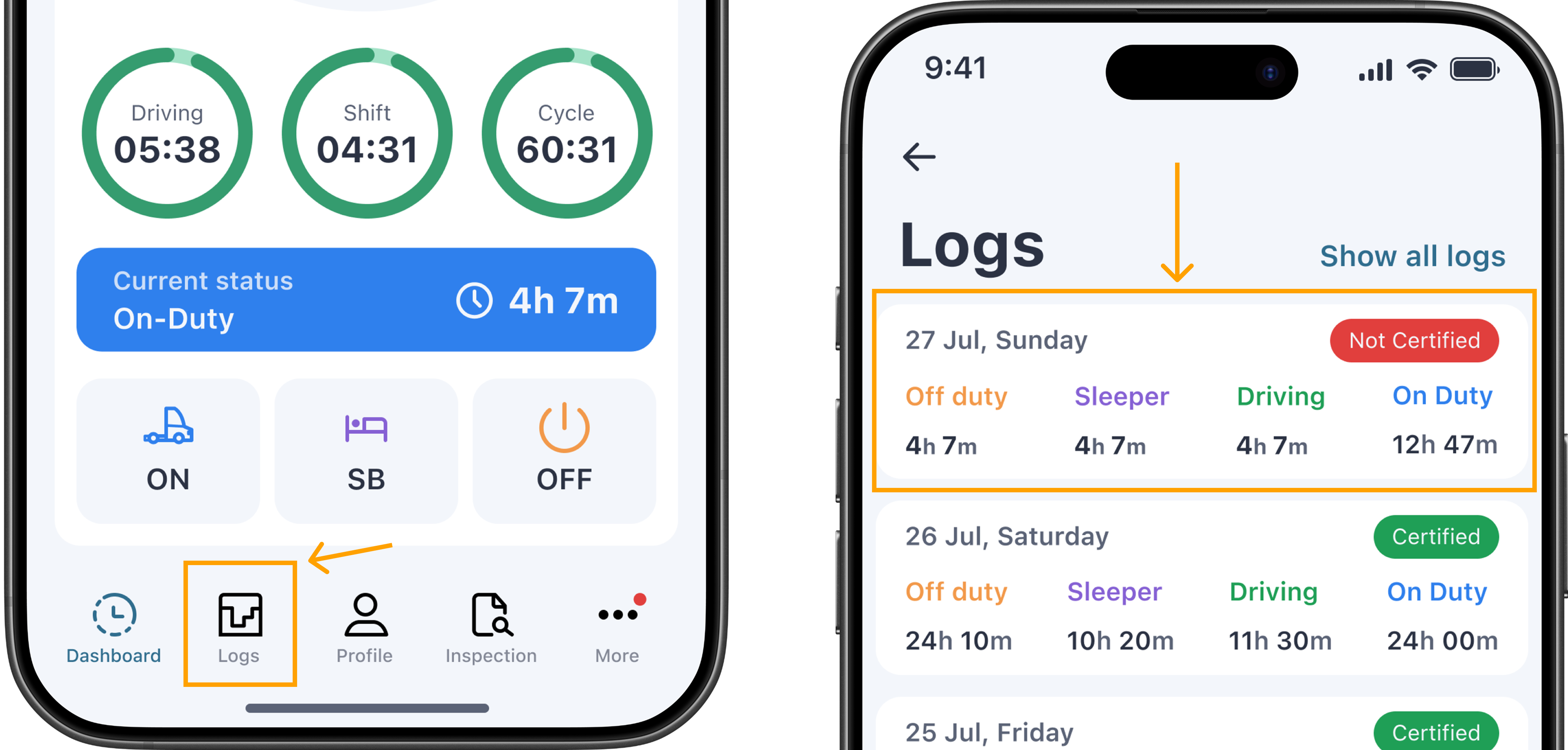
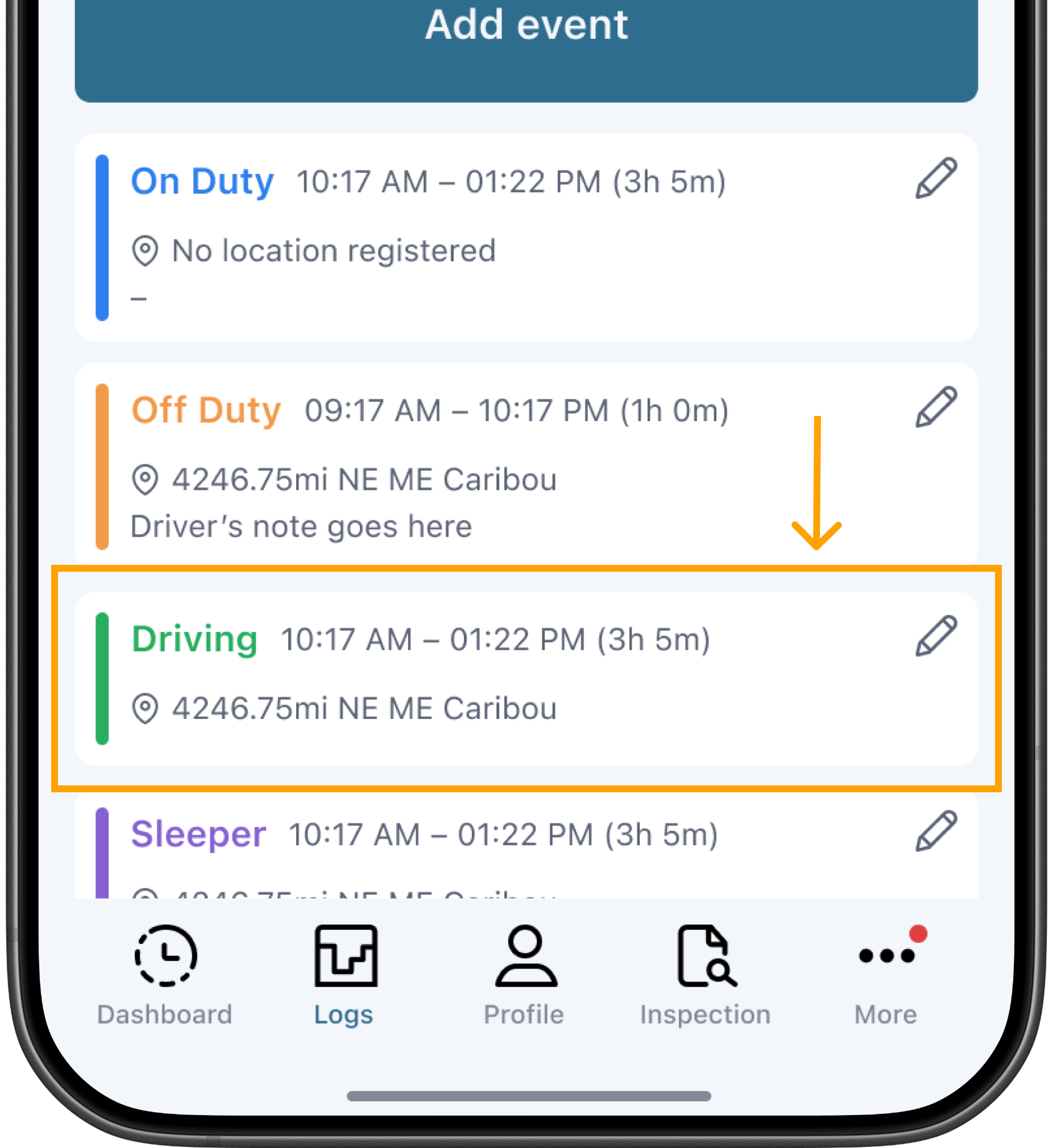
Tap the Driving event you want to reassign.
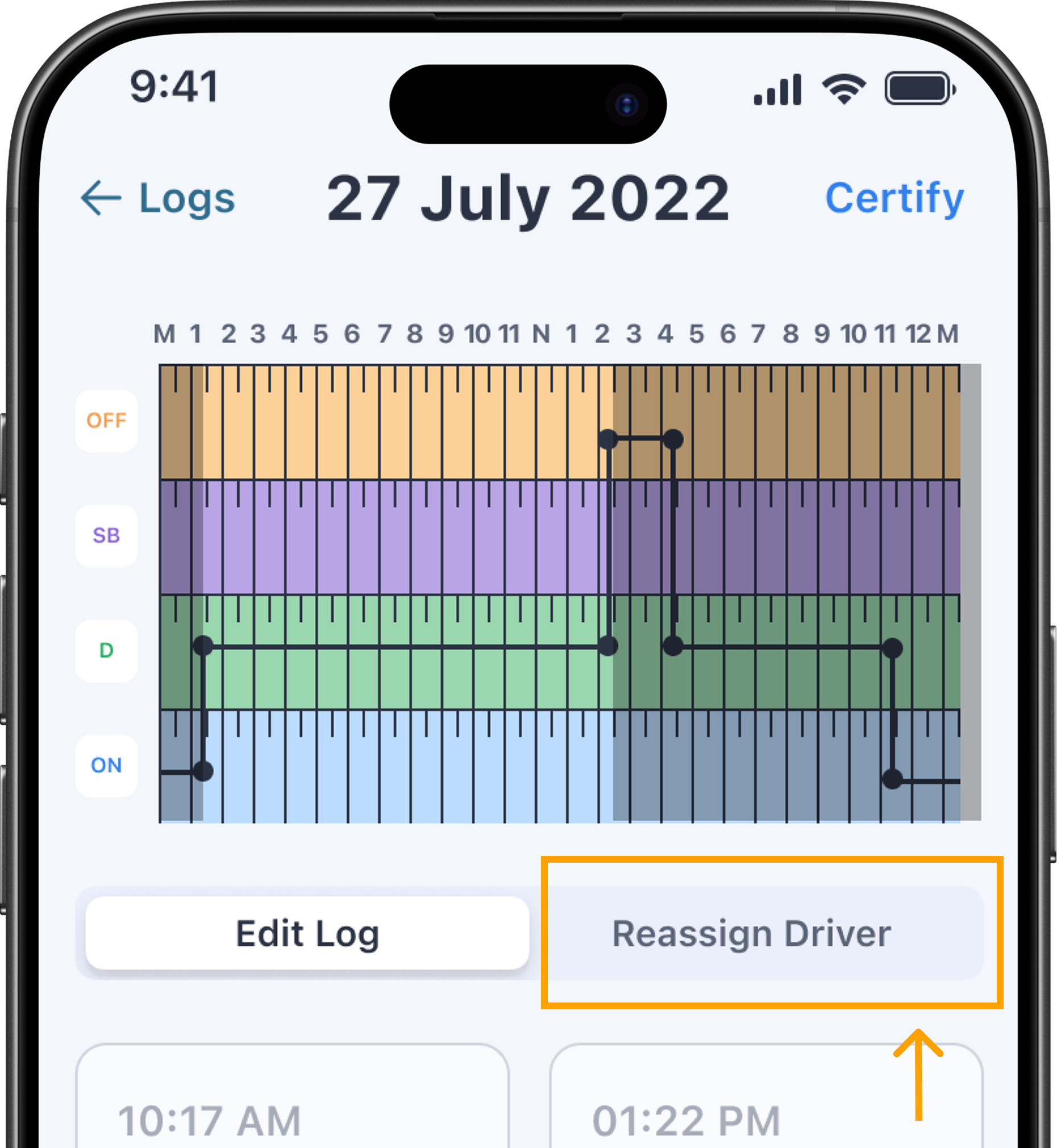
On the event details screen, tap Reassign driver.
Tap Reassign to co-driver.
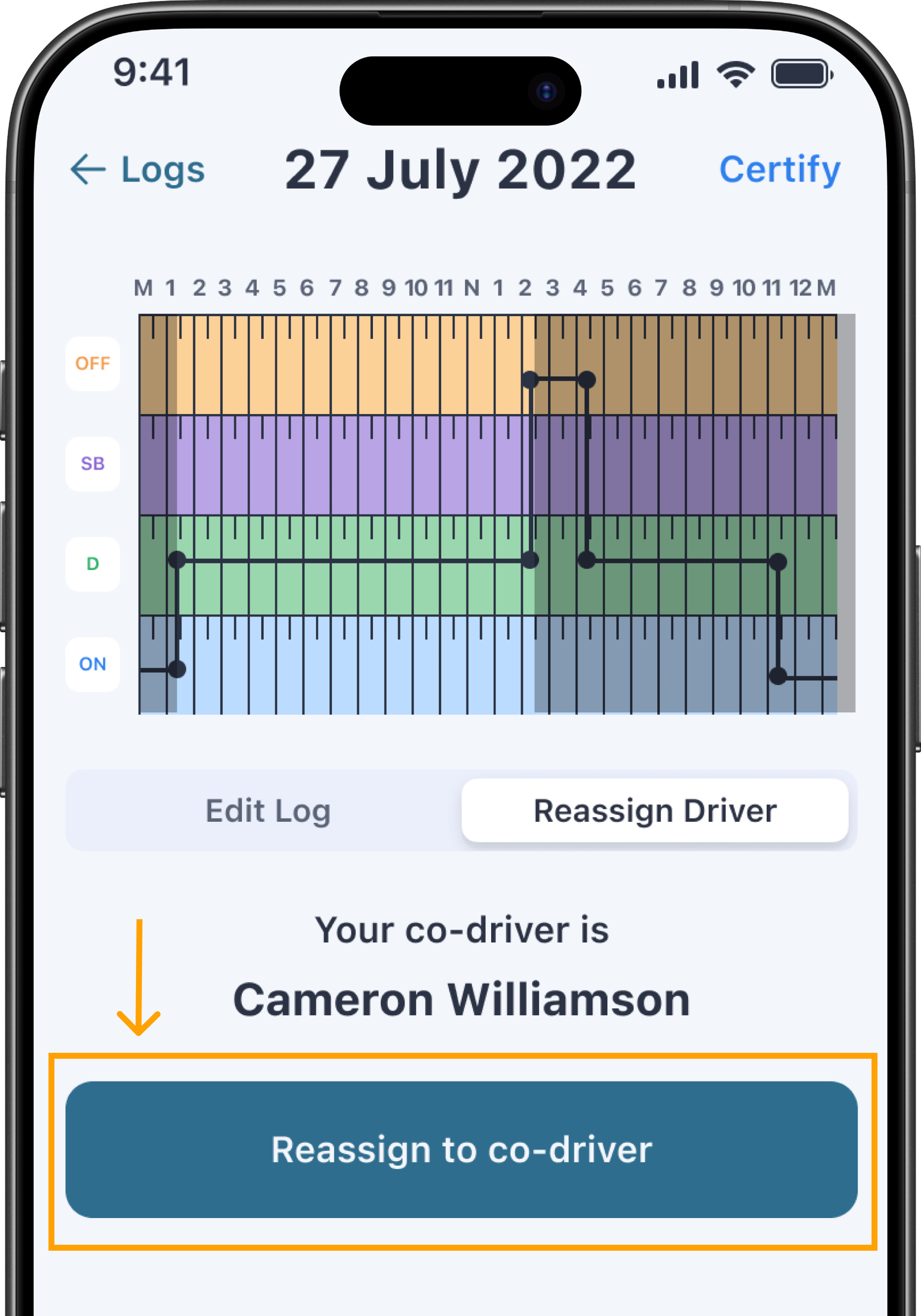
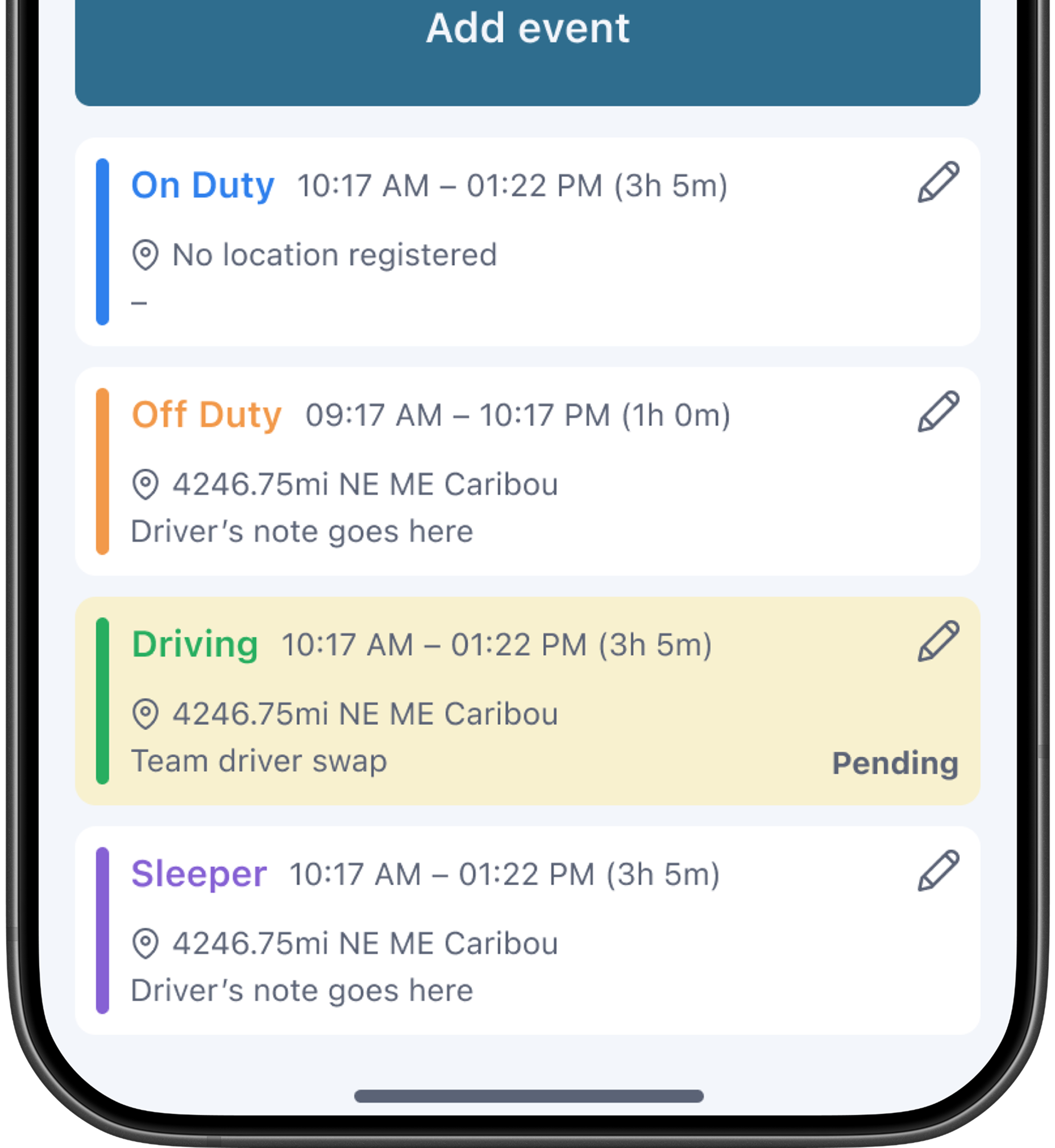
The event is now marked as Pending. You can cancel the request at any time by reopening the event and choosing to cancel.
Co-driver approval
Your co-driver receives a notification asking to approve or reject the request.
If the co-driver rejects the request, the proposed edit is canceled and no change is made to either log.
If the co-driver approves, the event is moved from your log to your co-driver's log. On your logbook, the event is transformed to On Duty with “Team Driver Swap” annotation.
After approval, both drivers must re-certify the affected day on their daily log.
Note
While a reassignment request is pending, the affected day(s) are locked on both drivers' logs in the Fleet Portal. Fleet managers cannot propose edits to either driver's affected day until the request is approved, rejected, or canceled.