04/ Install and connect the ELD device
Last updated 3 months ago
Overview
To use Route One ELD, you need two things: the ELD hardware device installed in your truck, and the Driver App on your phone or tablet. The hardware plugs into your truck's diagnostic port and feeds engine data to the app — it's not your phone, it stays in the vehicle.
Route One ELD is compatible with two hardware devices: IOSIX and PT30. Don't have an ELD device yet? Shop now
Install the hardware
Locate the diagnostic port. The diagnostic port (OBD-II / J-Bus) is located inside the vehicle's cabin. Common locations include:
Under the left side of the dashboard
Under the steering wheel column
Near or under the driver's seat
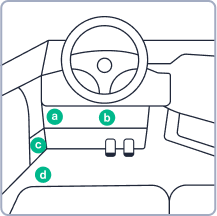
Plug in the hardware in the diagnostic port. Insert the ELD into the diagnostic port until it locks into place.
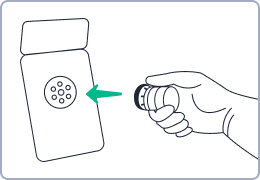
Make sure it's fully seated. A loose connection can cause engine sync failures, which will appear as a malfunction in the Driver App and may affect HOS records.
Once plugged in, the ELD will begin syncing with the vehicle's Engine Control Module (ECM). Use the LED indicators to confirm its status.
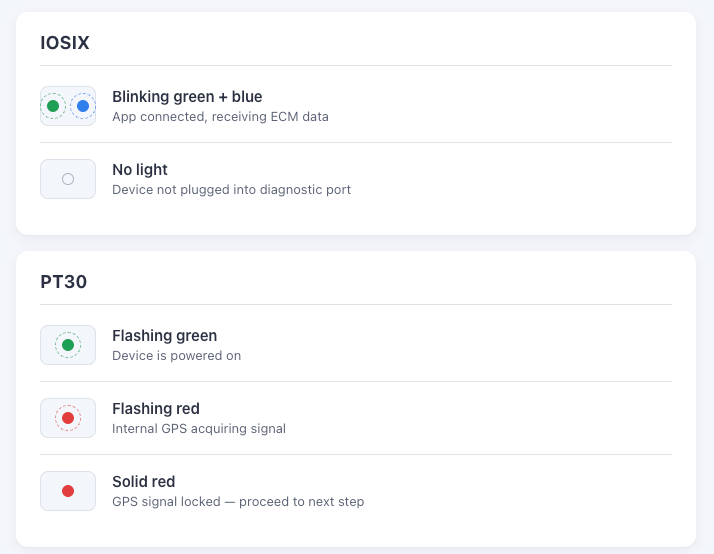
Connect the ELD device in the Driver App
Once hardware is installed and showing a ready status, the driver connects to it from the Driver App.
Open the Route One ELD app and log in.
Turn the key to the "on" position without starting the engine.
Select your vehicle from the list on the home screen.
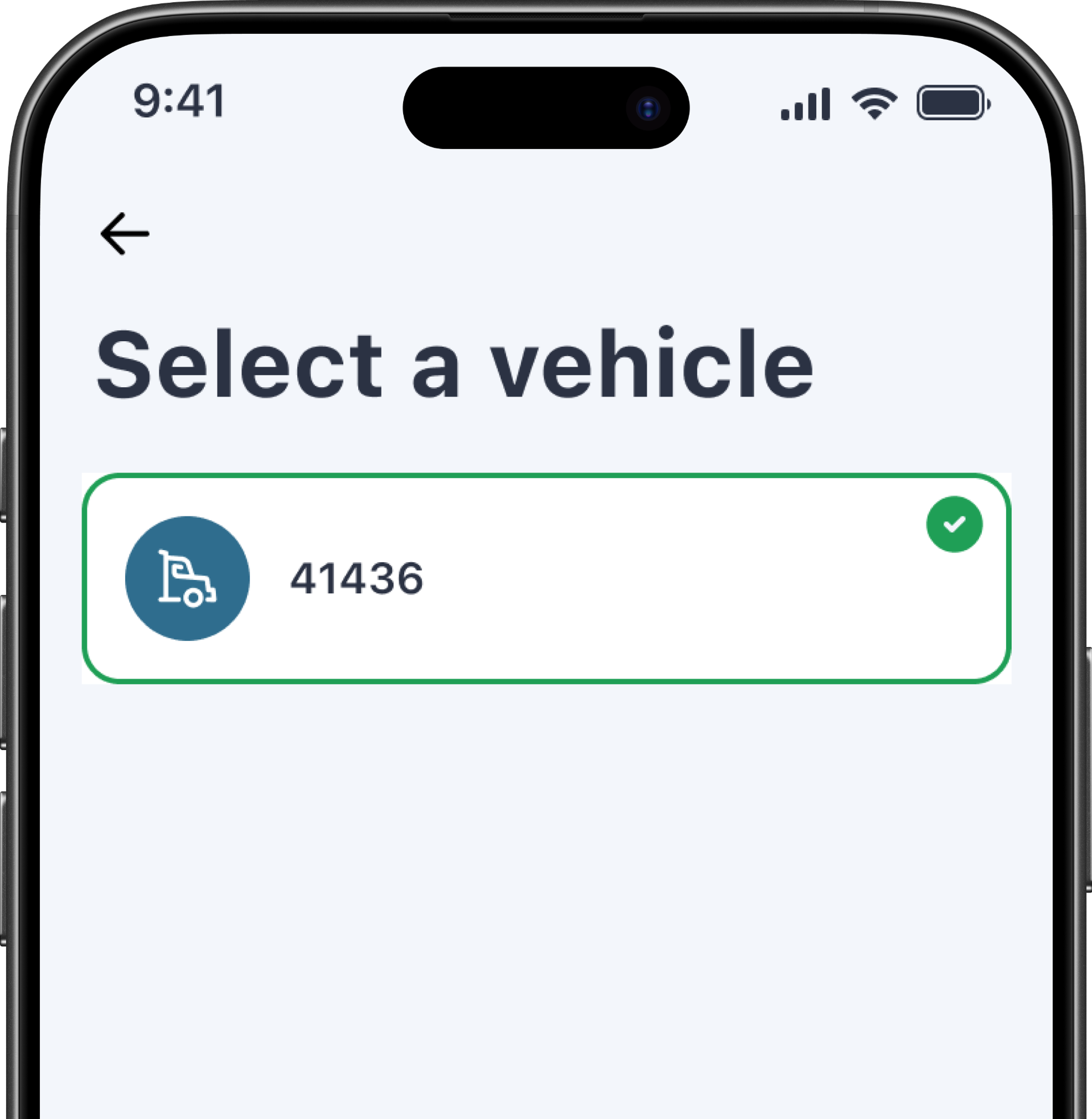
Before connecting, the app will prompt you if any of the following are not met — confirm all three:
Bluetooth is enabled
Connected to mobile data or Wi-Fi
Location permission is set to Always Allow
On the Connect to ELD device screen, connect your device using one of two methods:
Scan the QR code on the device, or
Enter the MAC address manually — printed on the label on the device
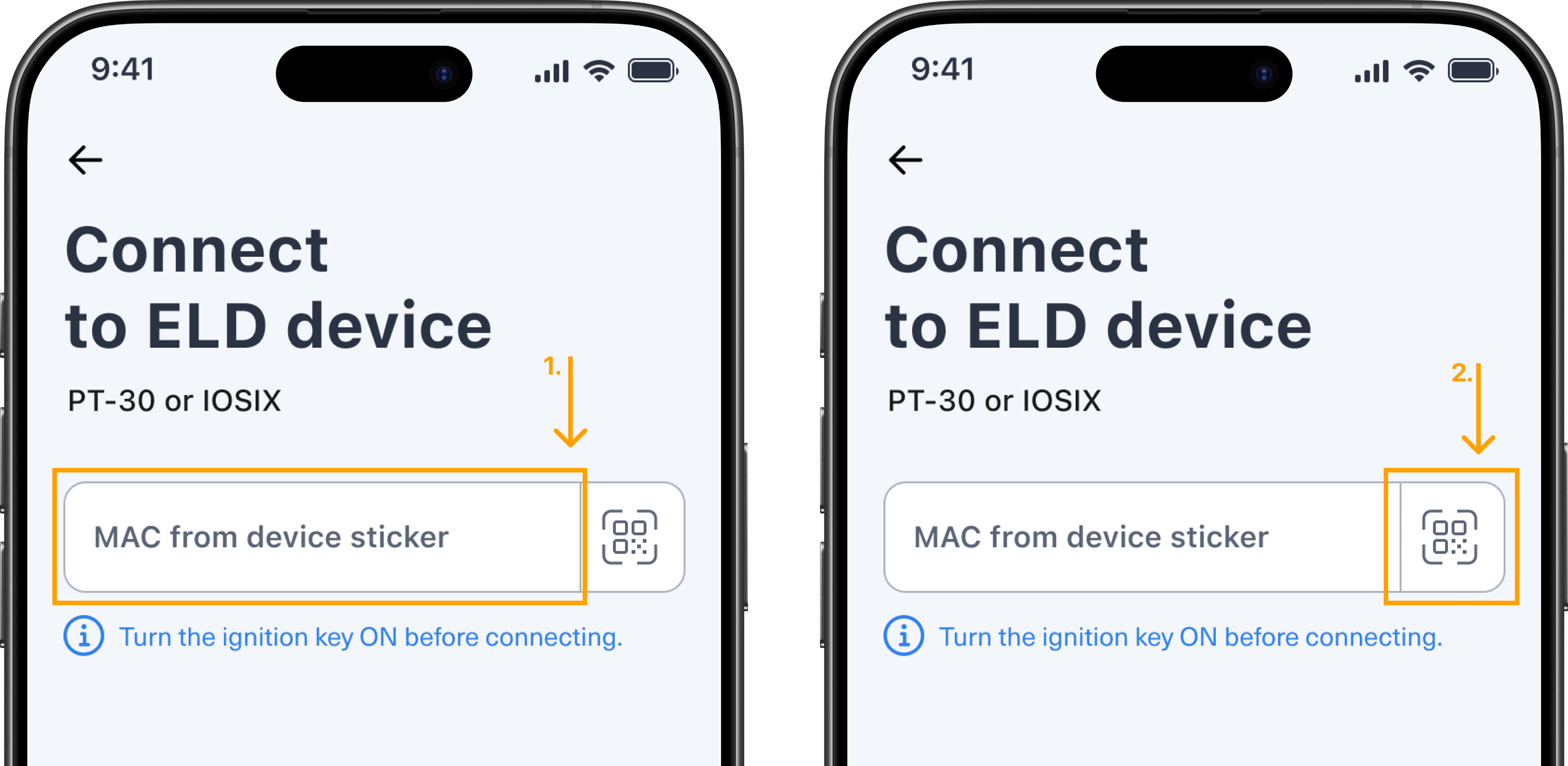
Wait a few seconds for the connection to be confirmed.
Once connected, you'll land on the main screen where you can start managing your duty status.