Safety Score and Weight Configurator
Last updated 26 days ago
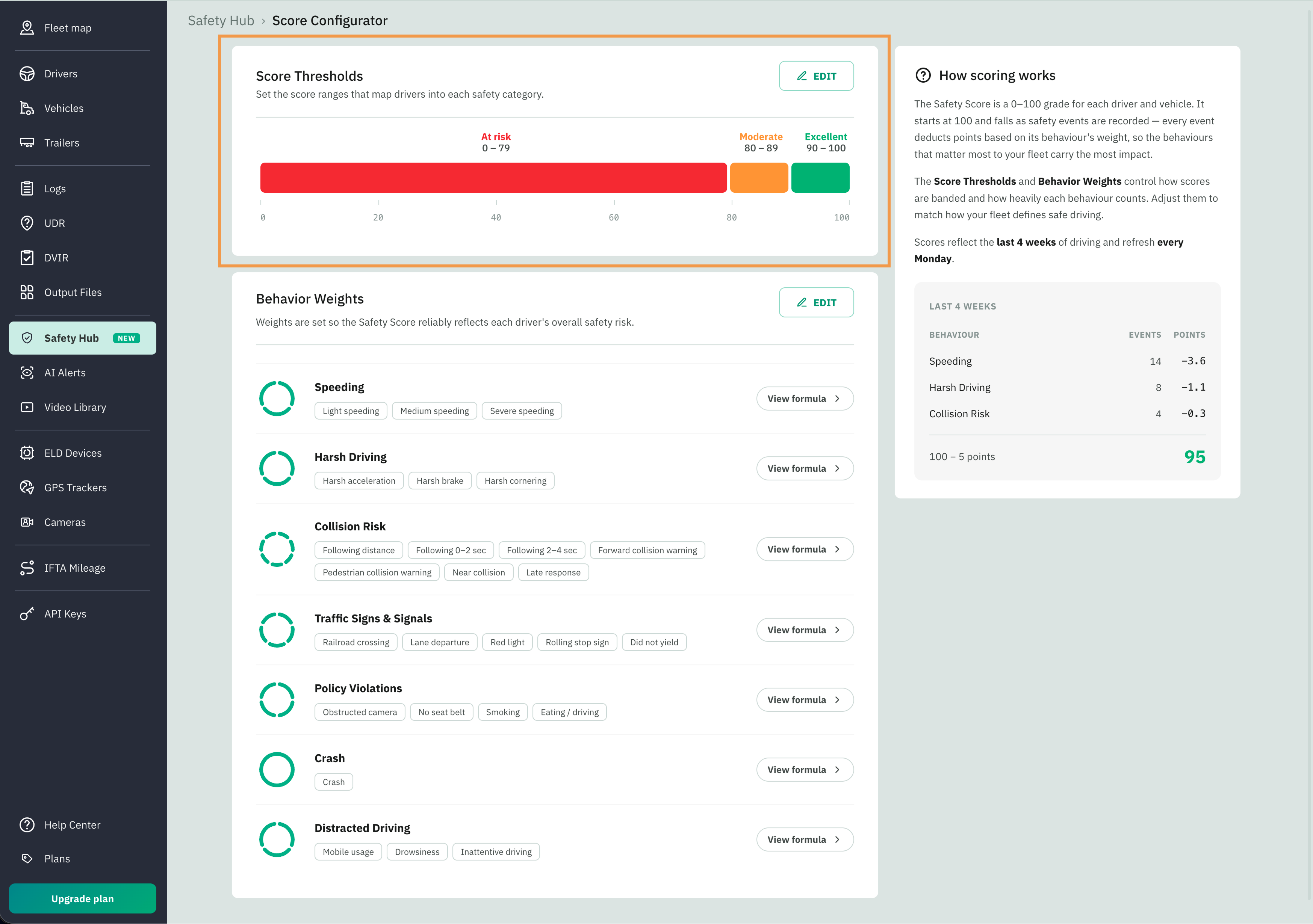
The Score Configurator is where you set your own rules for the Safety Score — where the score bands sit and how heavily each behaviour counts.
It has two cards: Score Thresholds at the top, and Behavior Weights below.
How weights and thresholds shape the score
Every safety score starts at 100 and drops as events are recorded. Two settings here control the result:
Weights decide how many points each type of event takes off.
Thresholds decide which band a final score falls into — At risk, Moderate, or Excellent.
Weights change the score itself; thresholds change how that score is labelled.
Configure Score Threshold
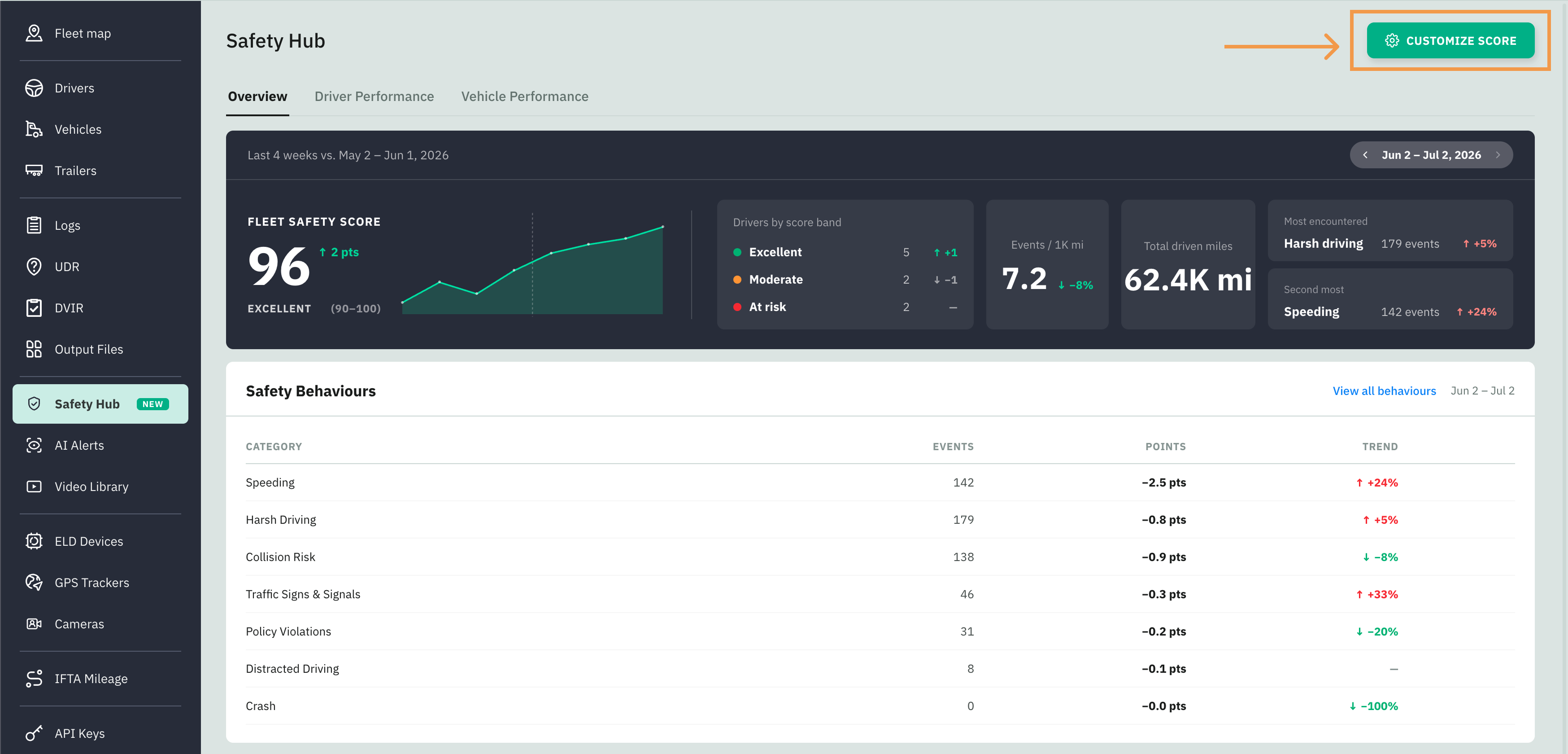
In the Fleet Portal, click on the Safety Hub tab.
Reach it by clicking on the Customize score button in the top-right.
Next, click on the Edit button on the Score Threshold section.
To change them, drag the two handles — the At risk → Moderate cut and the Moderate → Excellent cut. Each handle shows its current value, and the bands update as you drag. No band can be narrower than 10 points. Thresholds are set per fleet. Reset to defaults returns them to 0–79 / 80–89 / 90–100.
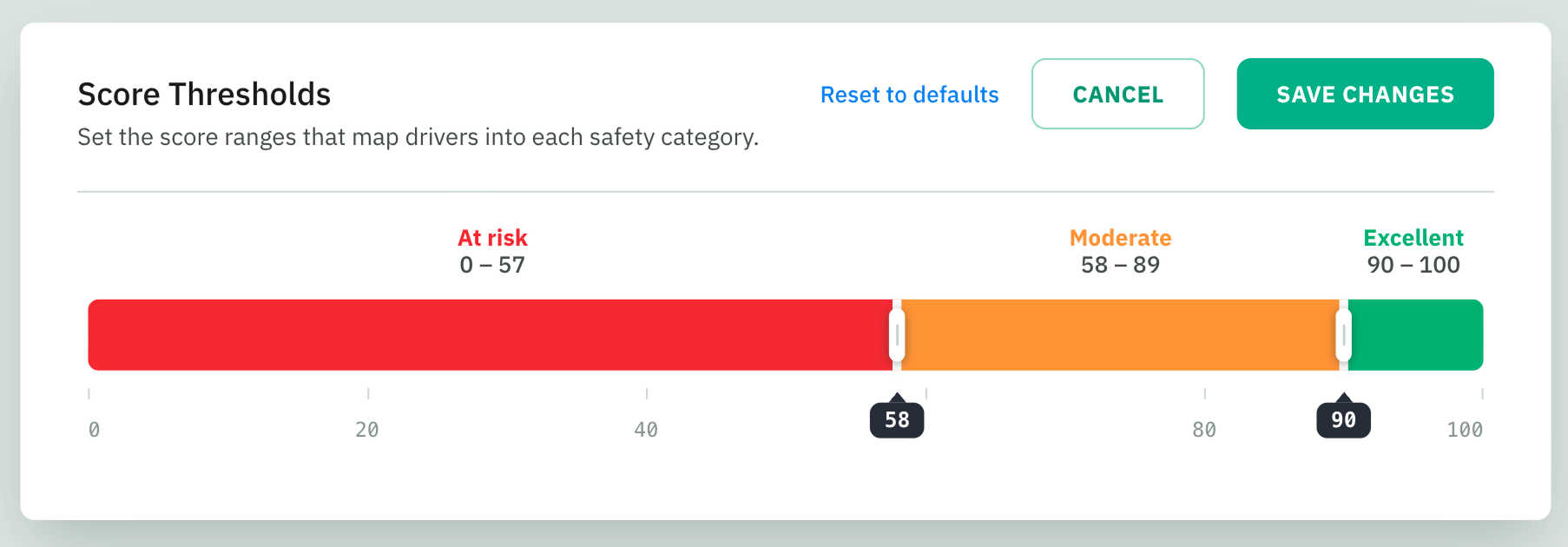
Once done, click Save Changes to apply the edits.
Note
Changes will take effect the following Monday, and drivers and vehicles will be scored using the new criteria. Historical scores will also be recalculated for the past year.
Configure Behaviour Weights
A weight controls how much each event type lowers the score. Every event type has its own weight from 0 to 100:
A higher weight means each event of that type takes more points off.
A weight of 0 turns that event type off — it no longer affects the score at all.
Out of the box, every event type is weighted 1, so all events count equally until you decide otherwise. Raise the weights on the behaviours you care most about to make them carry more.
It is situated under the Score Threshold section on the Score Configurator page.
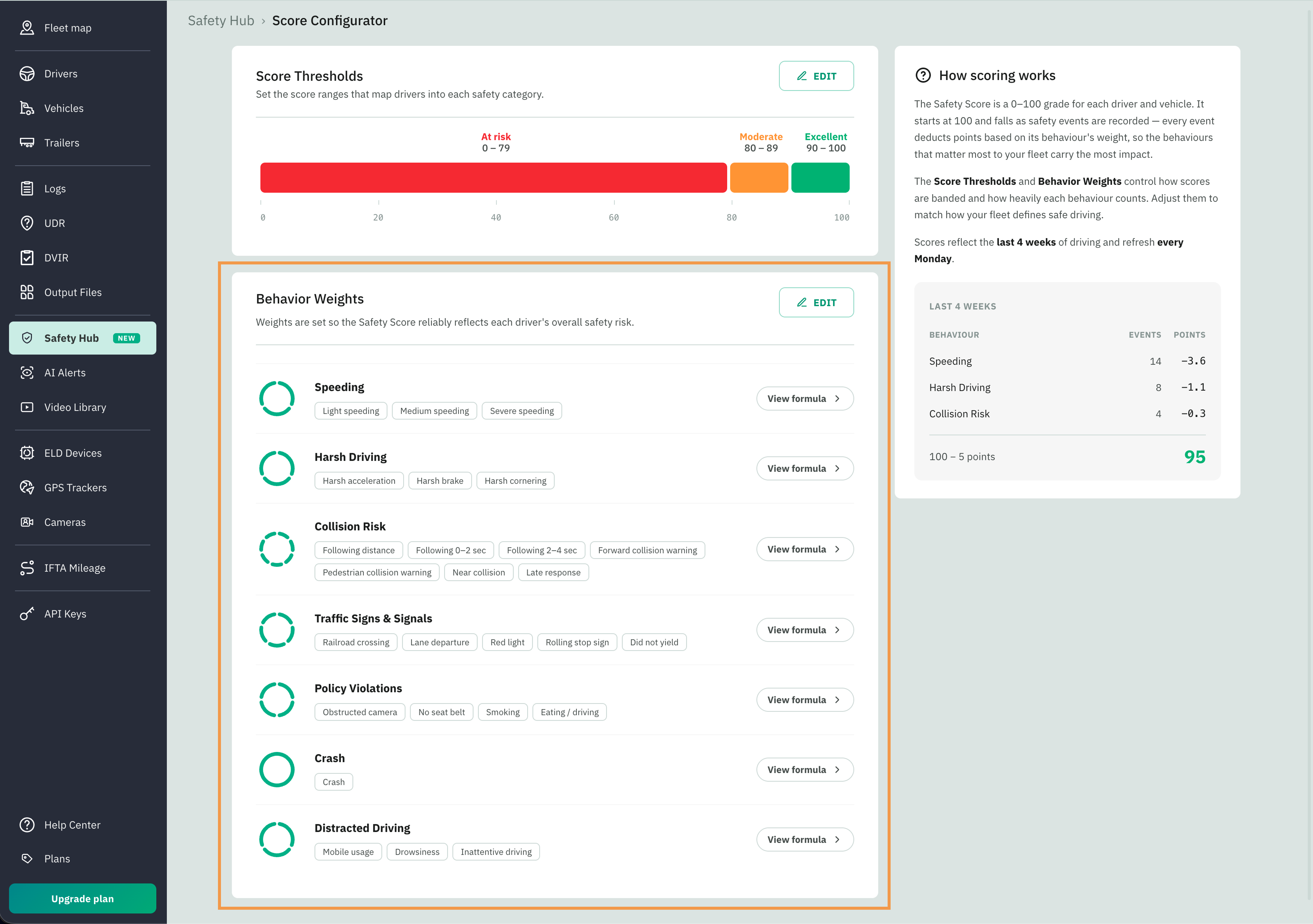
To edit the behaviour weights:
Select the Edit button
Open a behaviour
And set each event type with the slider or the number box (they stay in sync, 0–100)
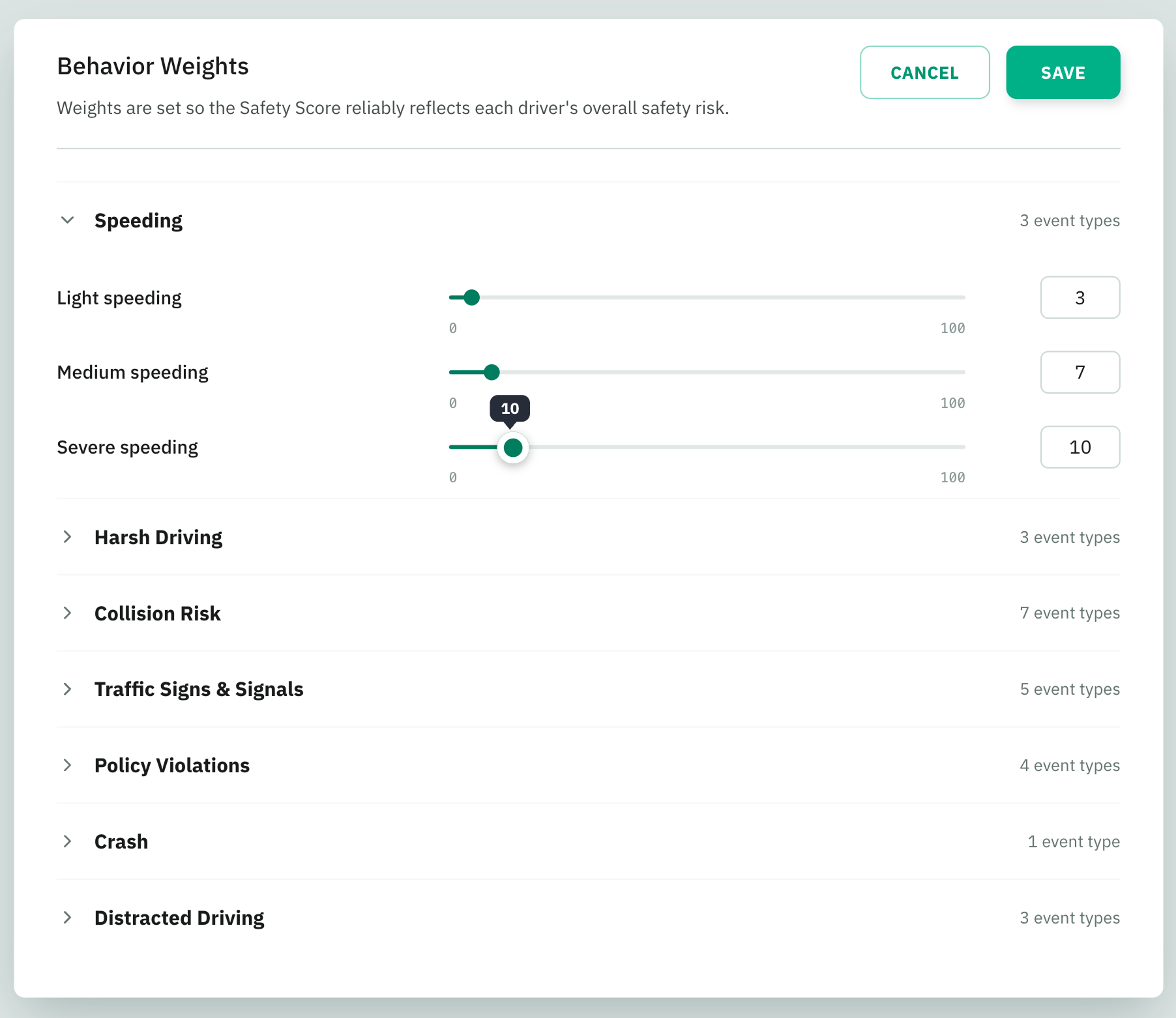
When finished, click on Save to apply the changes.
Note
Changes will take effect the following Monday, and drivers and vehicles will be scored using the new criteria. Historical scores will also be recalculated for the past year.
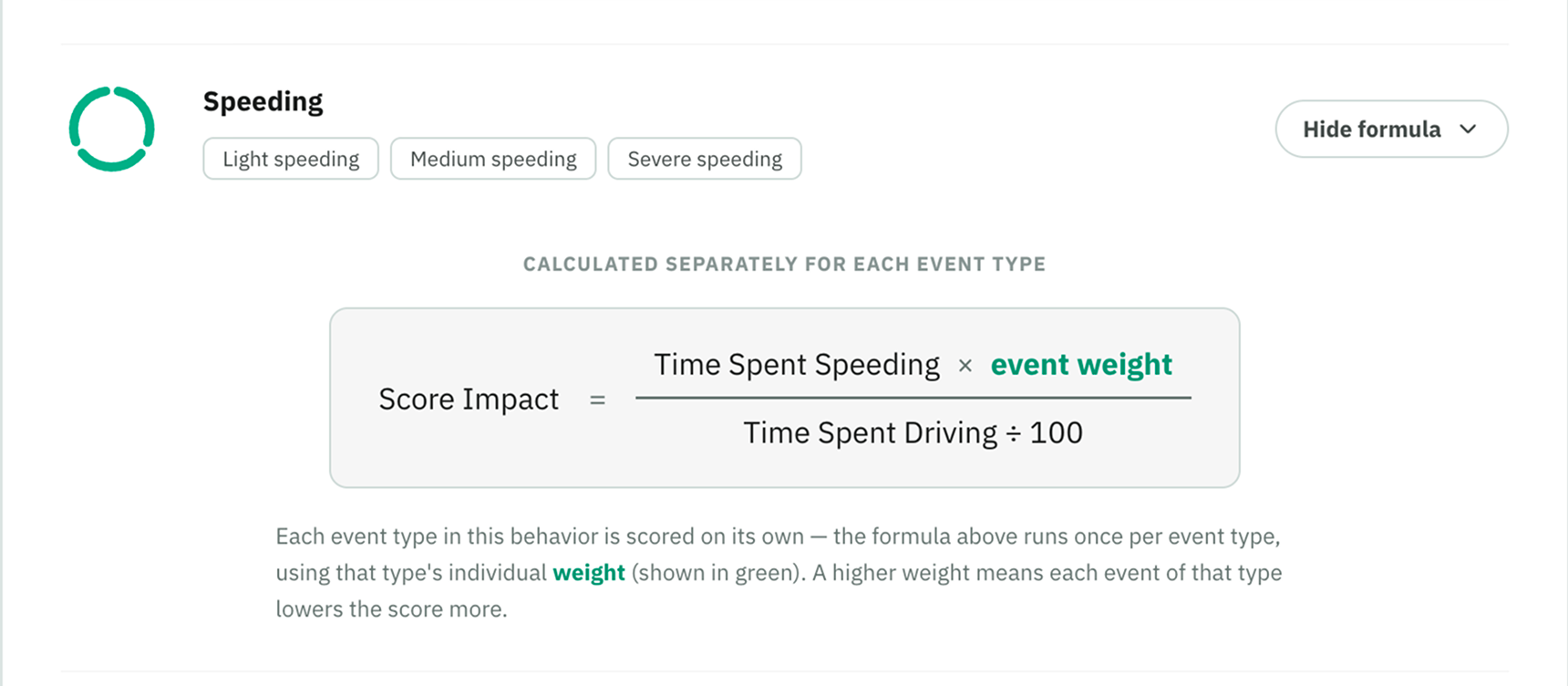
Seeing the math. Each behaviour has a View formula toggle. Every event type in a behaviour is scored on its own — the formula runs once per event type using that type's weight — so a higher weight on one event type raises only that type's impact, not the whole behaviour's.