Manage Vehicle Defects
Last updated 23 days ago
Defects is where the problems your drivers find during their inspections come to be worked. When a driver marks a defect on a DVIR in the Driver App, it flows here attached to the truck it was reported against. You review it, get the work done, and certify how it was resolved.
Reading the Defects List
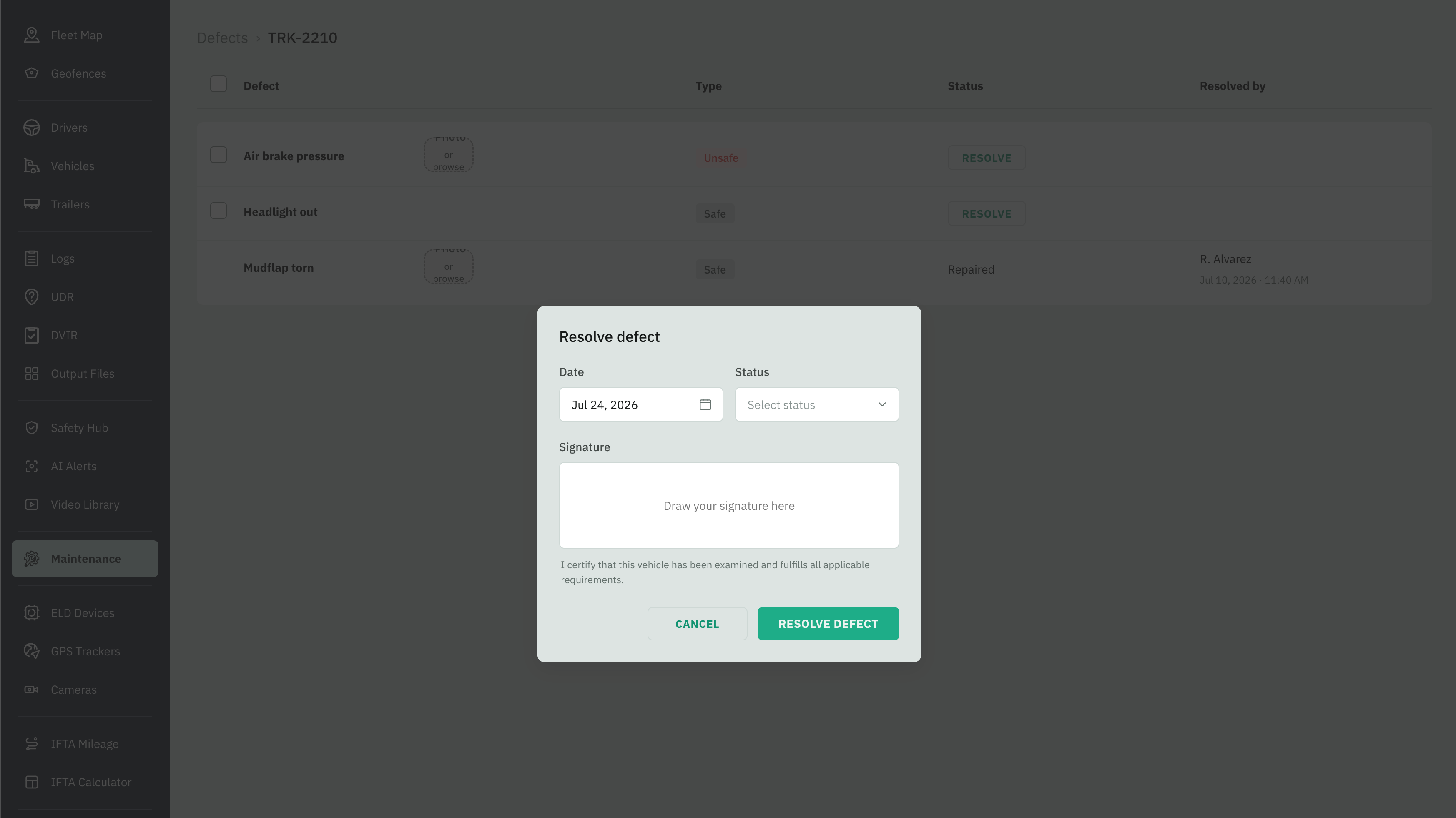
Every truck with defects appears once and collects all of its own. Each row shows:
A truck stays on this list even after all its defects are resolved — it just reads Resolved, so you keep the history.
Working a Truck’s Defects
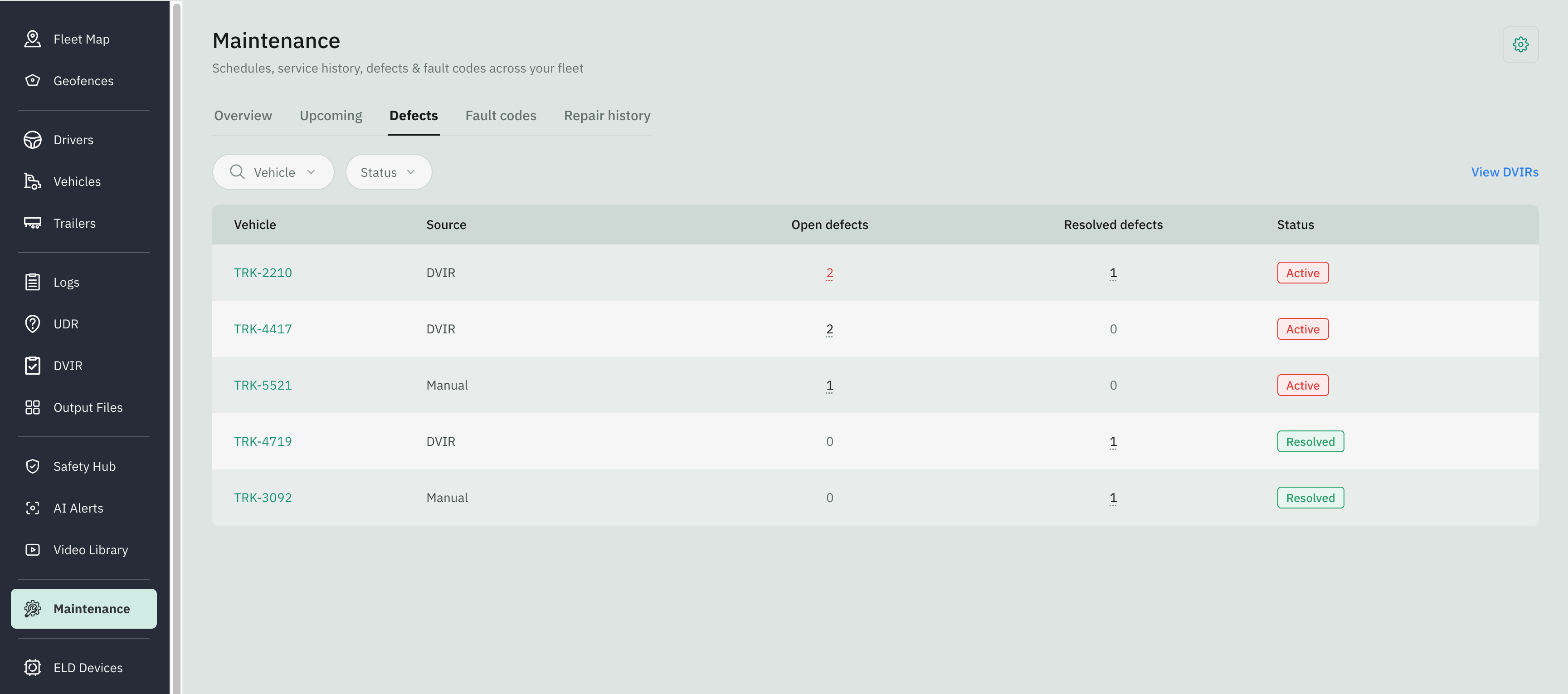
Go to Fleet Portal and click on the Maintenance tab from the sidebar menu
Select the Defects tab
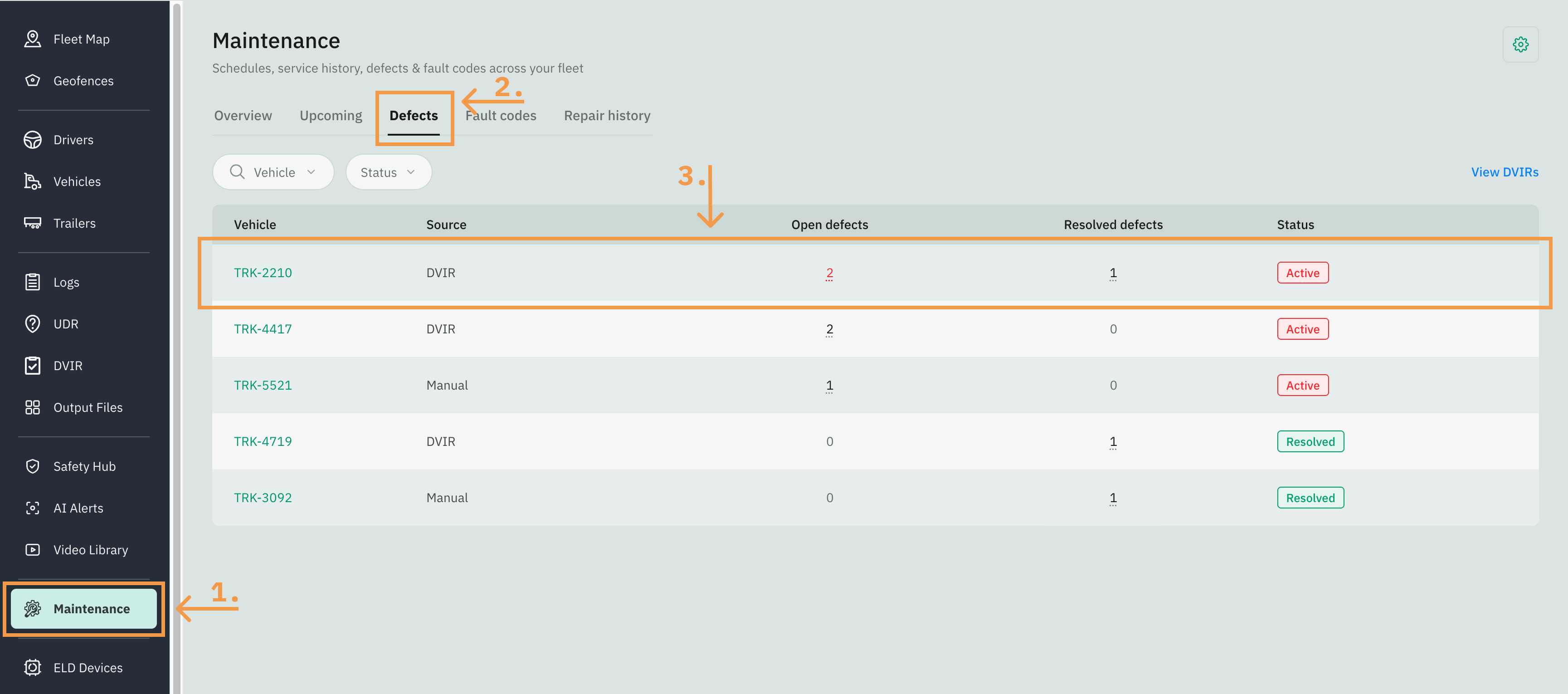
Click a row to open that truck’s defect page. It lists every defect on the asset, open and resolved. The defect name, photo, and safety type all come straight from the driver's DVIR — you don't edit those. The only thing you enter here is the resolution.
Resolve a Defect
You can resolve one at a time or several at once:
One — click Resolve on that defect's row.
Several — check the boxes next to the open defects (only open ones have a checkbox), then click Resolve all. The header checkbox selects them all at once.
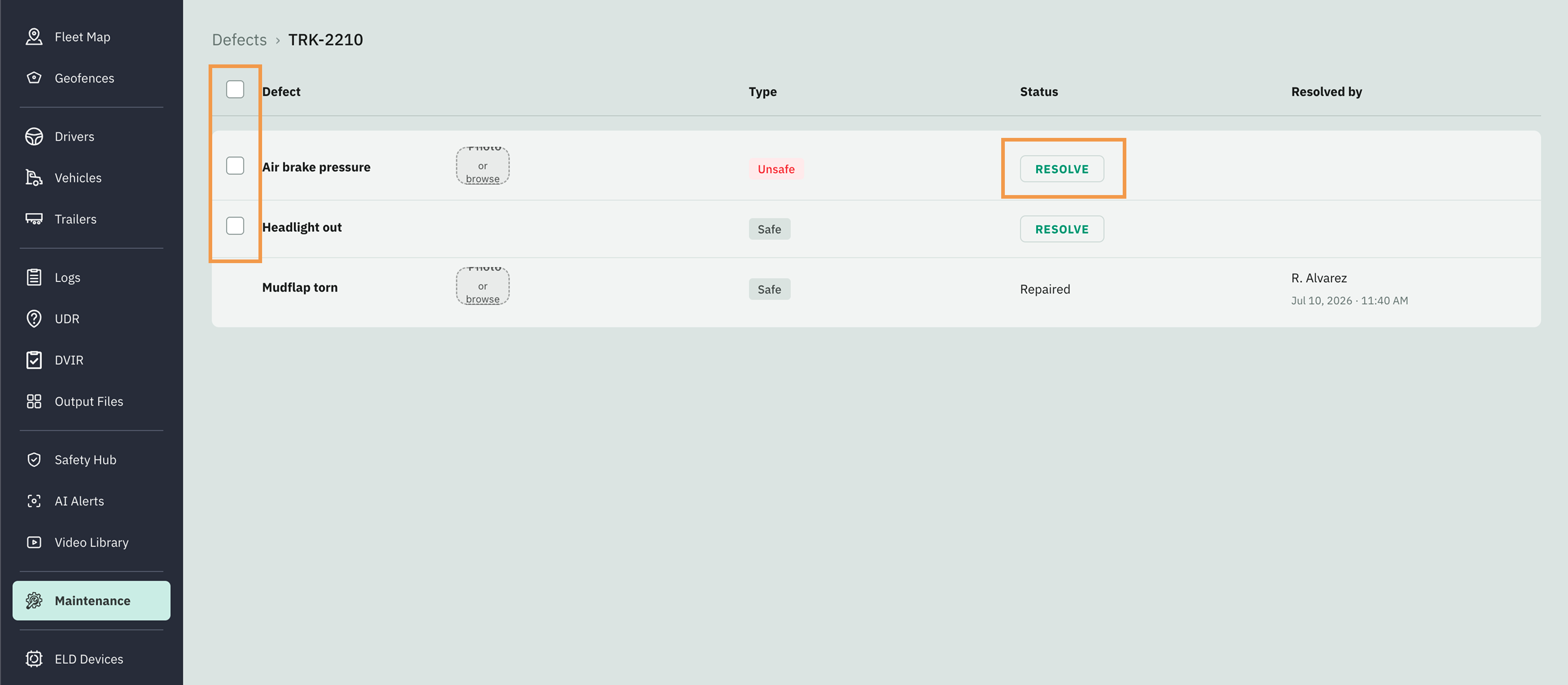
Either way, a Resolve defect window opens. Fill in:
Date
Status — Repaired or No repairs needed.
Signature — draw your signature in the box.
Click Resolve defect to confirm. Each selected defect is marked resolved with the status and date you chose. Resolved by records your full user name.