02/ Add your first vehicle and driver
Last updated 3 months ago
Once your account is active, the Onboarding flow will guide you through a quick setup — fleet size, solution selection, and adding your vehicle and driver. This takes about 3 minutes.
To get started with your Fleet Portal:
On the Fleet size screen, select how many trucks you have, then click Continue.
On the Solution screen, select Set up ELD for HOS logging, then click Continue.
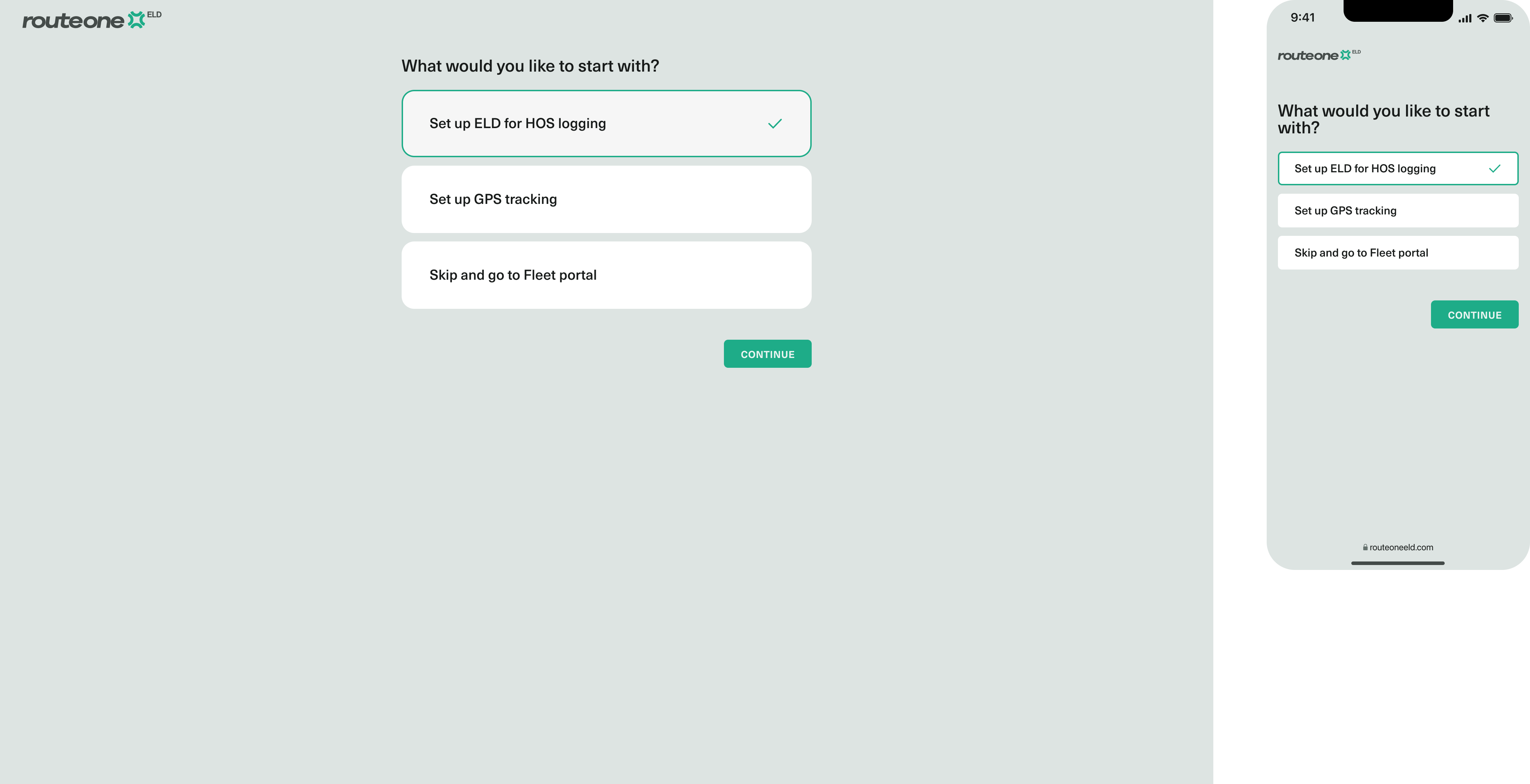
If you're managing GPS-only assets, select Set up GPS Tracker instead. This article covers the ELD setup.
On the Welcome screen, click Get started.
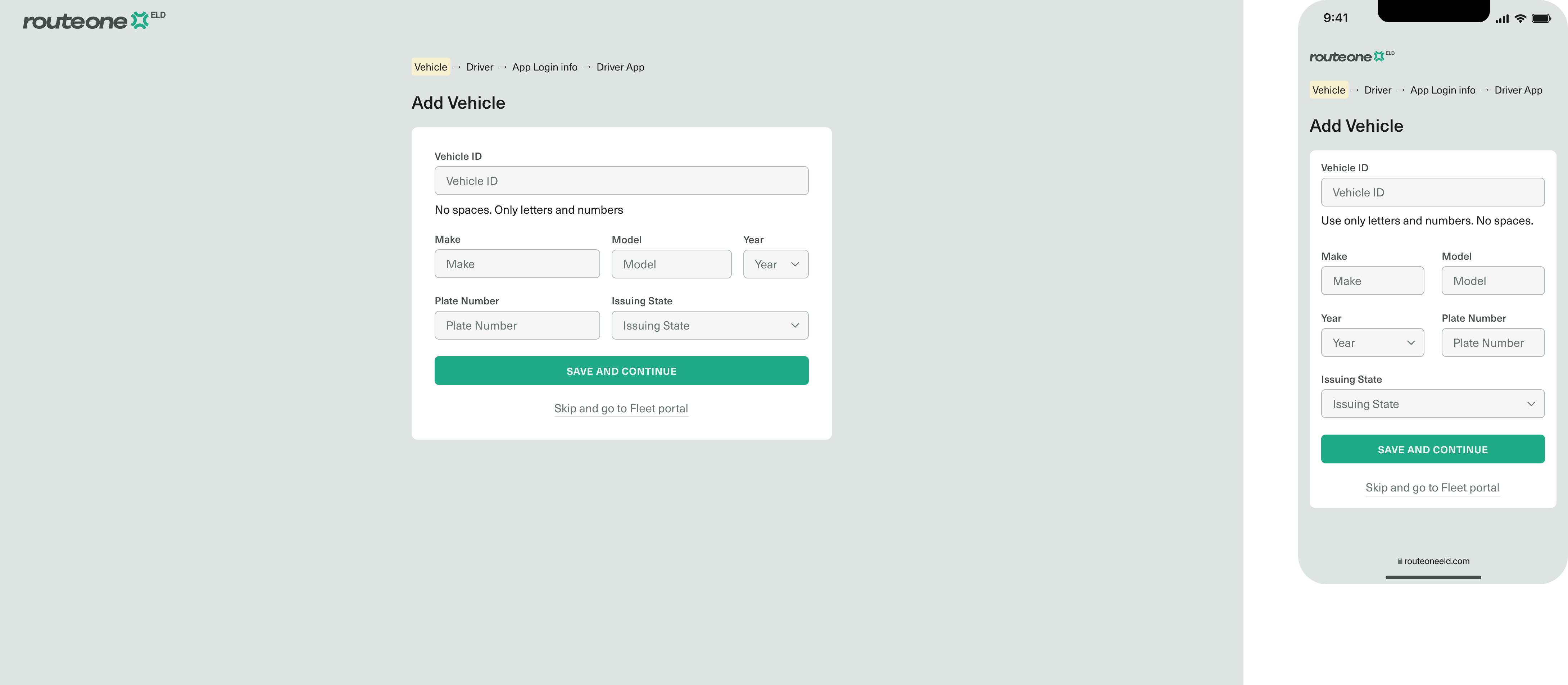
Enter your vehicle details, such as Vehicle ID, Make, Model, and Year, License plate, and select the issuing state. The fuel type is set to diesel by default — you can change it later.
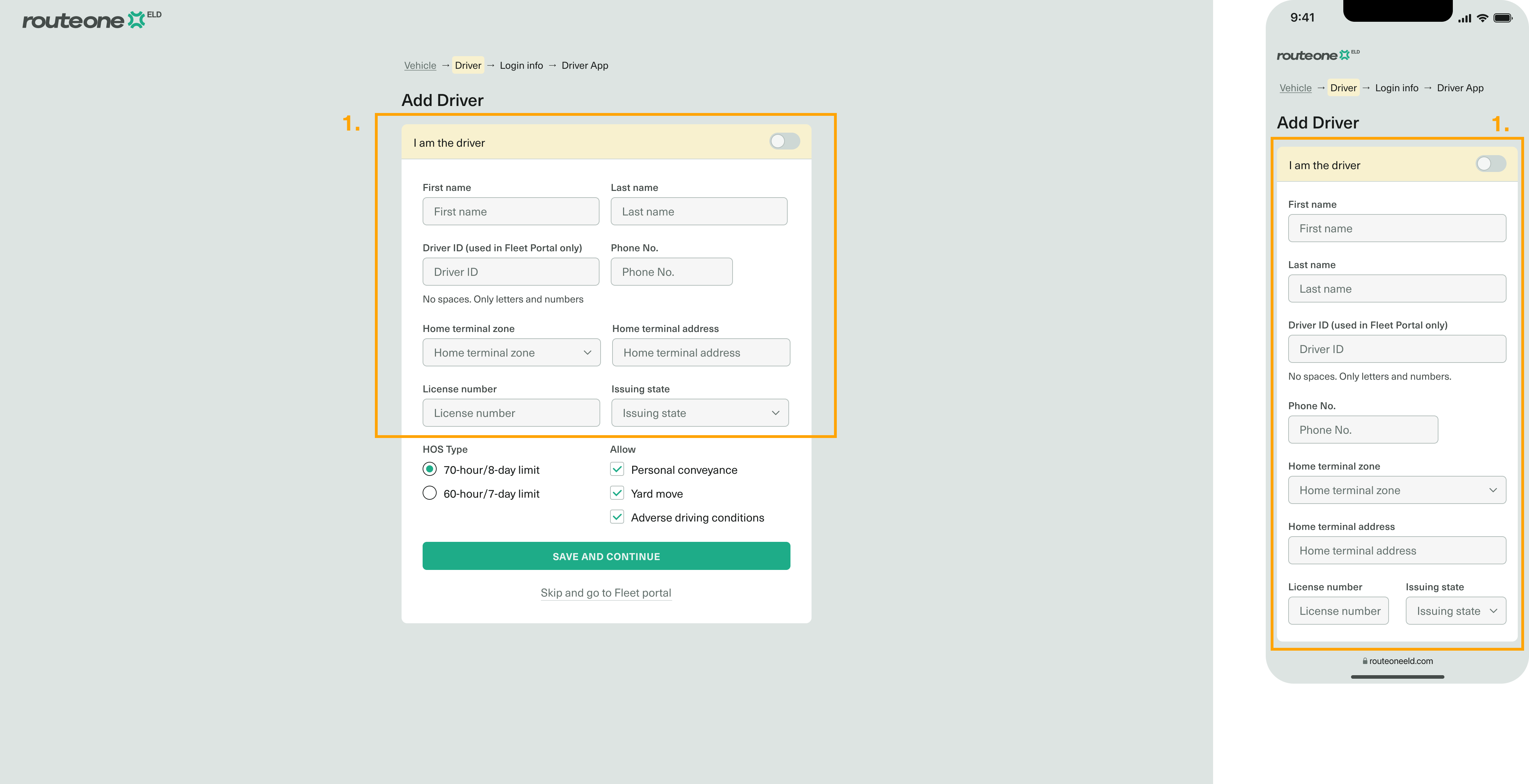
Enter the driver's personal information.
Note
Owner-operator? Enable the I am the driver toggle. Your details used at registration will be filled in automatically.
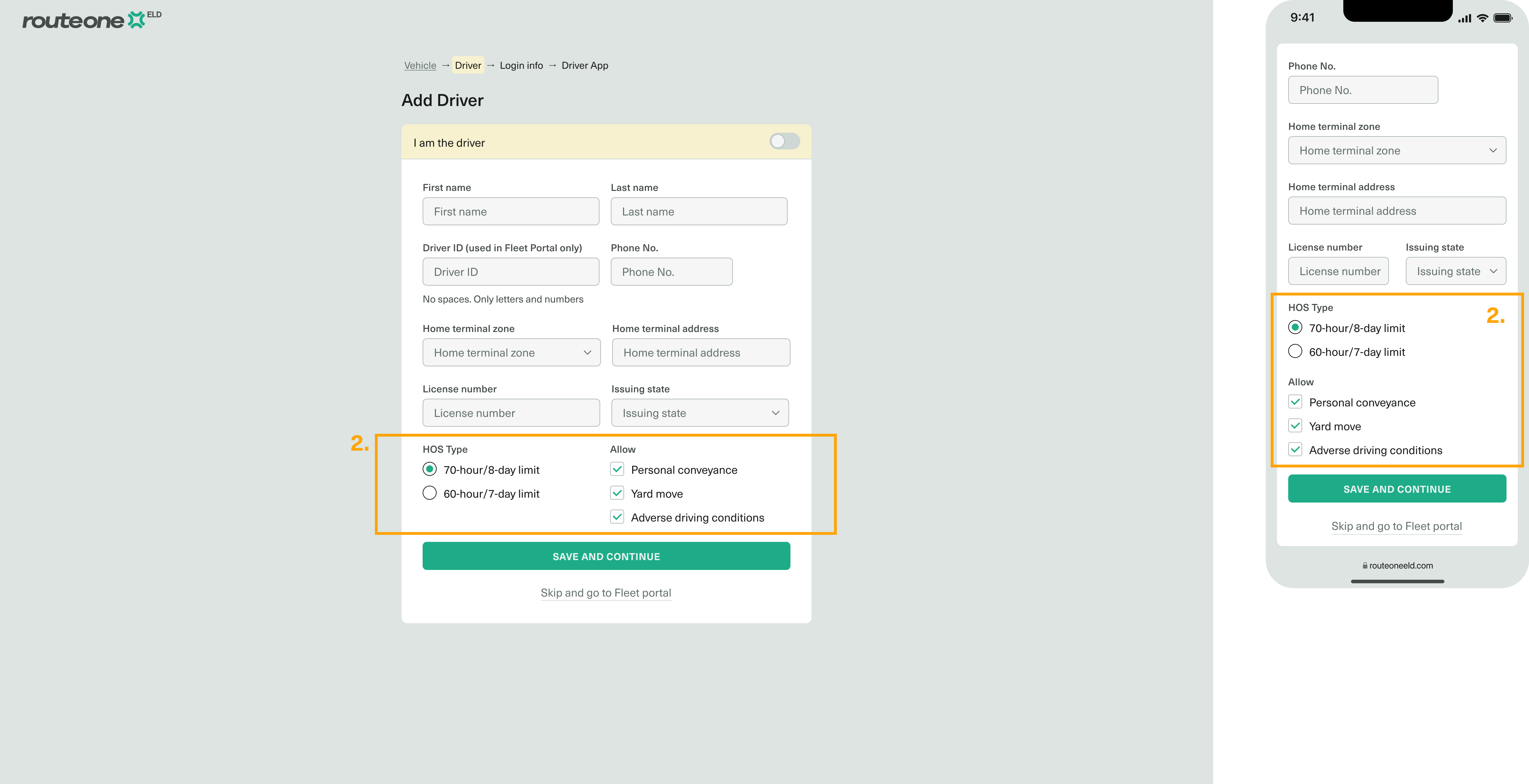
Select the cycle rule and the special driving statuses the driver is allowed to use, and click Save and continue.
Create the login credentials (username and password) that the driver will use to access the Route One ELD Driver App.
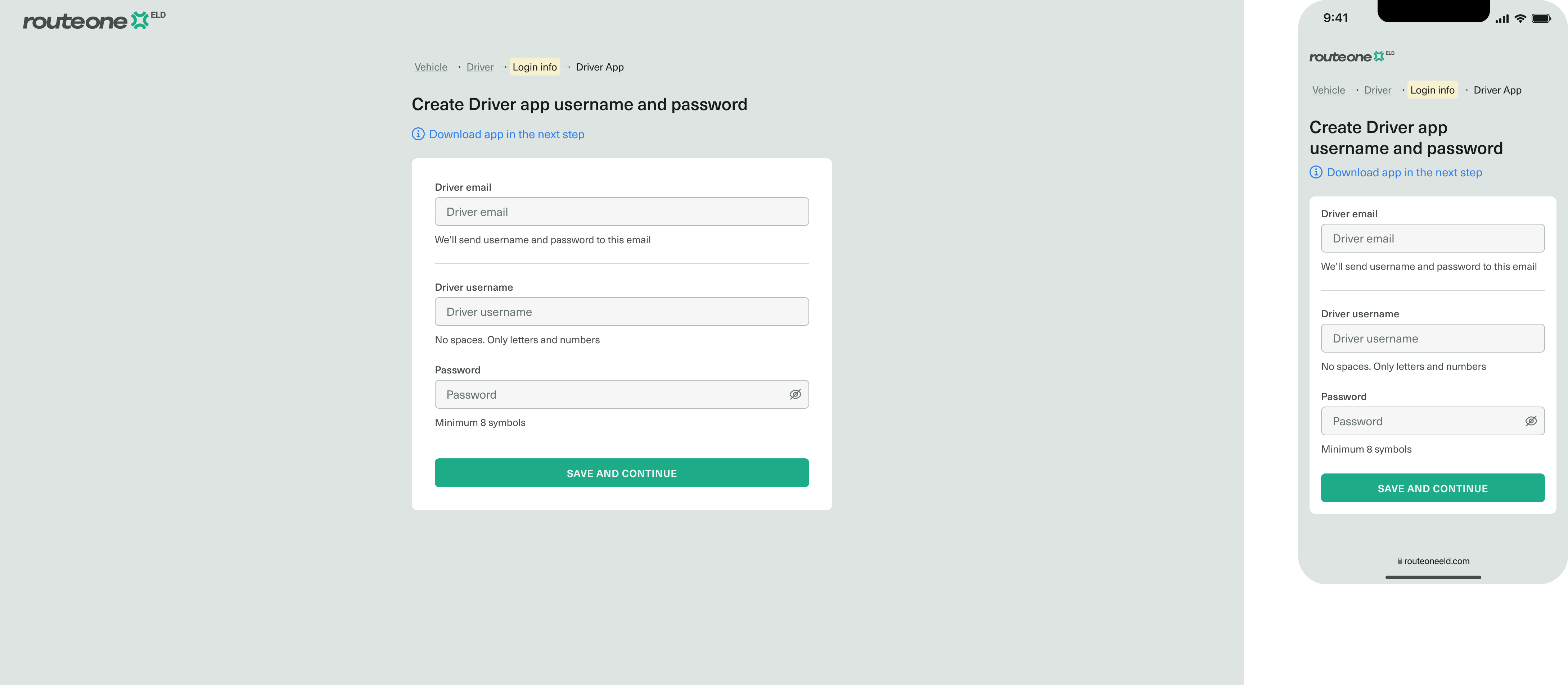
Click Save and continue to complete the setup. An invitation to download and sign in to the Route One ELD Driver App will be sent to the driver’s email.
Next step
With your vehicle and driver added, the next step is getting the Driver App set up on the driver's phone or tablet.