Suggesting an edit to a driver’s log
Last updated 3 months ago
Overview
Hours of service logs are legal records. Keeping them accurate is a shared responsibility between fleet admins and drivers. When a driver's log contains an error or a missing entry, fleet admins can propose a correction directly from the Fleet Portal — without overriding anything unilaterally.
Not all events in a driver's log can be changed. The type of entry determines what is and isn't editable:
ELD-recorded Driving time is locked by FMCSA regulation. The status, start time, and end time of any Driving event automatically recorded by the hardware cannot be changed. You can add an annotation to provide context, but nothing else.
All other events can be corrected. Off Duty, Sleeper Berth, and On Duty Not Driving entries are fully editable. Manually entered Driving events can also be modified, with one restriction — the corrected entry cannot create a gap or overlap with an automatically recorded ELD event.
Note
All suggestions are preserved alongside the original record. Nothing is deleted — both the original entry and the proposed change remain in the log's full history and are visible during inspections and audits.
Before you begin
The driver must have certified their logs before you can suggest edits
Suggestions can only be made for logs from the past 14 days
A reason is required — every suggestion must include a note explaining why the change is needed
All suggested edits require driver approval. Nothing changes in their log until they approve it.
Suggesting an edit to a driver’s log
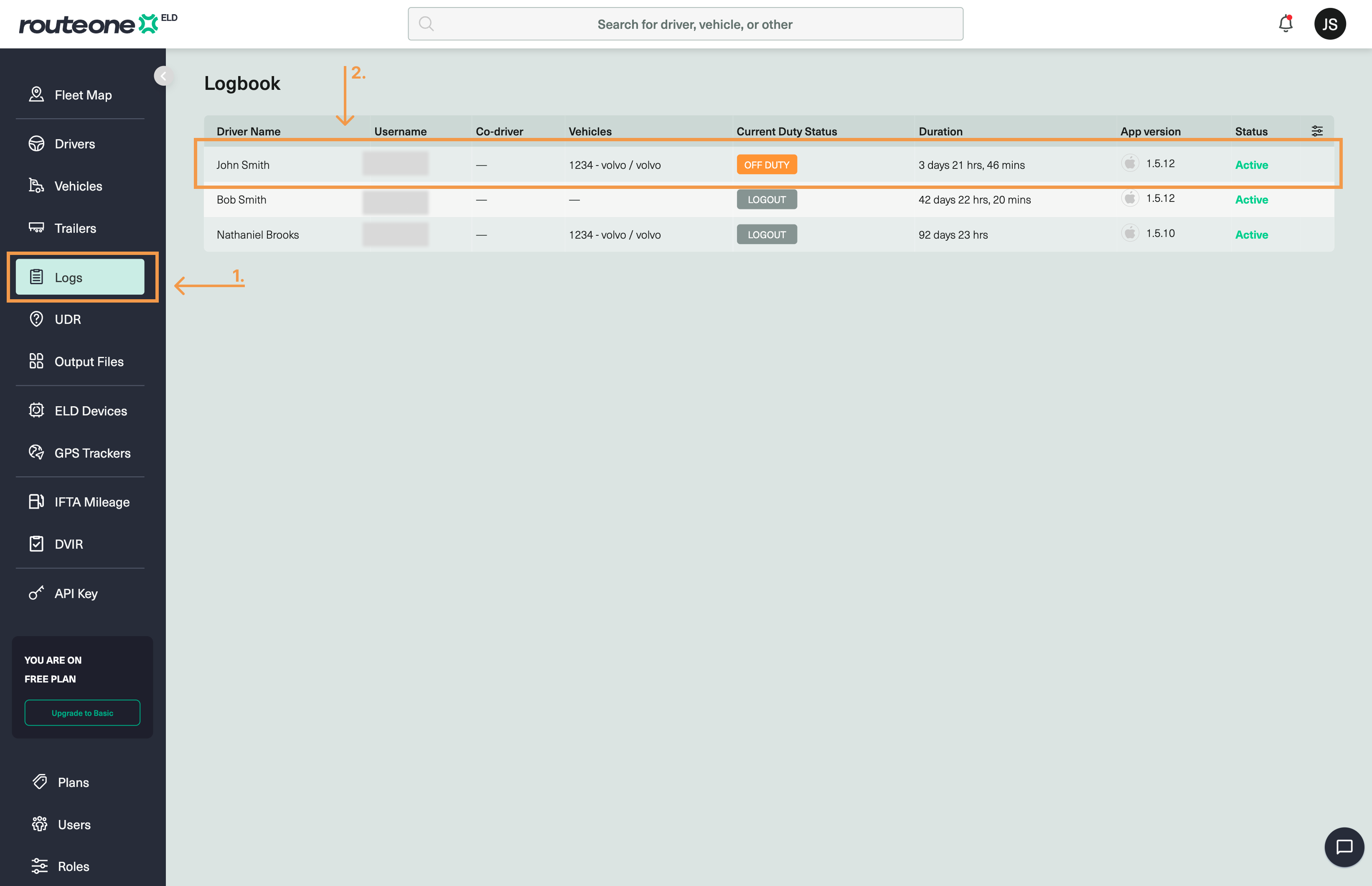
From the sidebar menu, select Logs.
Select the driver whose log you want to edit.
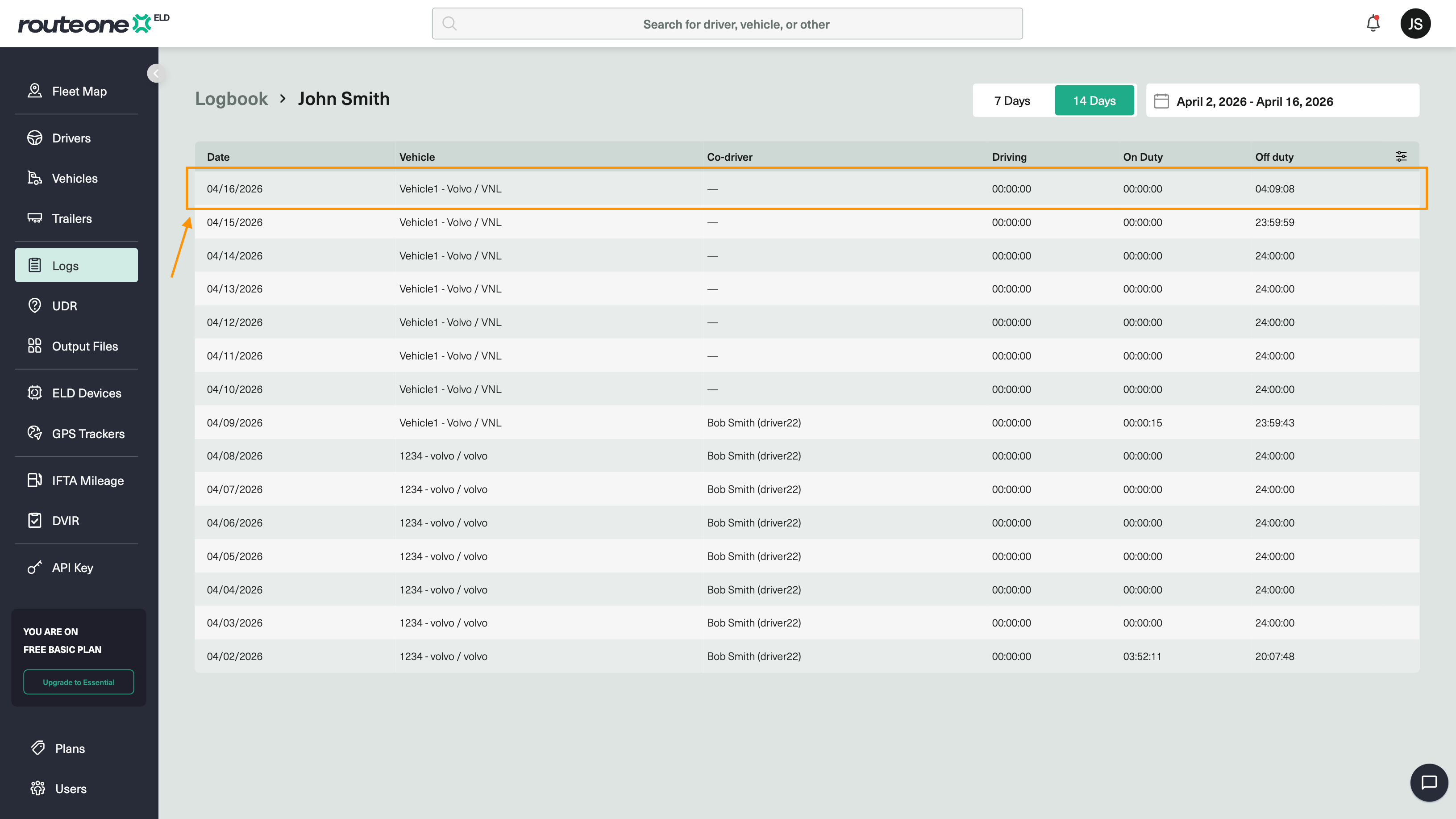
Select the day you want to correct.
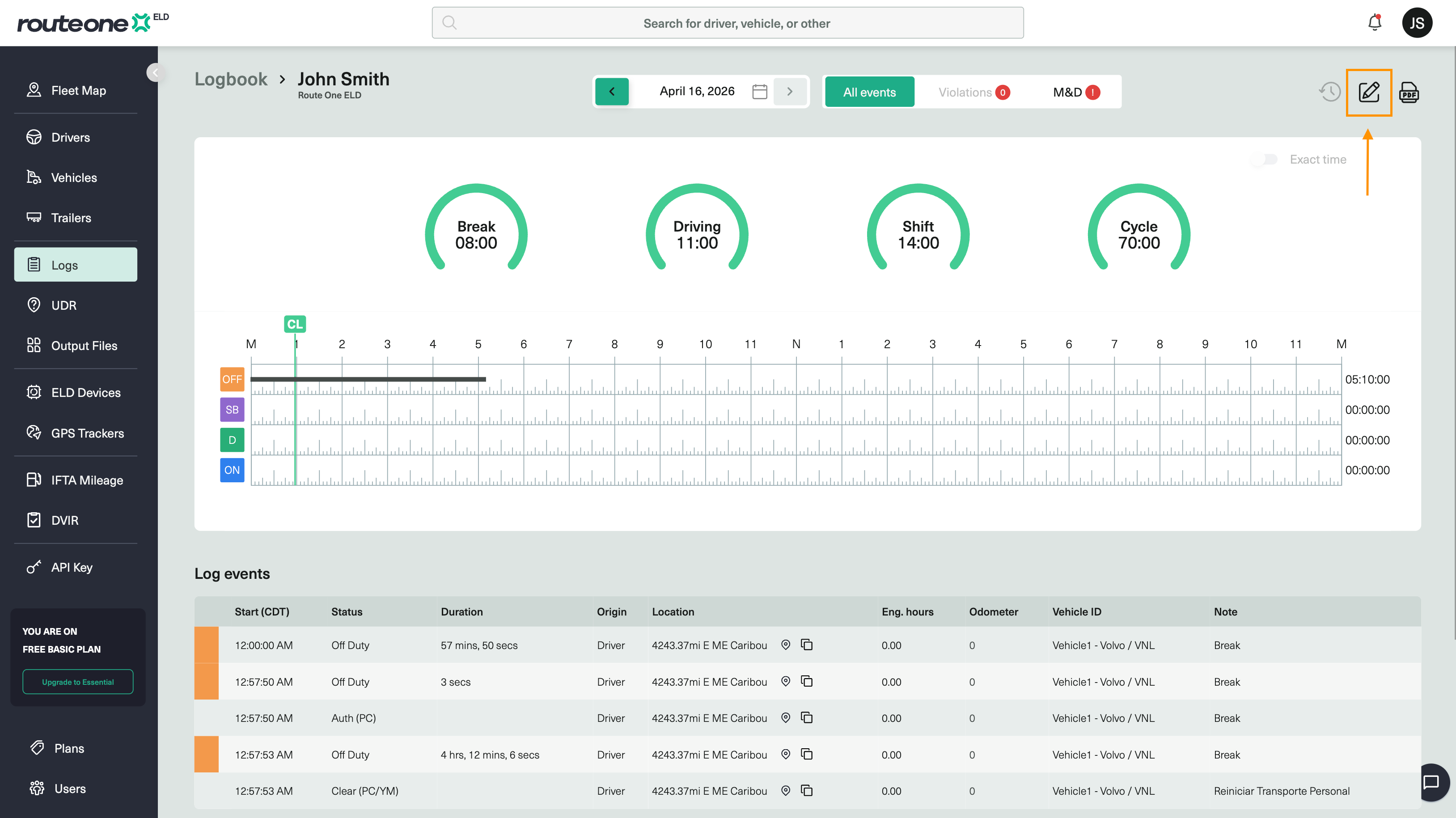
Click the Edit button in the top right corner of the log.
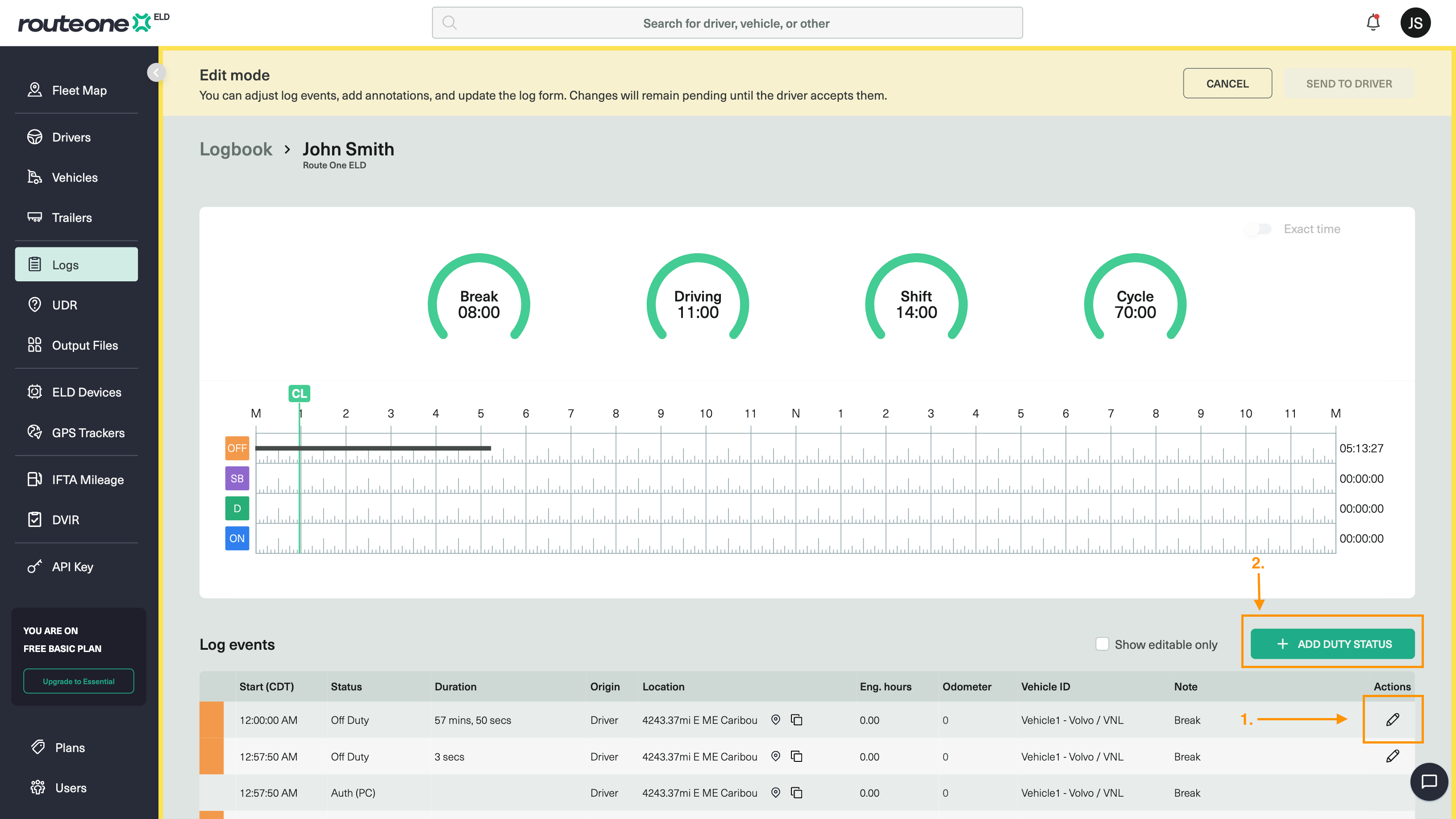
Make your change:
To correct an existing event — select the event and click the Edit icon
To insert a missing duty status — click Add Duty Status
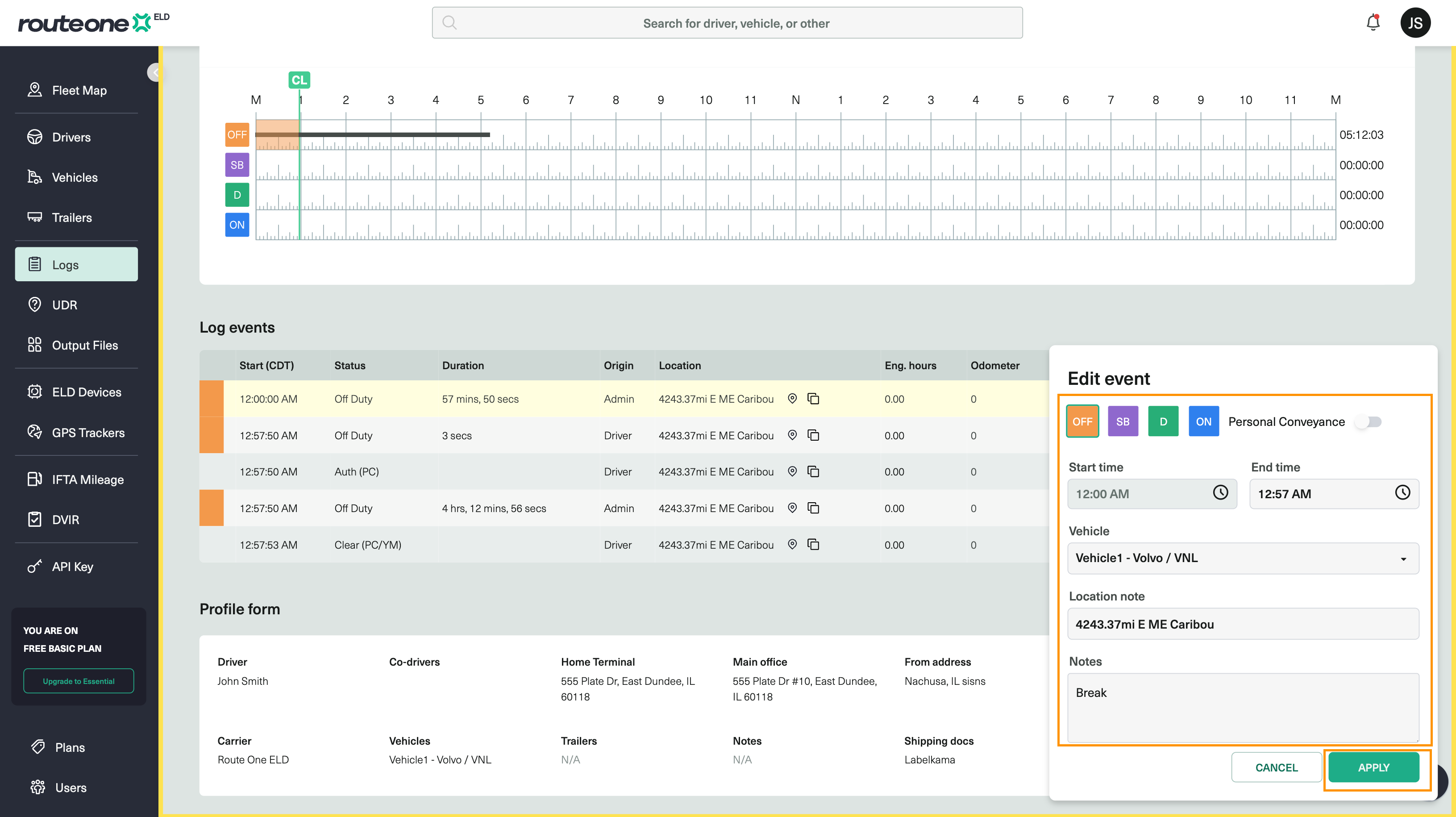
Make the required changes and enter a reason in the Notes field. This is required for every suggestion.
Click Apply to stage the change.
Click Send to driver to submit the suggestion to the driver.
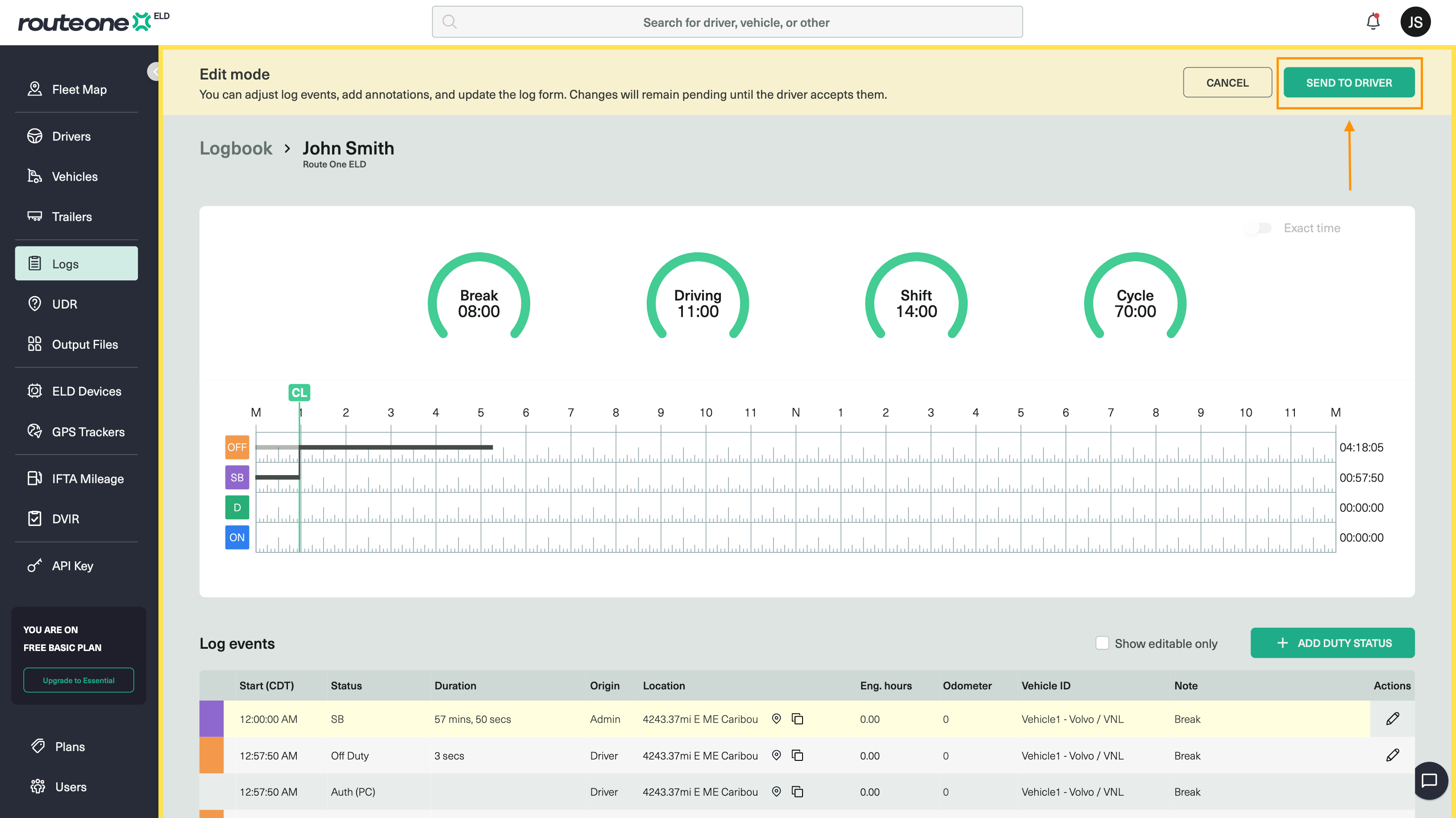
The driver will receive a notification in the Route One ELD Driver App to review your suggestion. The log will not be updated until they approve it.
What happens next? The driver can accept or reject each suggestion individually. If accepted, the log is updated and the driver must re-certify the affected day.
Drivers: Looking to edit your own logs? See Edit your HOS logs