Getting started with the IFTA Calculator
Last updated 25 days ago
If you run trucks across state lines, you have to file an IFTA fuel tax return every quarter. That means adding up your miles and fuel purchases by state.
The IFTA Calculator does that math for you using the mileage and fuel records in your account, so you don't have to prepare the calculations by hand.
It's an add-on that requires an active subscription and currently supports diesel only.
A few things to know first
The calculator doesn't file your return, and the report it produces isn't the official form you submit. It prepares your numbers, but you file through your base jurisdiction's portal.
Review your data before relying on the report. Make sure your mileage and fuel records are complete and accurate before using the report to prepare your return.
The calculator supports diesel only. If you operate non-diesel vehicles, track and report their fuel separately.
For detailed information about how the calculator works, see About the IFTA Calculator: Scope and Limitations.
Accept the acknowledgment
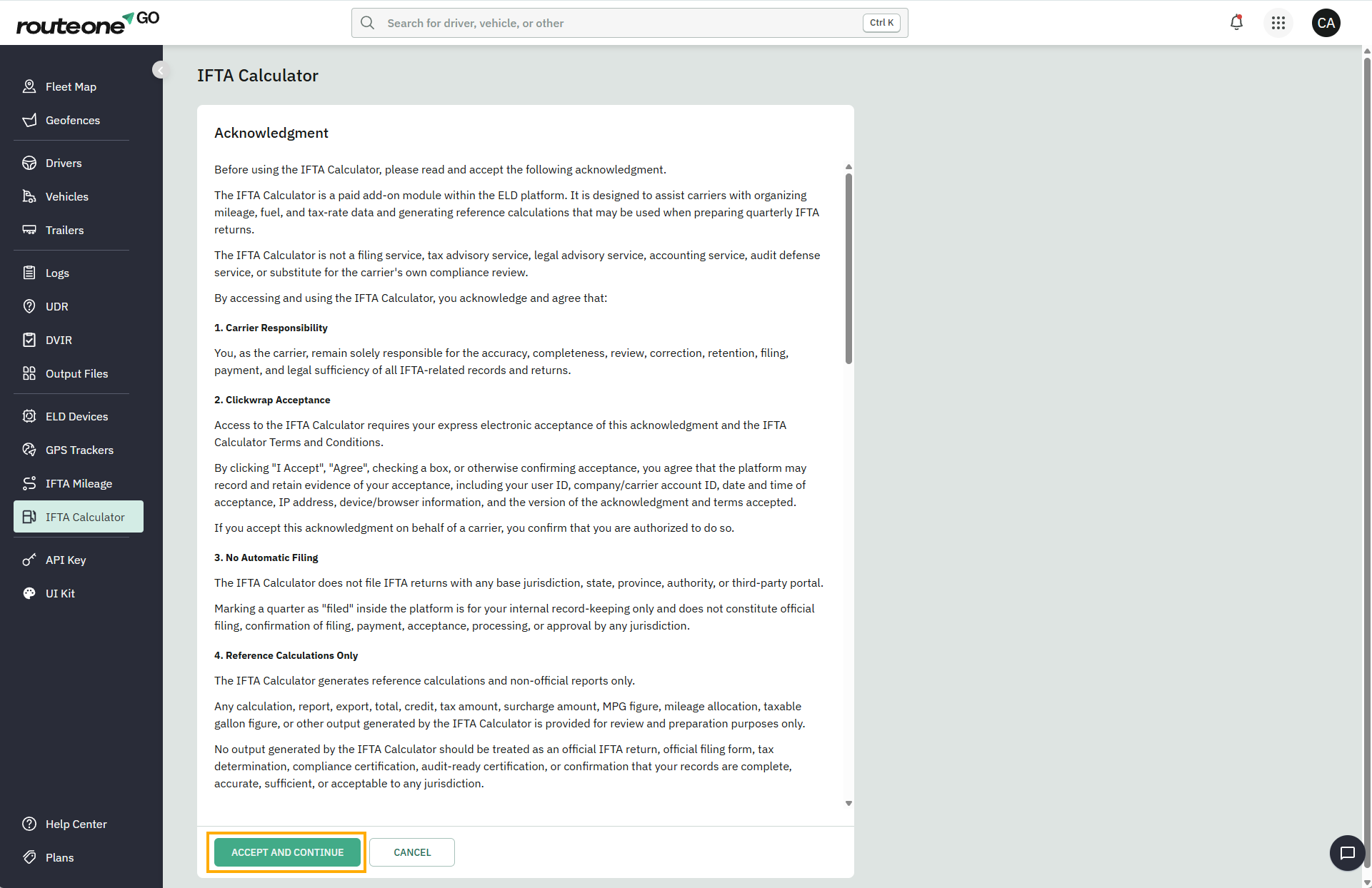
Before you can use the IFTA Calculator for the first time, you'll need to read and accept an acknowledgment.
The acknowledgment explains what the IFTA Calculator does, its current limitations, and your responsibilities as the carrier. Accepting it is required before you can access the module.
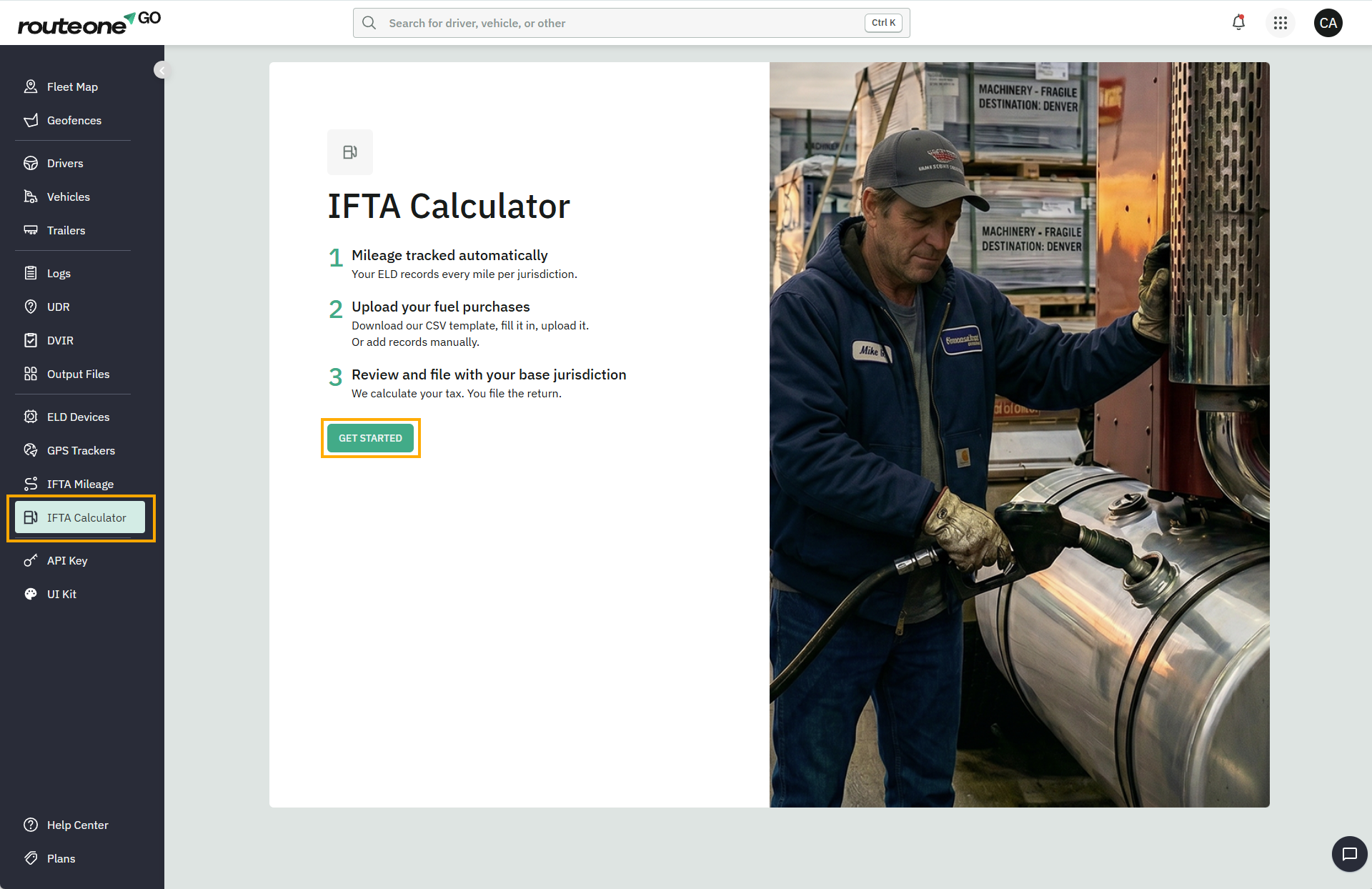
Navigate to IFTA Calculator in the sidebar.
On the Welcome screen, click Get Started.
Read the acknowledgment and click Accept and Continue to continue.
Dashboard
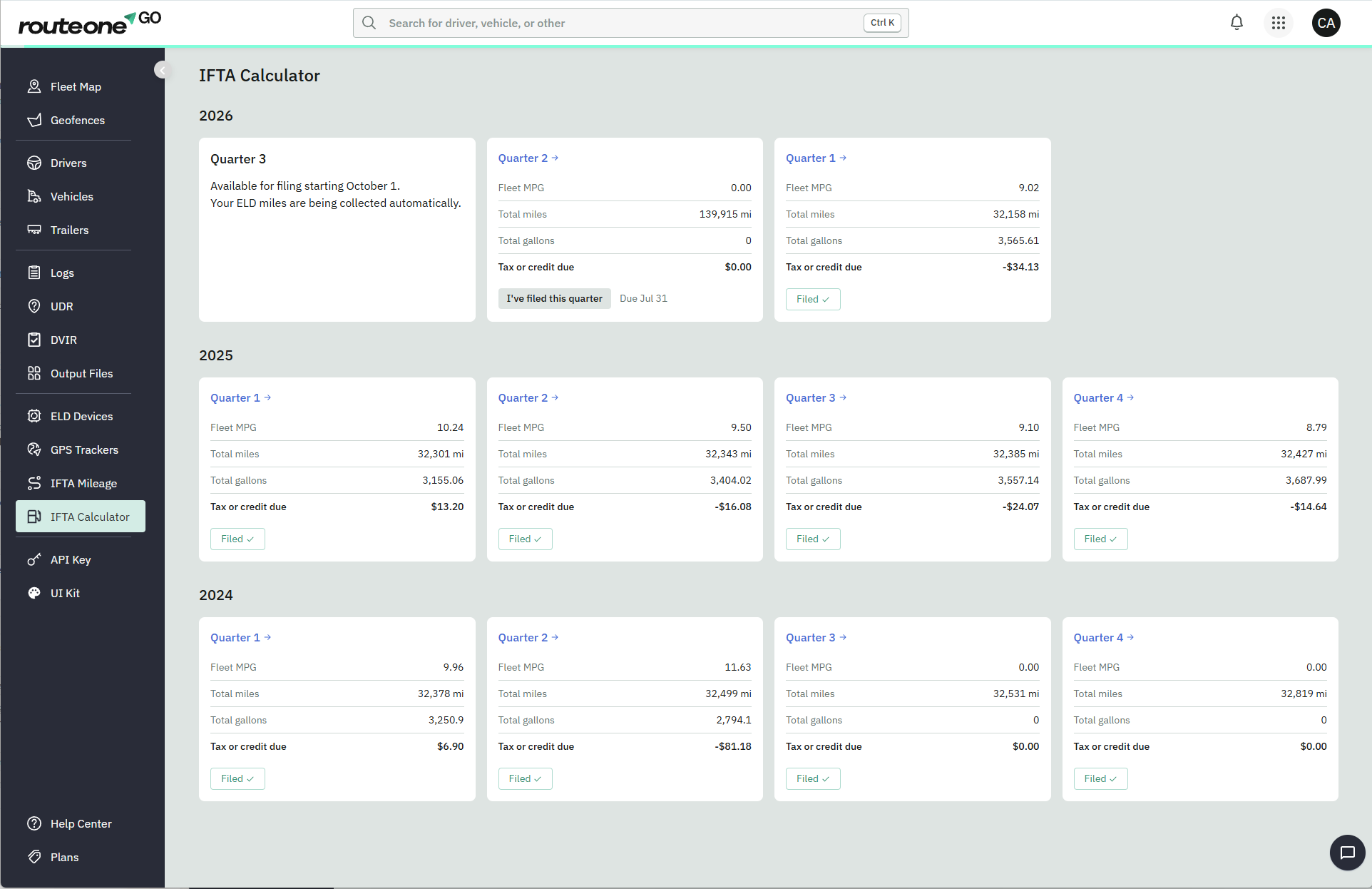
After you accept the acknowledgment, you'll be taken to the dashboard. Quarters are grouped by year, with the most recent first.
If you're using the IFTA Calculator for the first time, you'll initially see only the current quarter.
The current quarter isn't available yet because your ELD is still collecting mileage. Once the quarter ends, it becomes available to work on.
Open a quarter
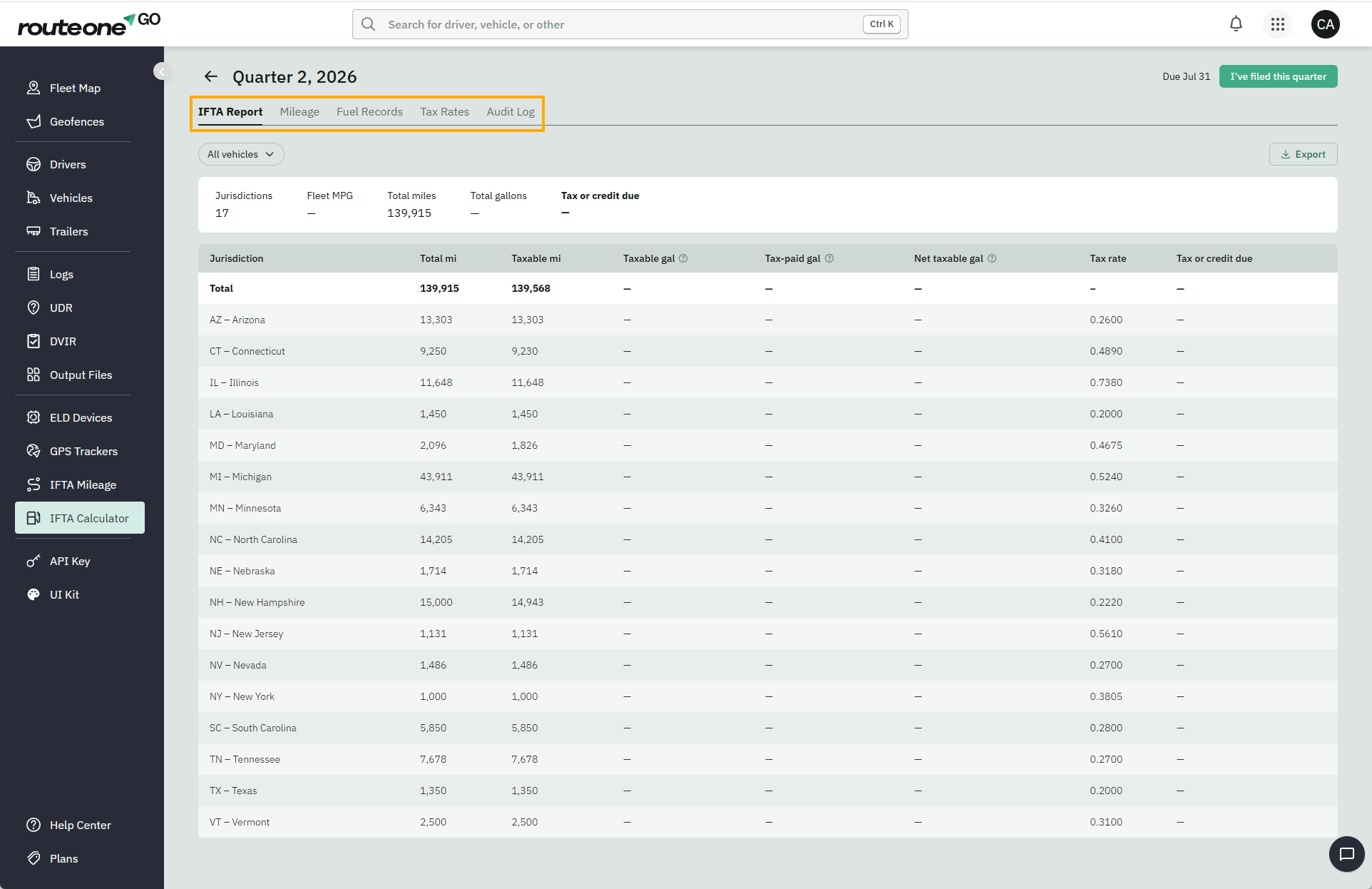
Click a quarter card from the dashboard to open it.
Each quarter contains five tabs:
IFTA Report – Review the calculated totals for each jurisdiction, export the report, and mark the quarter as filed after you've submitted your return. See Review your IFTA report.
Mileage – Review your ELD mileage, make corrections, add manually recorded mileage, and download the location history report. See Review and correct mileage records.
Fuel records – Add fuel purchases manually or import them using the CSV template. See Add and manage fuel records.
Tax Rates – View the fuel tax rates used to calculate the report for the selected quarter.
Audit Log – View the history of mileage and fuel record changes, including who made each change, when it was made, and the reason provided.
Note
Your data is retained for at least 4 years while your subscription is active. If you cancel or downgrade your subscription, long-term retention isn't guaranteed. Export any reports or records you want to keep before changing your subscription