Review and correct mileage records
Last updated 25 days ago
Overview
The Mileage tab shows the miles your ELD recorded for each vehicle, broken down by state (called a jurisdiction in IFTA terms).
Mileage is one of the two parts of your IFTA report (along with fuel records). Review the records carefully and correct them if needed, since any changes made here update your IFTA report totals.
View your mileage per jurisdiction
Navigate to the IFTA Calculator dashboard from the sidebar menu, and select a quarter
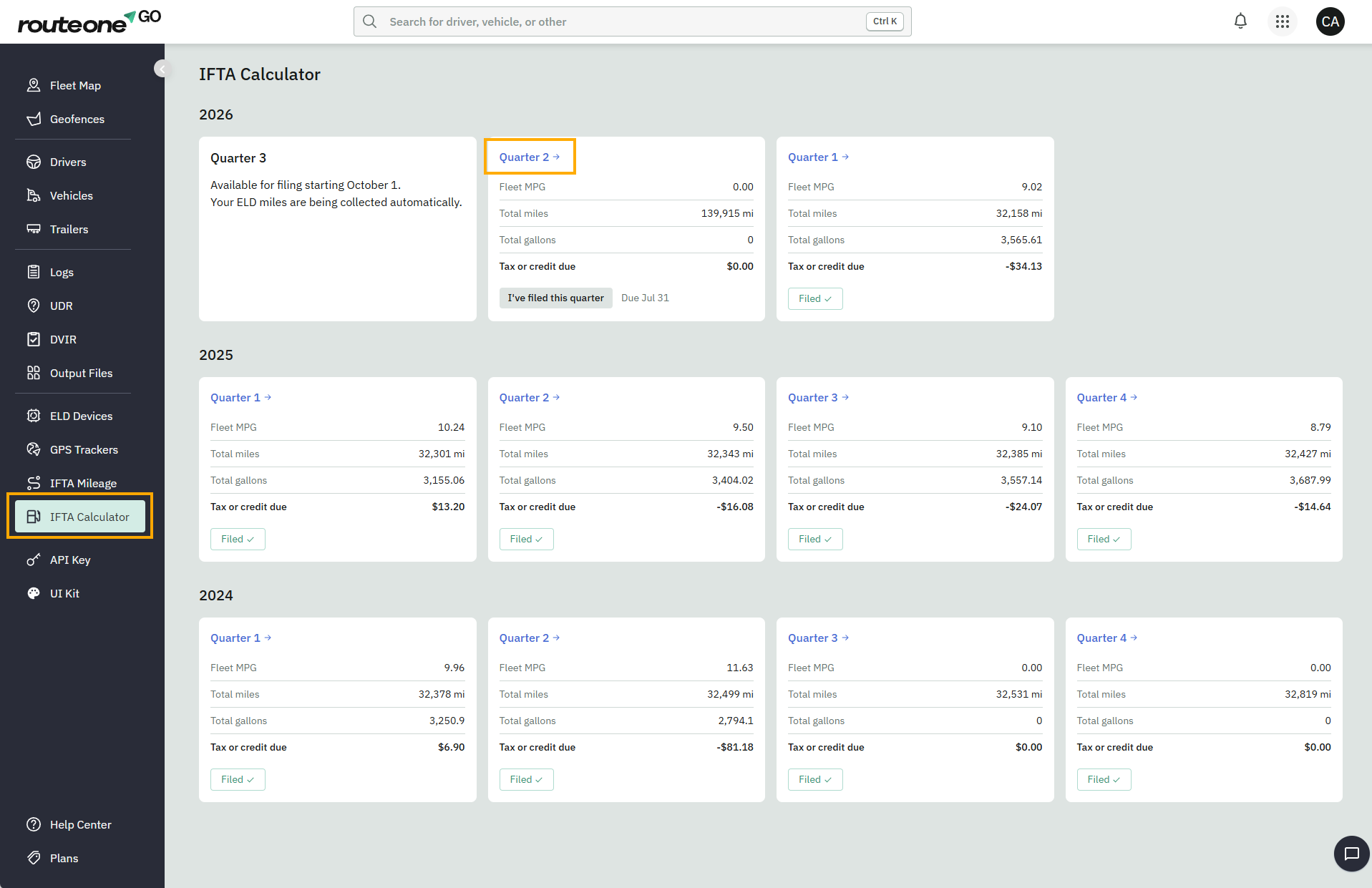
In the top bar, click on the Mileage tab. By default, you'll see the mileage per jurisdiction for All vehicles in your fleet.
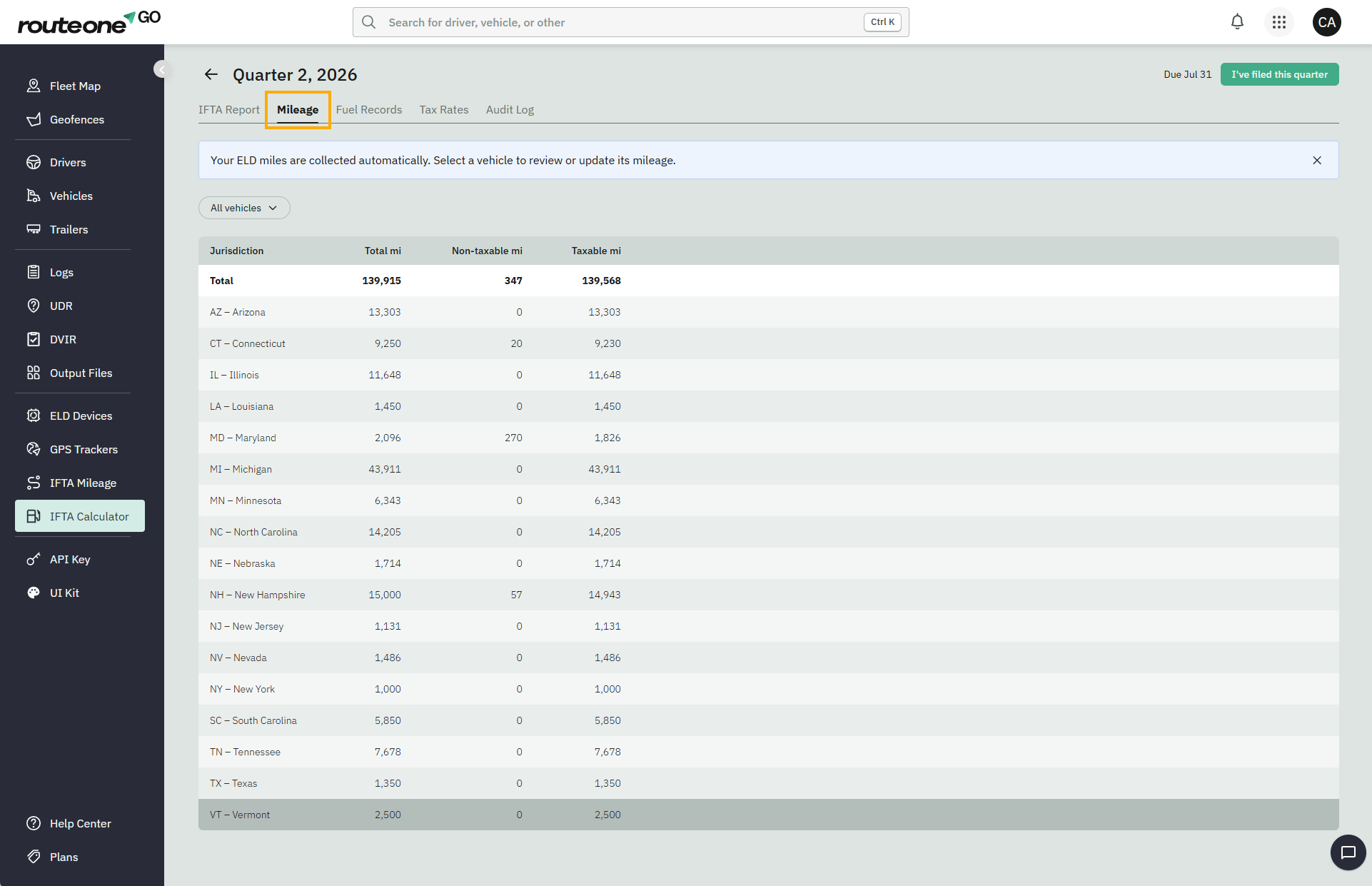
To review or correct the mileage for a specific vehicle, select it from the vehicles dropdown.
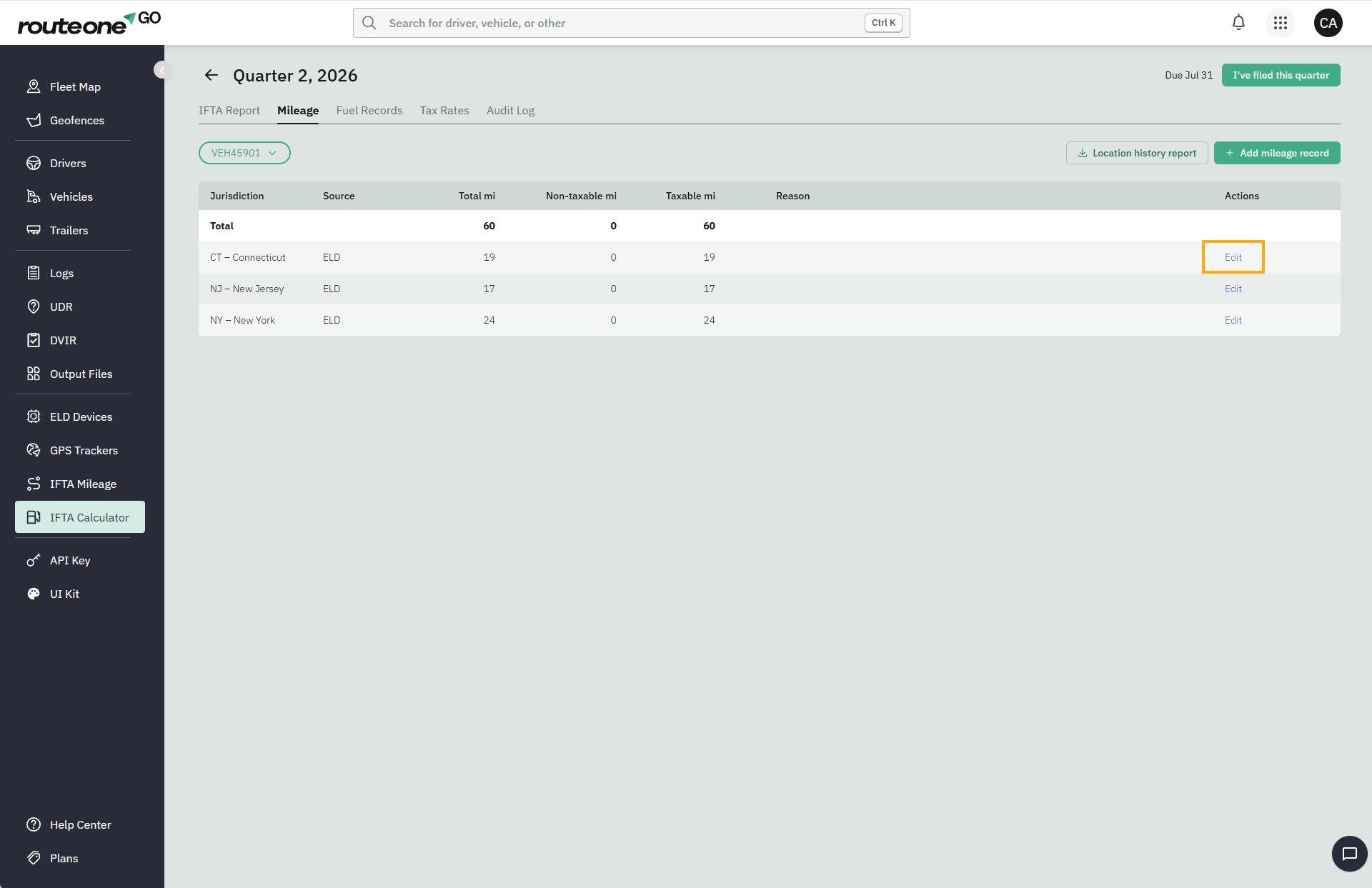
Additional columns, including Source, Reason, and Actions (Edit ), become available.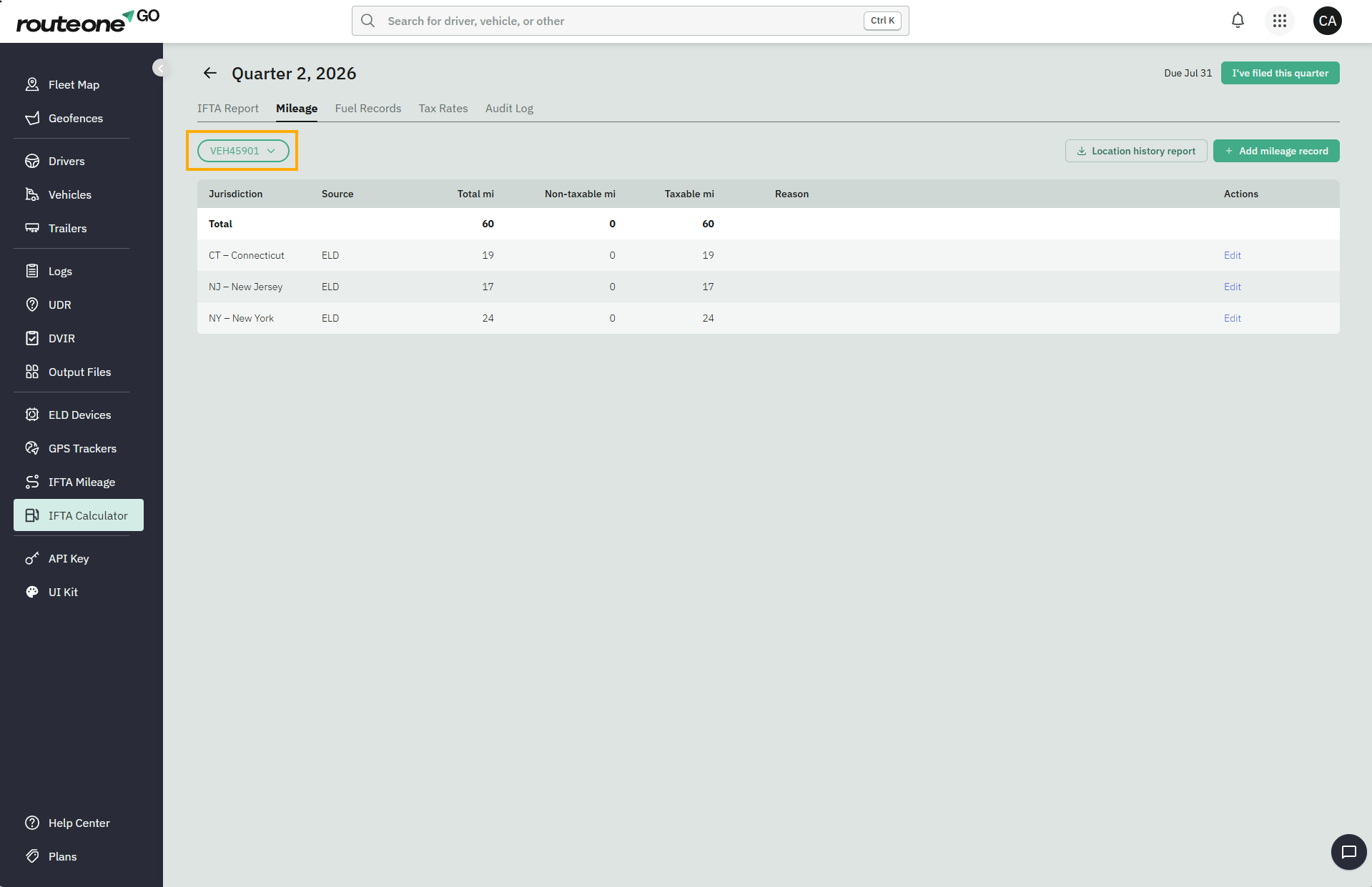
Review the location history behind your mileage
With a vehicle selected, click Location history report to download a CSV containing the vehicle's raw location data for the quarter (including timestamps, latitude, longitude, odometer, jurisdiction, and VIN).
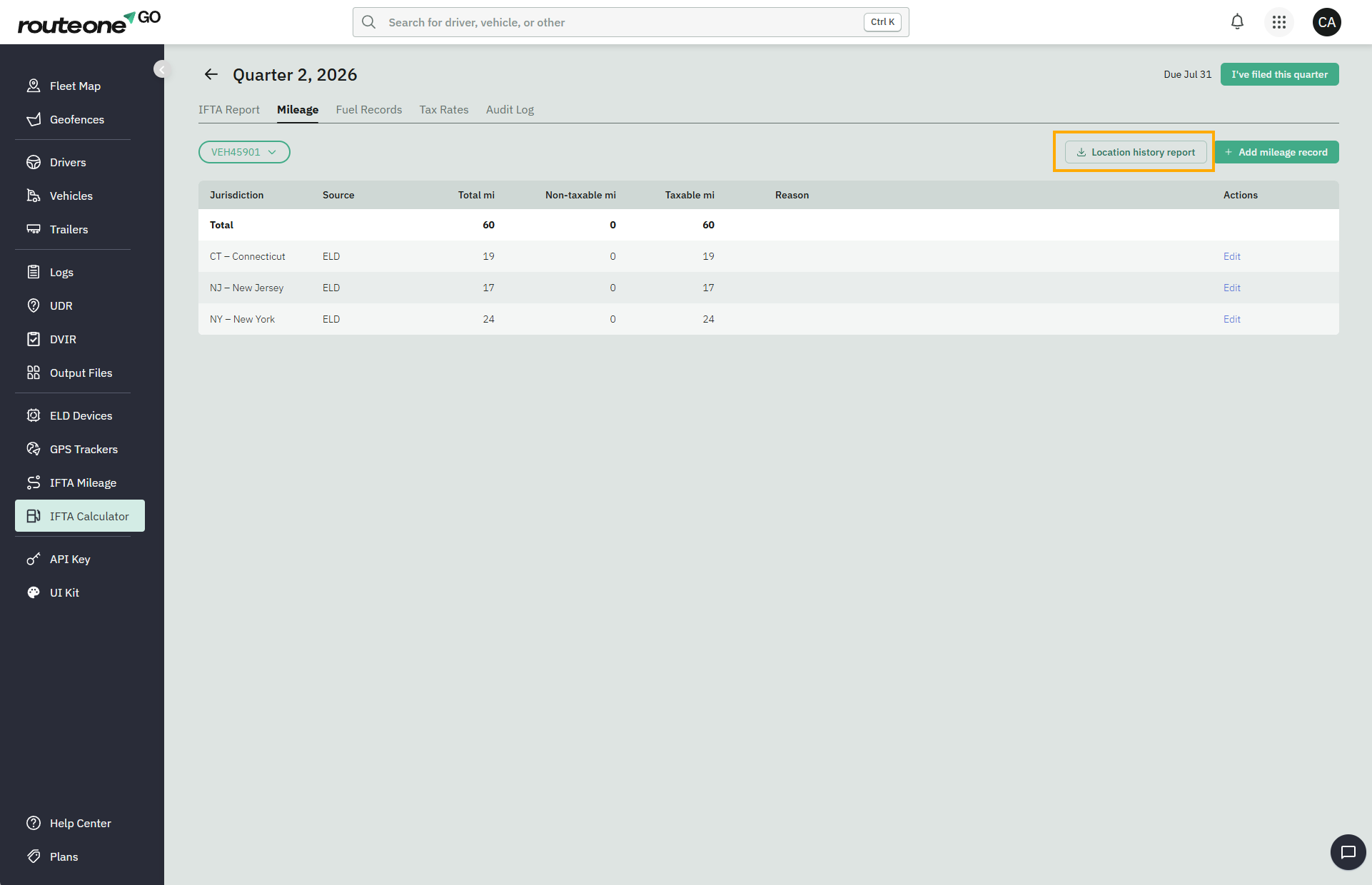
Use it to verify mileage, check where a state line was crossed, investigate a discrepancy, or support a correction.
Correct mileage recorded by your ELD
ELD mileage is collected automatically, but it isn't always perfect. GPS signal loss, device issues, or missing data can result in incorrect mileage. Review your mileage before relying on your IFTA report.
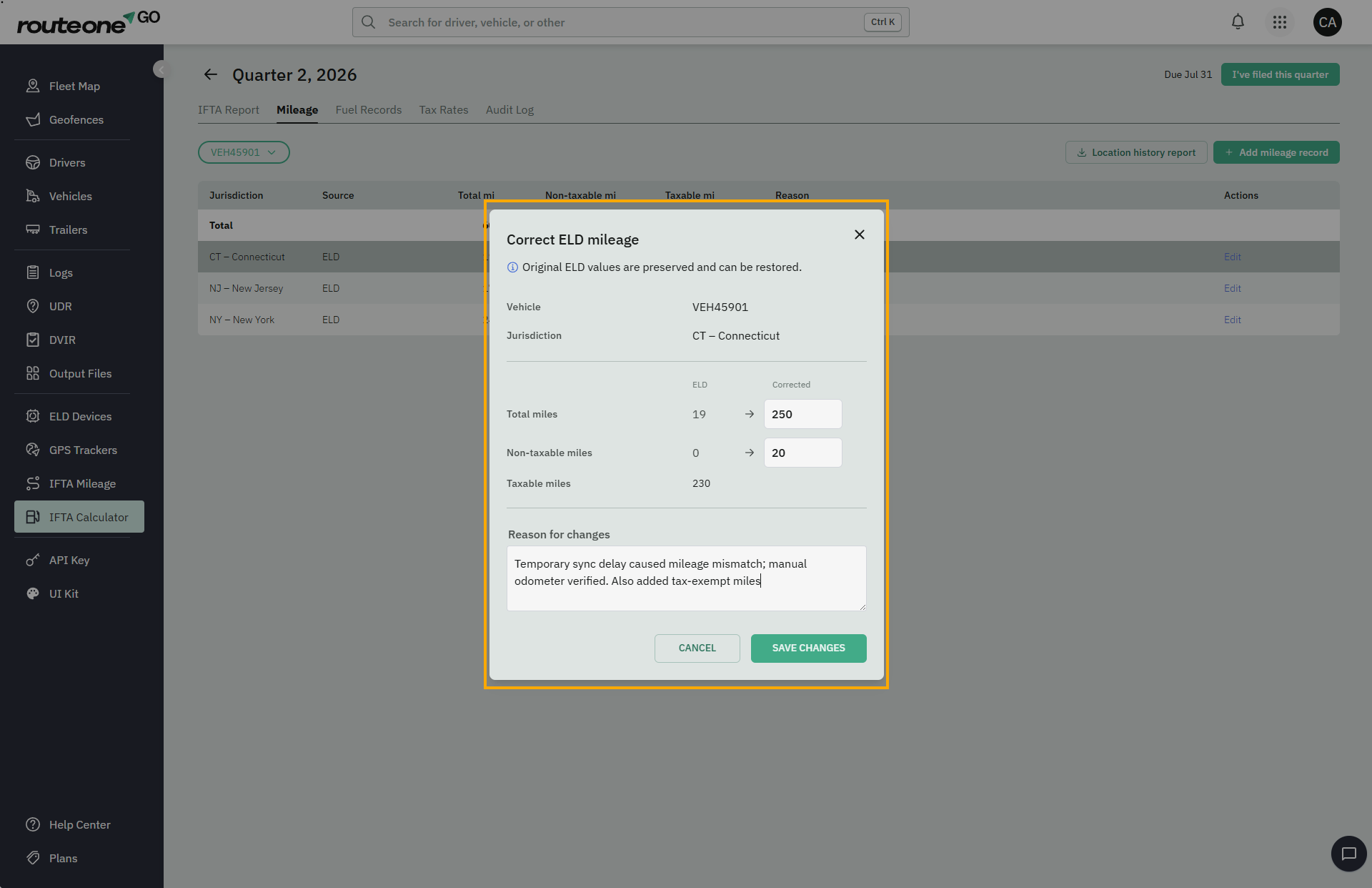
If you find incorrect mileage, you can correct it. Corrections are made for a specific vehicle and jurisdiction, and each correction requires a reason. You can also enter non-taxable miles if some of the recorded miles shouldn't be taxed.
To correct a mileage record, click Edit on the row
Enter the corrected mileage and, if needed, the non-taxable miles. Enter the reason for the correction and click Save
Note
By default, all ELD mileage is treated as taxable. If some miles qualify for an exemption (such as off-highway, farm, permitted miles, etc), the IFTA Calculator won't identify them automatically. Correct the mileage record to enter non-taxable miles, and keep documentation supporting the change.
How to undo a correction
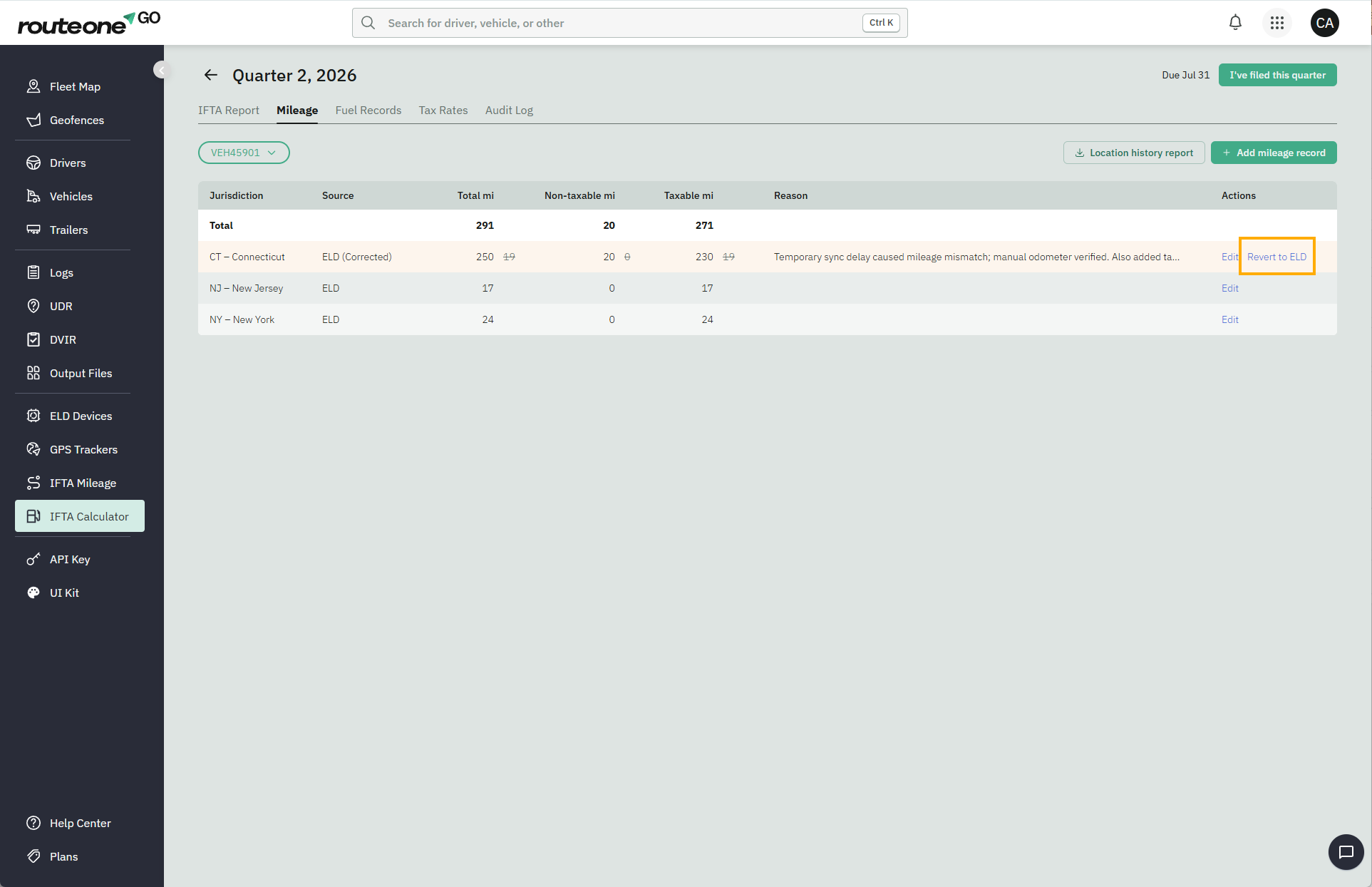
The original ELD mileage is always preserved. If you need to undo a correction, select Revert to ELD on the corrected row to restore the original value.
4. Add a state your ELD missed
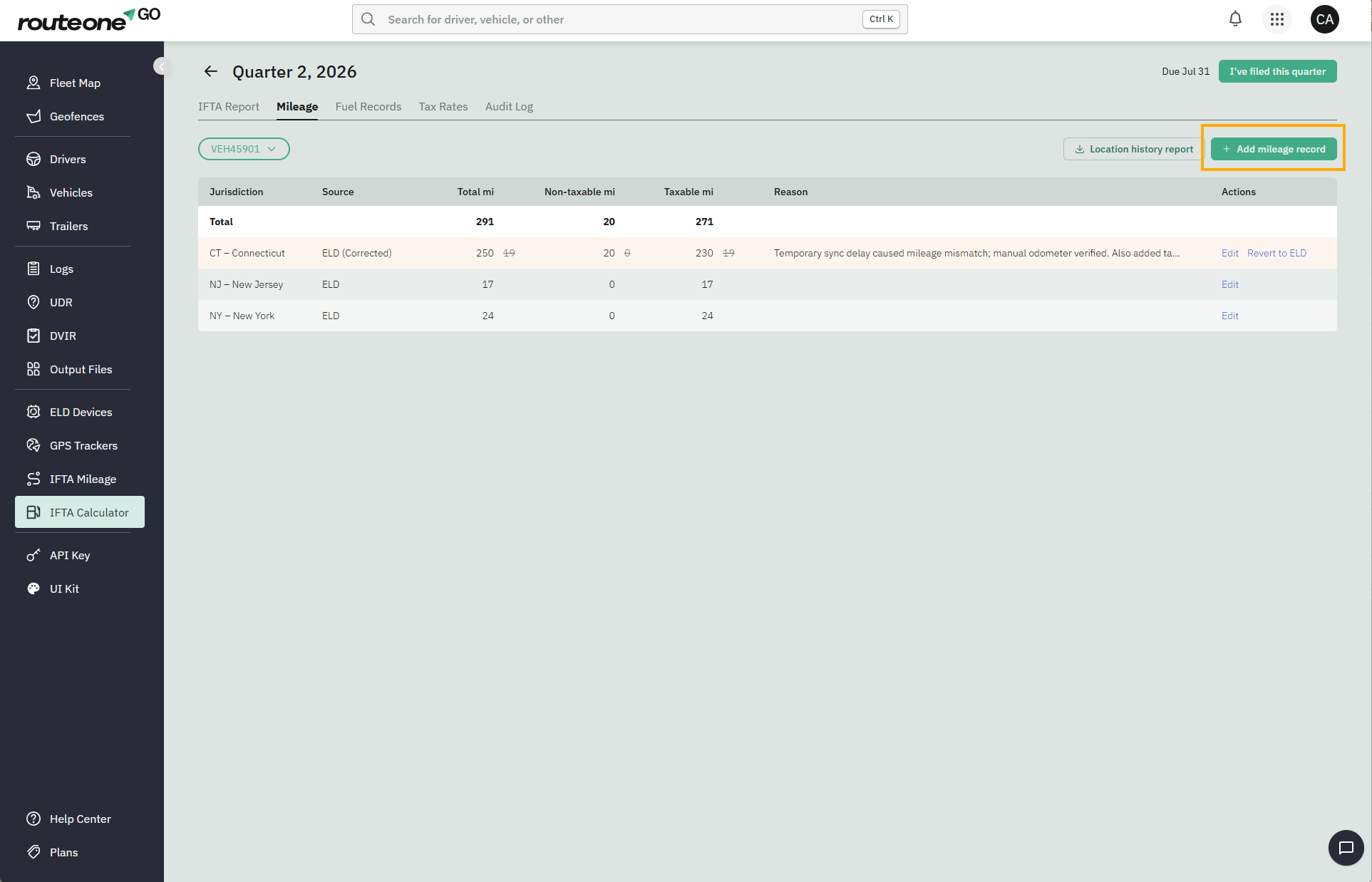
If your ELD didn't record mileage for a state your vehicle traveled through, click Add mileage record.
Select the jurisdiction, enter the total miles traveled and any non-taxable miles, provide a reason, and click Save. The IFTA Calculator automatically calculates the taxable miles.
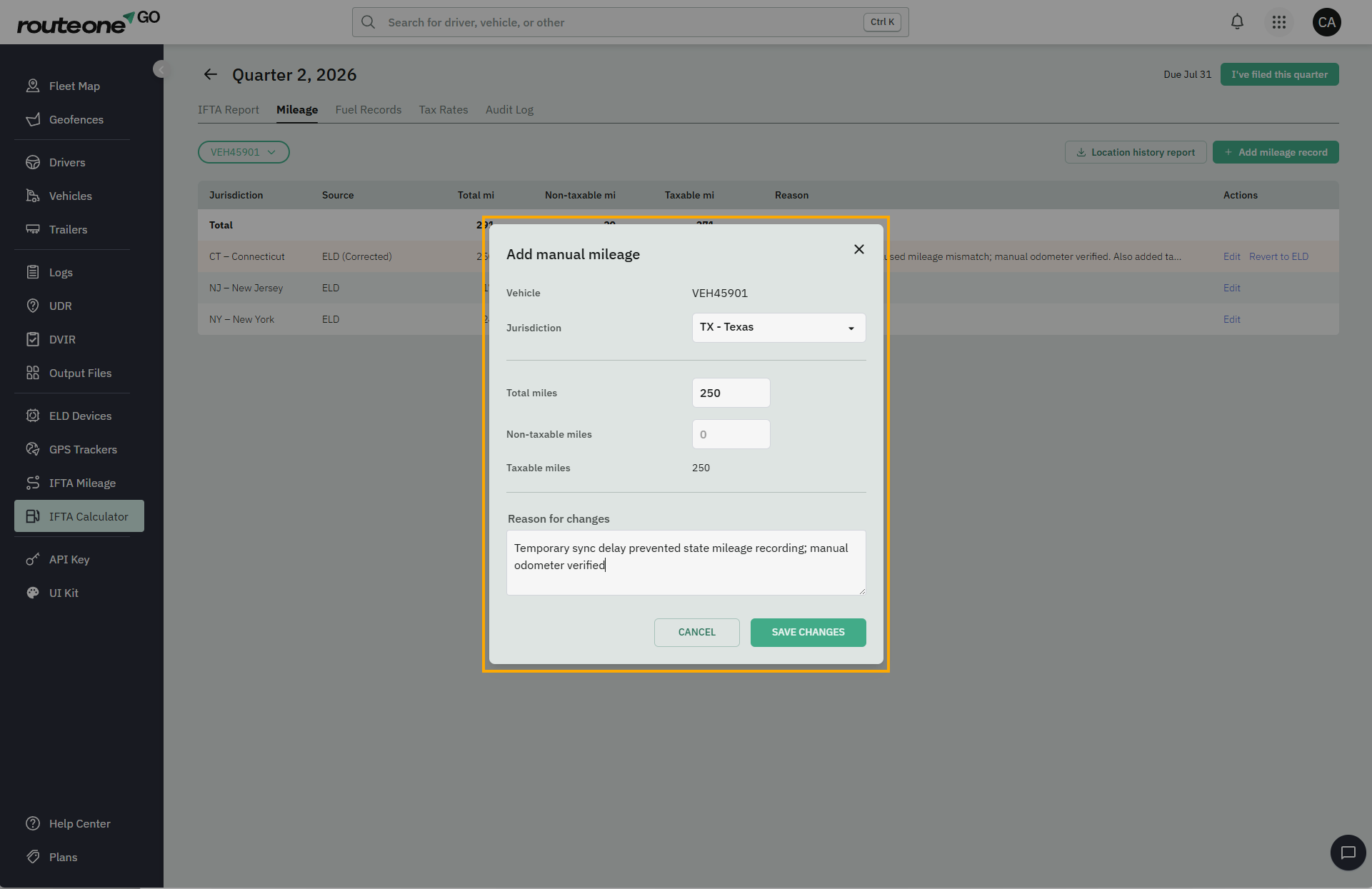
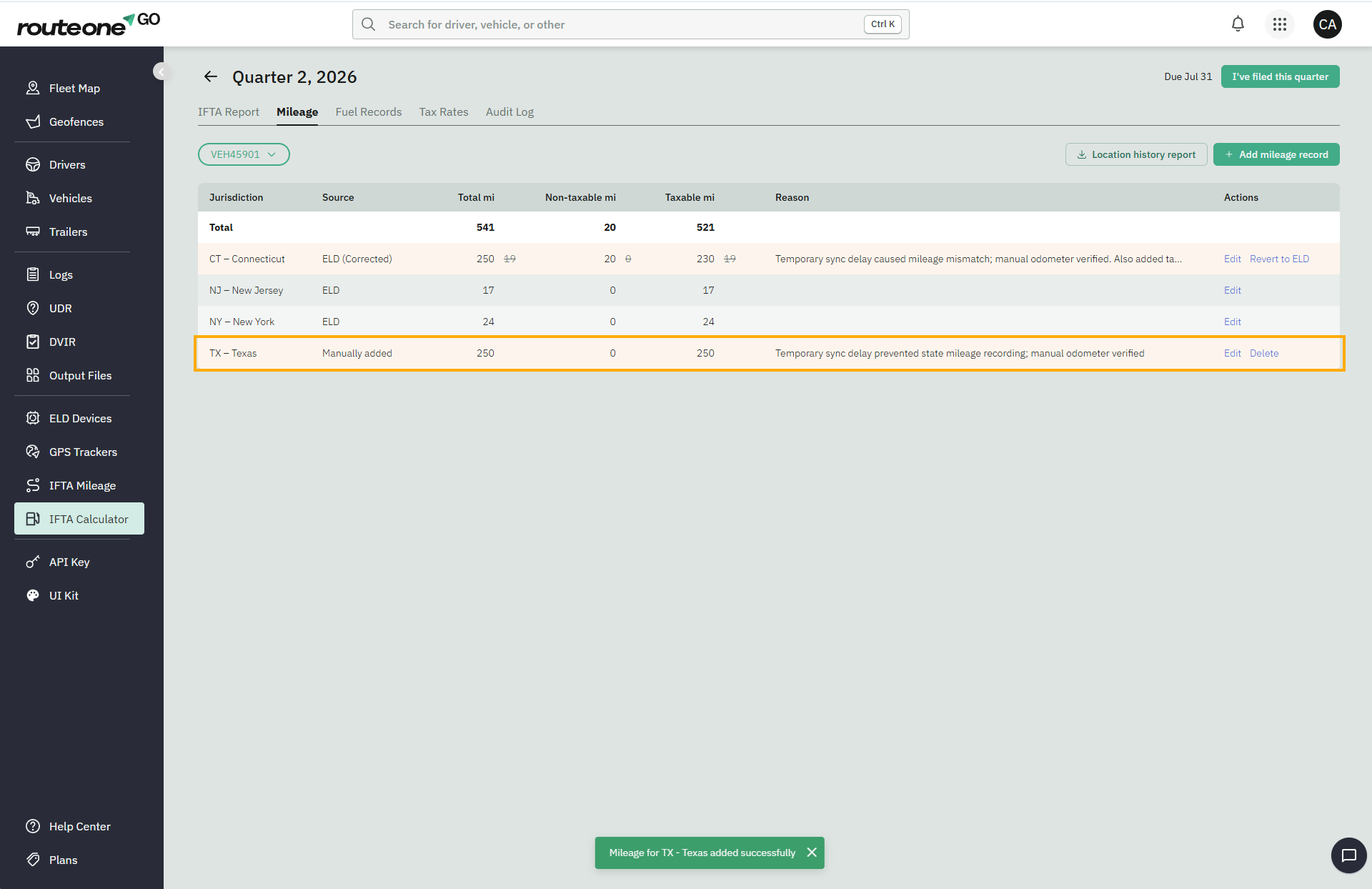
The new record appears highlighted in the table and with Source set to Manually Added.
5. Edit or delete a manual mileage record
Mileage records you add manually can be edited or deleted at any time.
To update a record, click Edit, make your changes, and click Save.
To remove a record, click Delete and confirm the action. Deleting a manually added record permanently removes it. Unlike corrected ELD records, there's no original value to restore.
Warning
Keep any documentation that supports a correction or manually added mileage record, such as trip logs or dispatch records. The IFTA Calculator doesn't store these documents for you.