Safety AI Event Detection
Last updated 25 days ago
Our AI cameras watch the road and the cab and flag risky driving as it happens — speeding, harsh braking, phone use, following too close, and more. Each thing a camera detects becomes an AI Alert you can review, with footage and all.
Where events appear: the AI Alerts page
Every detected event lands on the AI Alerts page. It opens on the Needs Review tab, which carries a count badge showing how many events are still waiting on you. Four tabs organize the list:
Notifications
When a camera registers an AI event, Route One Go logs a notification on the portal so you don't have to watch the queue. The notification is titled by the event type, and the description names the unit it happened on.
How to access
In the Fleet Portal, open the AI Alerts tab from the sidebar menu.
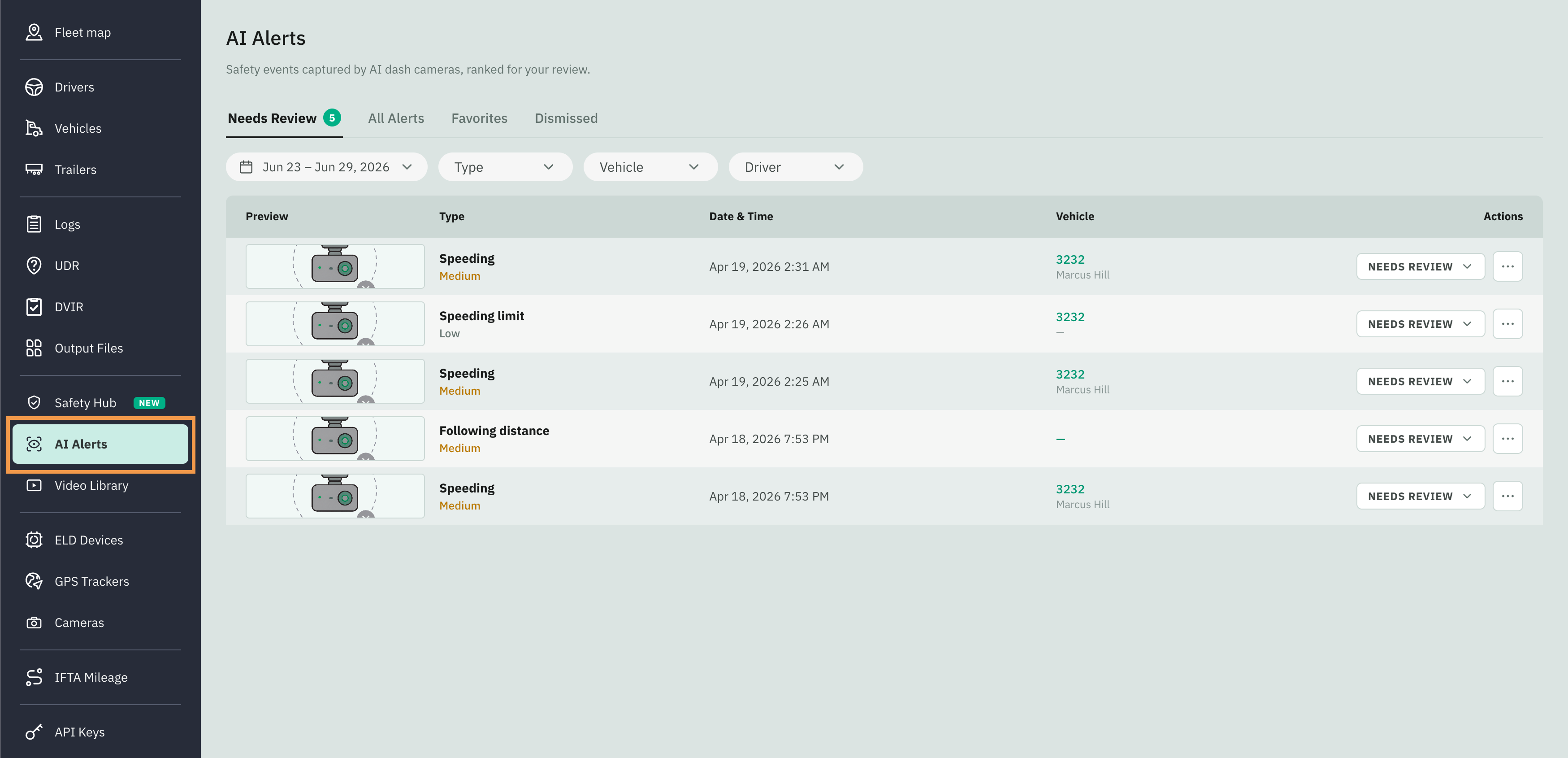
To open the AI Alert detail page, select an alert from the list and click it.
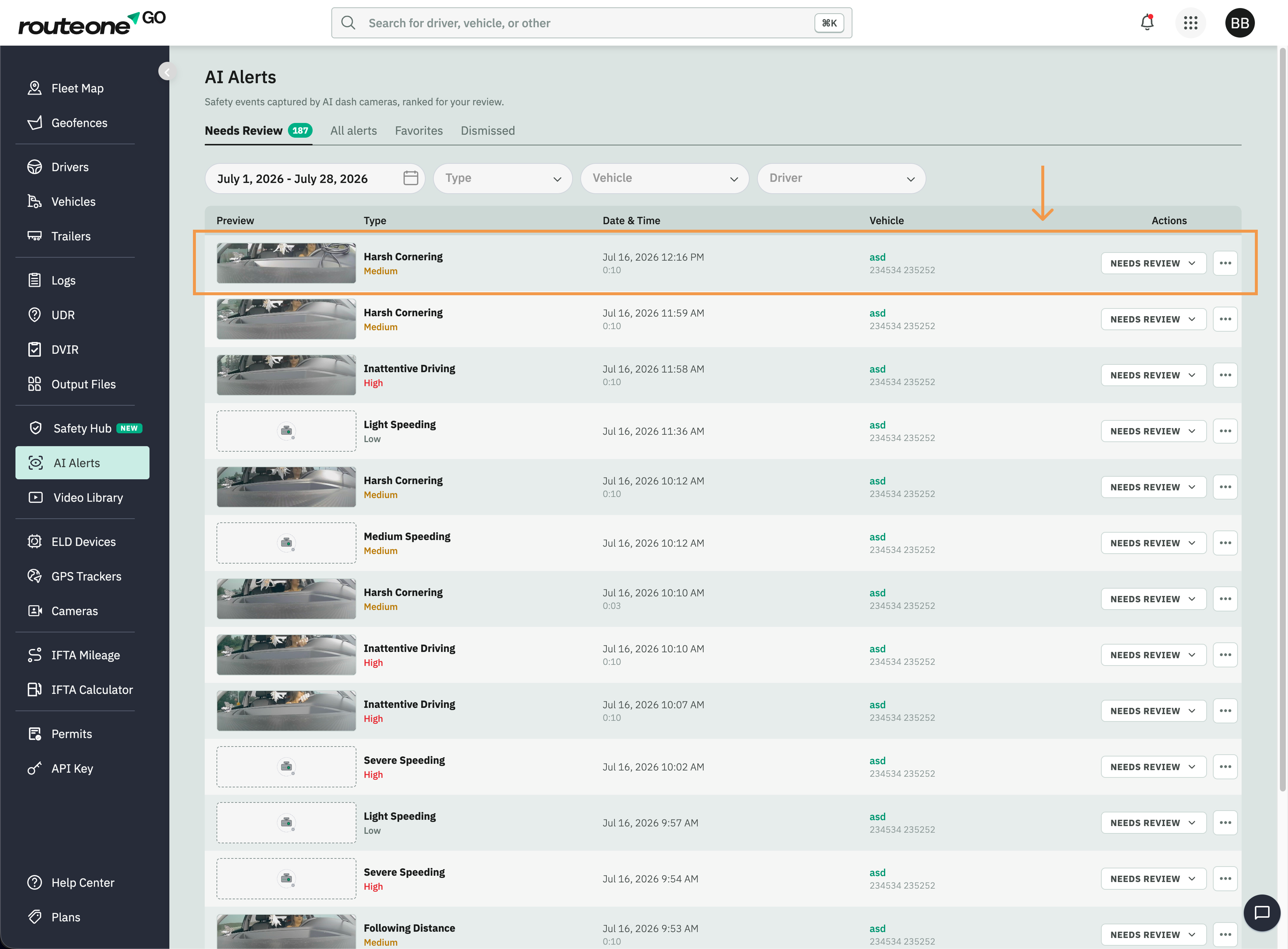
The AI Alert Detail page
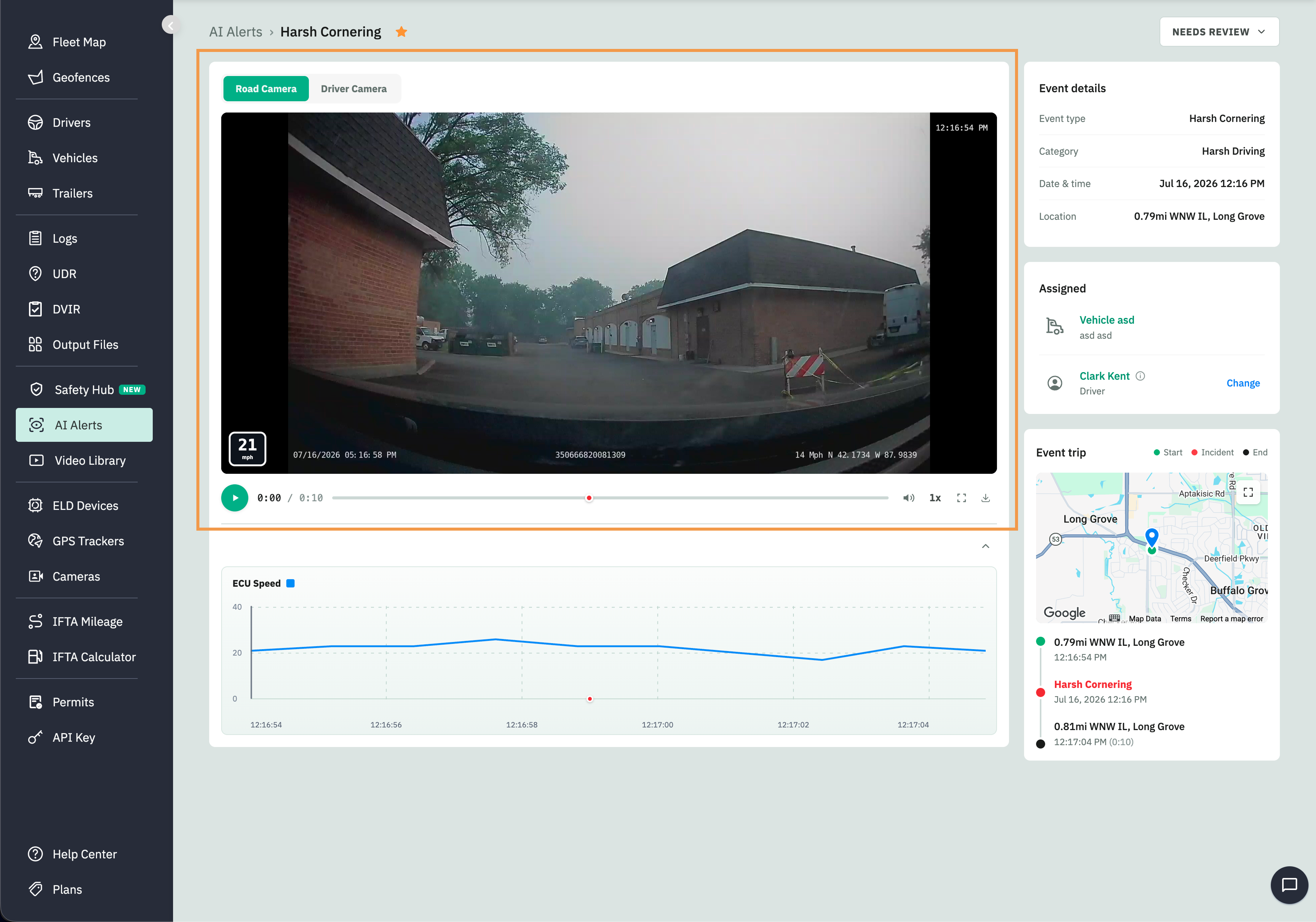
The detail page gives you everything to judge an event and act on it, in a two-column layout: footage and telemetry on the left, event details on the right.
Footage. The road and driver cameras play together, with the vehicle's speed overlaid. Use the playback bar to play, seek, adjust volume and speed, go fullscreen, or download the clip. A red marker is pinned to the exact moment the event happened — click it to jump straight there.
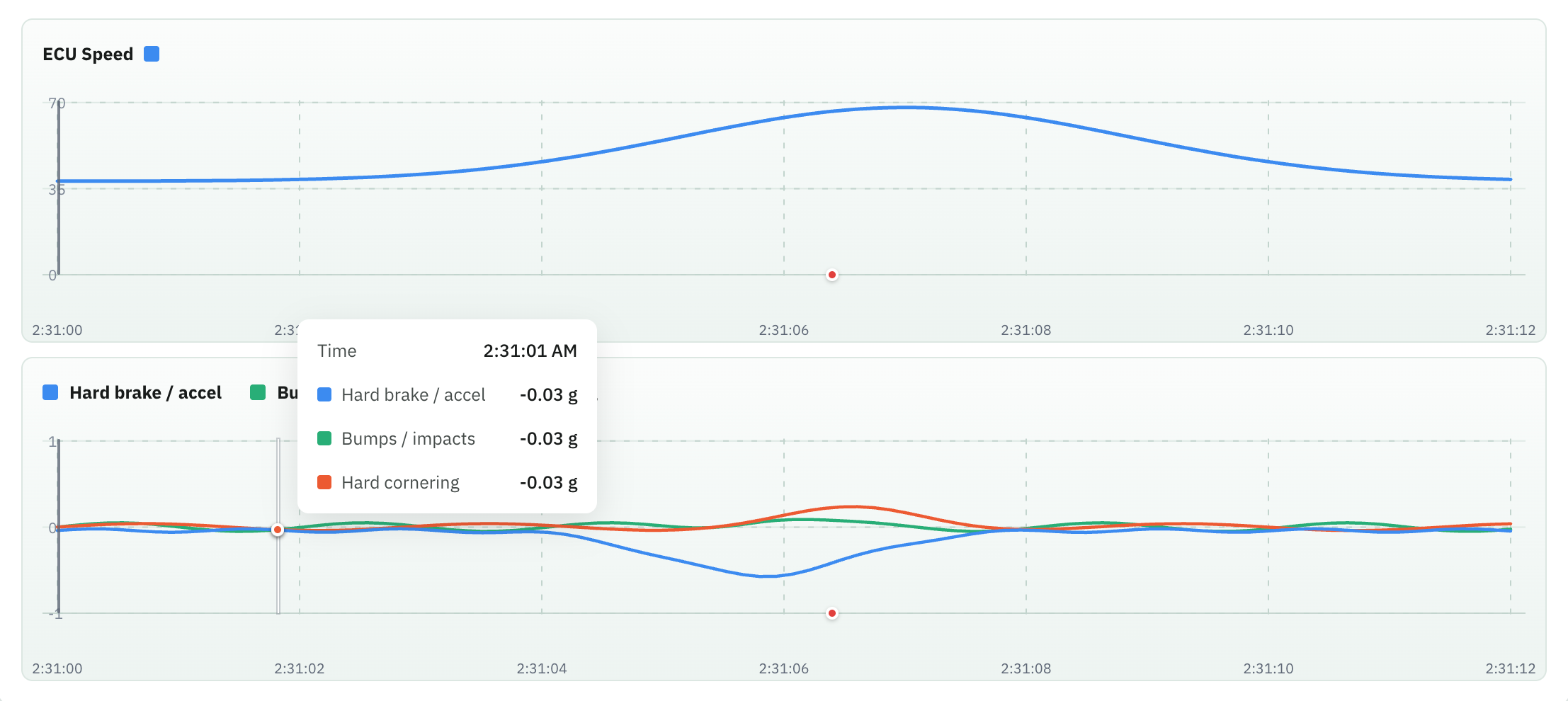
Vehicle telemetry. A chart sit beneath the feeds and follow the same timeline as the video: vehicle speed, and G-force split into hard brake/accel, bumps/impacts, and hard cornering. A moving line keeps them in sync with playback and marks the event moment.
Event details and event trip. The event type and category, date and time, and location.