Set up intervals, parts, and shops
Last updated 24 days ago
Maintenance settings is where you define the defaults the rest of the module draws on: how early a schedule starts warning you, the parts you pick from when itemizing a repair, and the shops you can assign work to. You'll usually set these up once and only revisit them occasionally.
Opening Settings
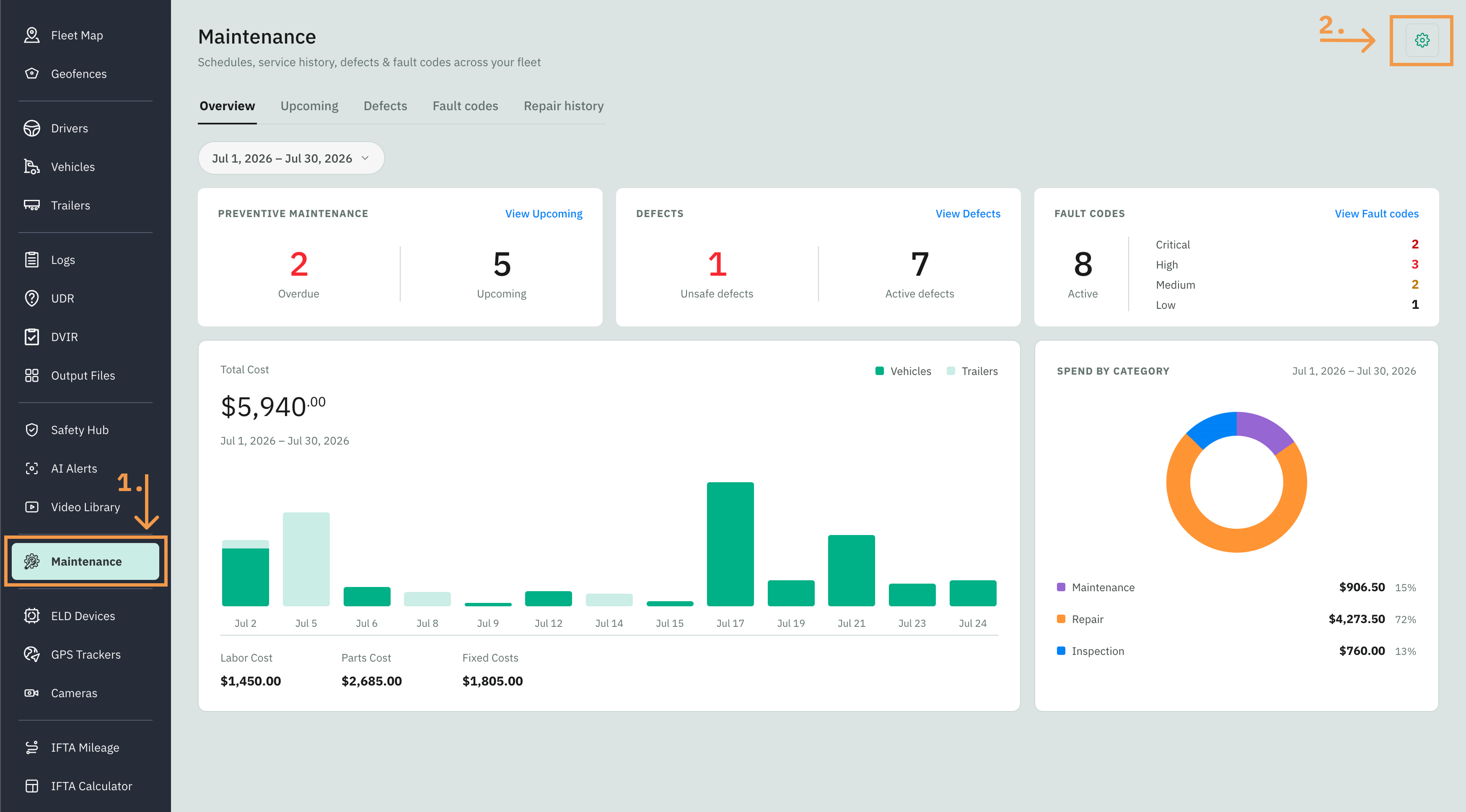
Go to Fleet Portal and access the Maintenance tab from the sidebar menu
Open Maintenance settings from the gear icon at the top right of Maintenance. On the Upcoming view, which has no gear, open it from the Actions menu (the three-dots button) instead
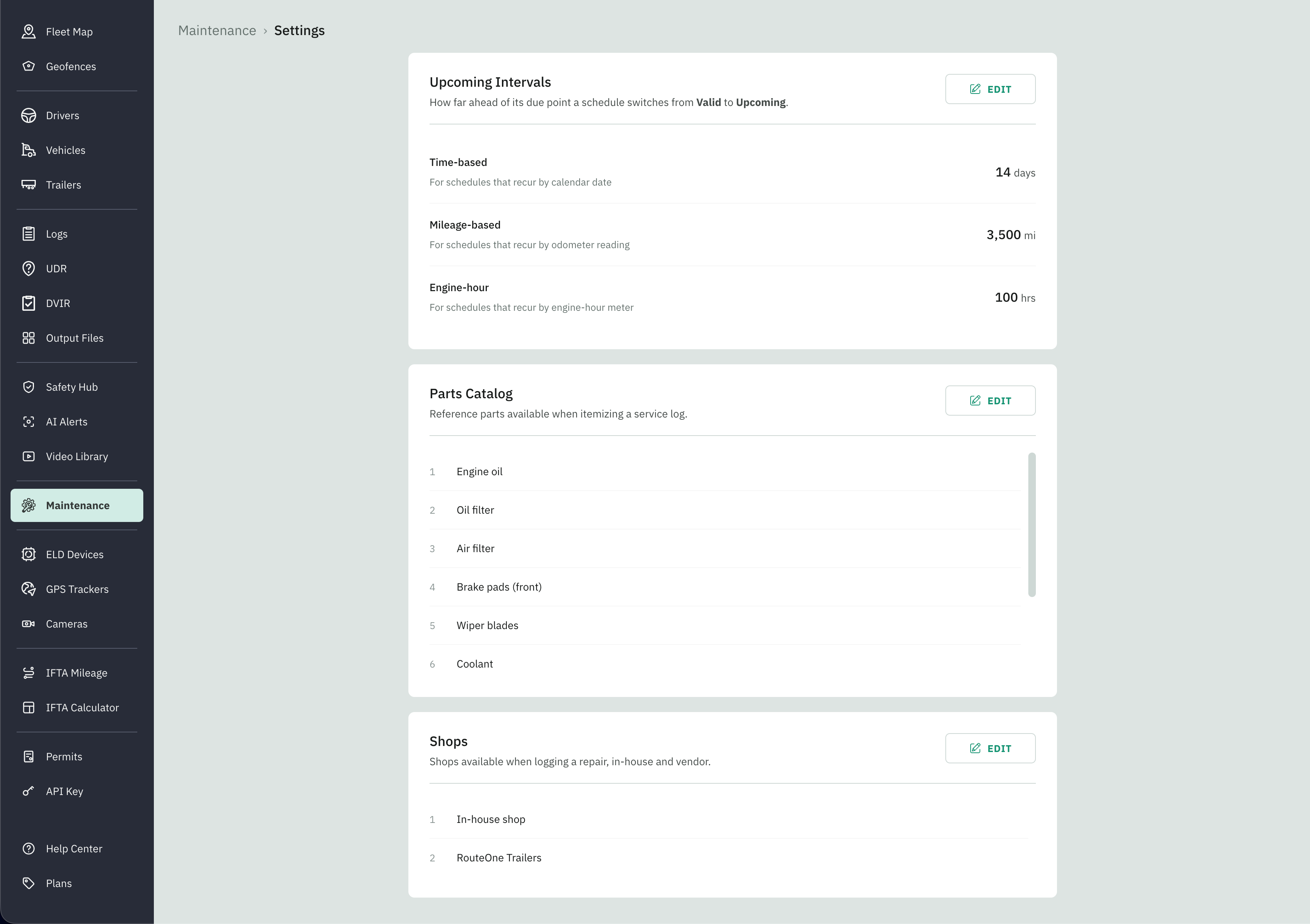
The page holds three sections stacked top to bottom — Upcoming intervals, Parts catalog, and Shops. Each has its own Edit button and saves on its own.
Upcoming Intervals
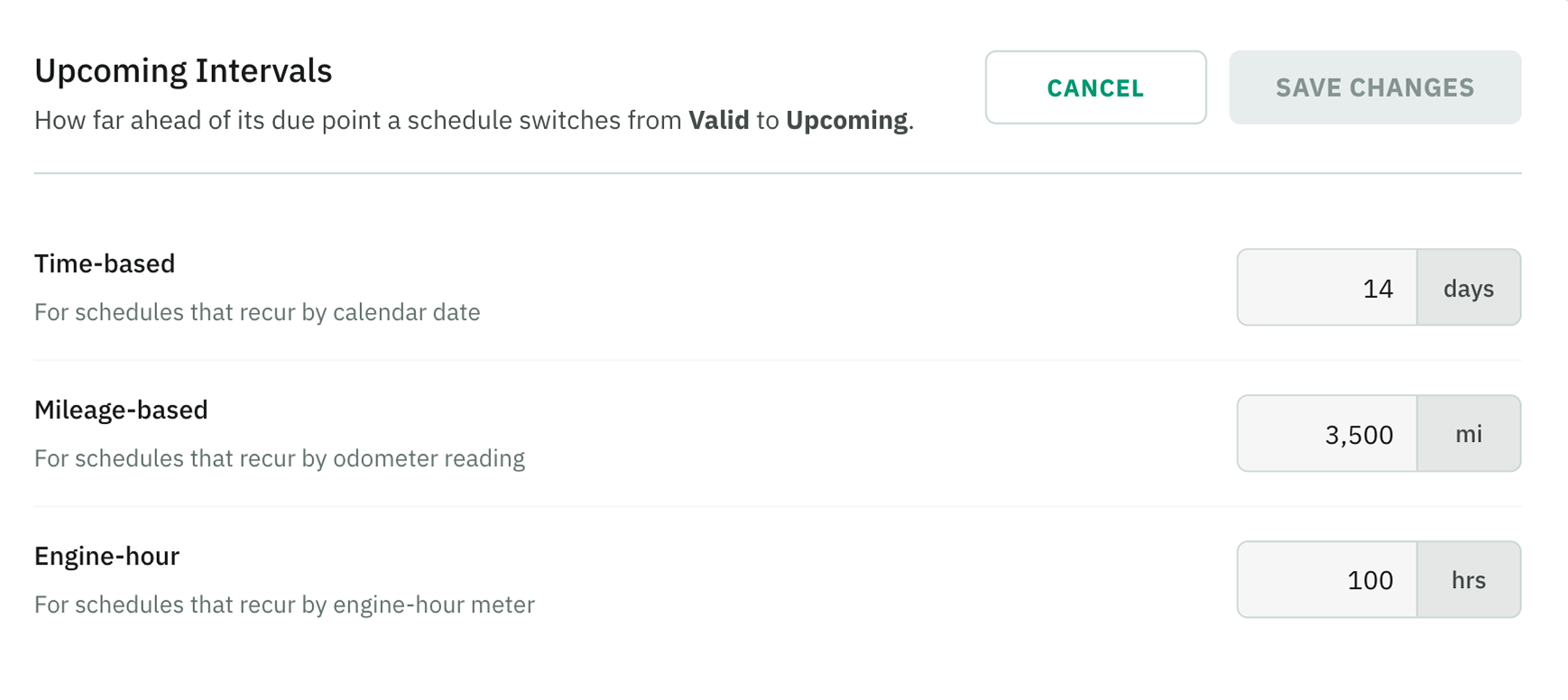
This controls how far ahead of its due point a schedule starts showing as Upcoming instead of Valid — your early-warning window. There are three, one per schedule type:
Time-based — for schedules that recur by date. Default: 14 days ahead.
Mileage-based — for schedules that recur by odometer reading. Default: 3,500 miles out.
Engine-hours — for schedules that recur by engine-hour meter. Default: 100 hours out.
To change them, click Edit, adjust the values, and Save changes. Values that fall outside the accepted range correct themselves automatically, so there's nothing to fix by hand.
Parts Catalog
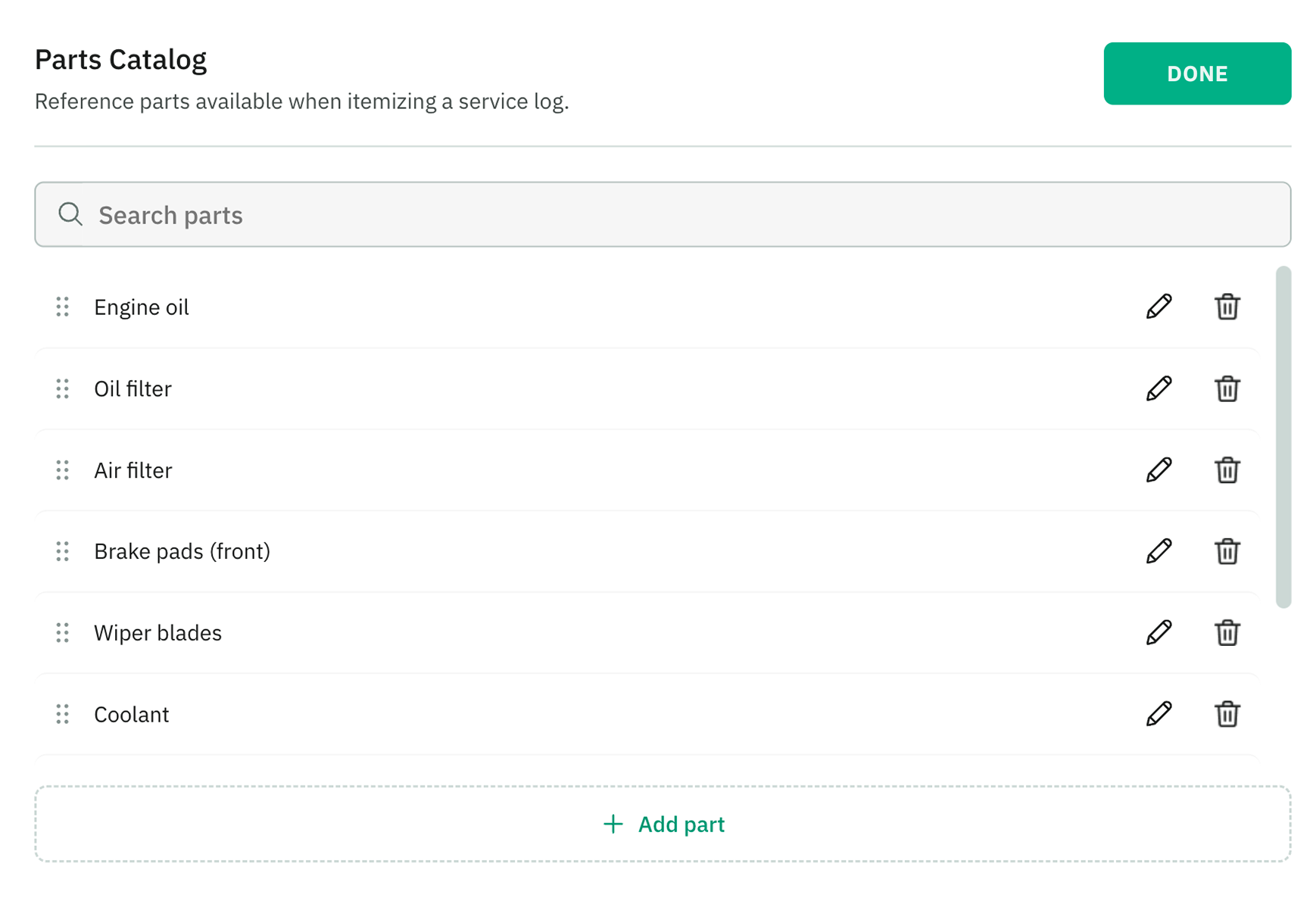
A reference list of the parts you can pick from when you itemize a repair under Parts & labor. In this version, it's name-only — you enter each part's cost at the time you log the repair, not here.
Click Edit to manage the list:
Add part appends a new part to the bottom.
The pencil renames a part; the trash removes it.
Drag a row by its grip to reorder the list.
Use the search field to find a part in a long list.
Shops
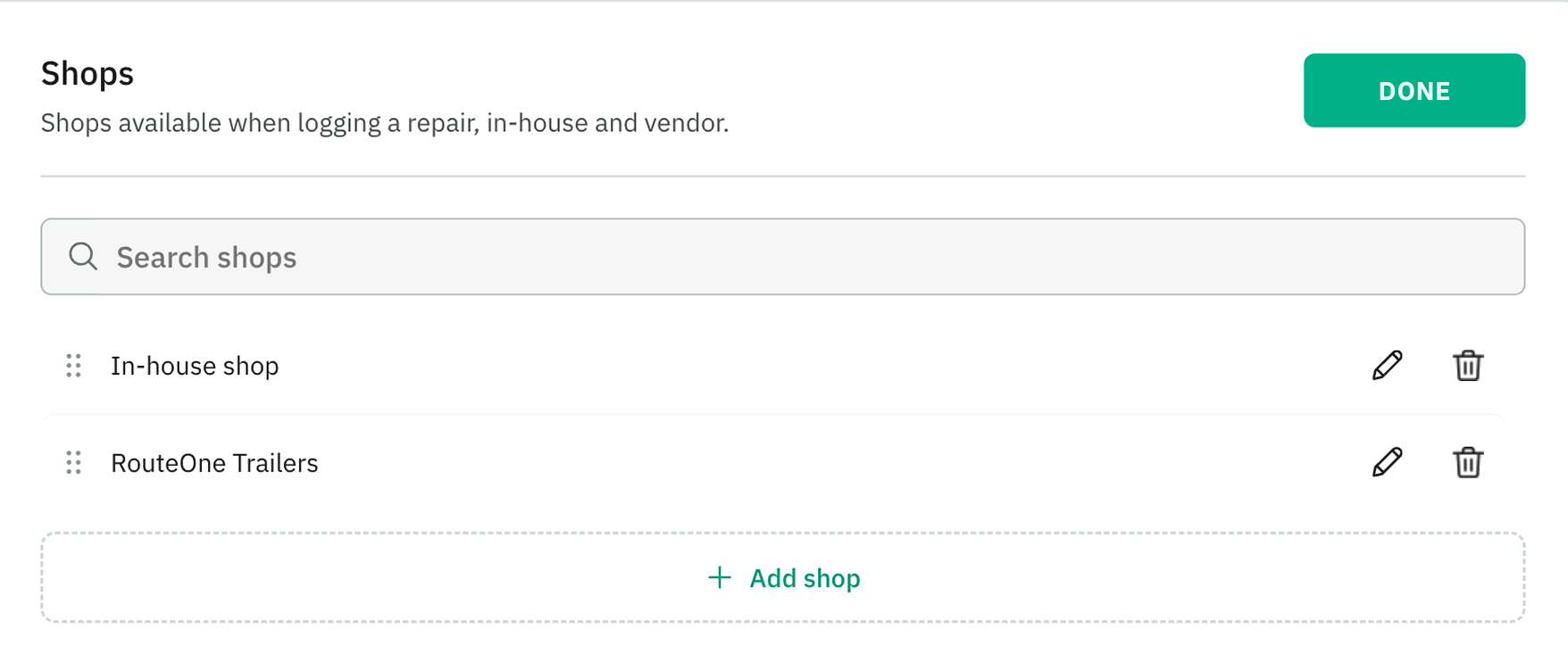
The list of shops you can assign a repair to when logging it — your in-house shop and any outside vendors you use.
Managing it works the same as the parts catalog. Click Edit to manage the list:
Add shop appends a new part to the bottom.
The pencil renames a part; the trash removes it.
Drag a row by its grip to reorder the list.
Use the search field to find a shop in a long list.