Getting started with Documents
Last updated 20 days ago
Documents helps you keep your fleet's paperwork organized by driver, vehicle, trailer, and company. Add documents with their expiration dates, and you'll see what's expiring and get reminded before anything lapses.
Where to find your documents
You can work with documents in two places:
For a driver, vehicle, or trailer — open the driver, vehicle, or trailer and go to its Documents tab. Company documents are under Company → Documents.
Across your whole fleet — open Documents in the left navigation to see what's expired or expiring soon in one place.
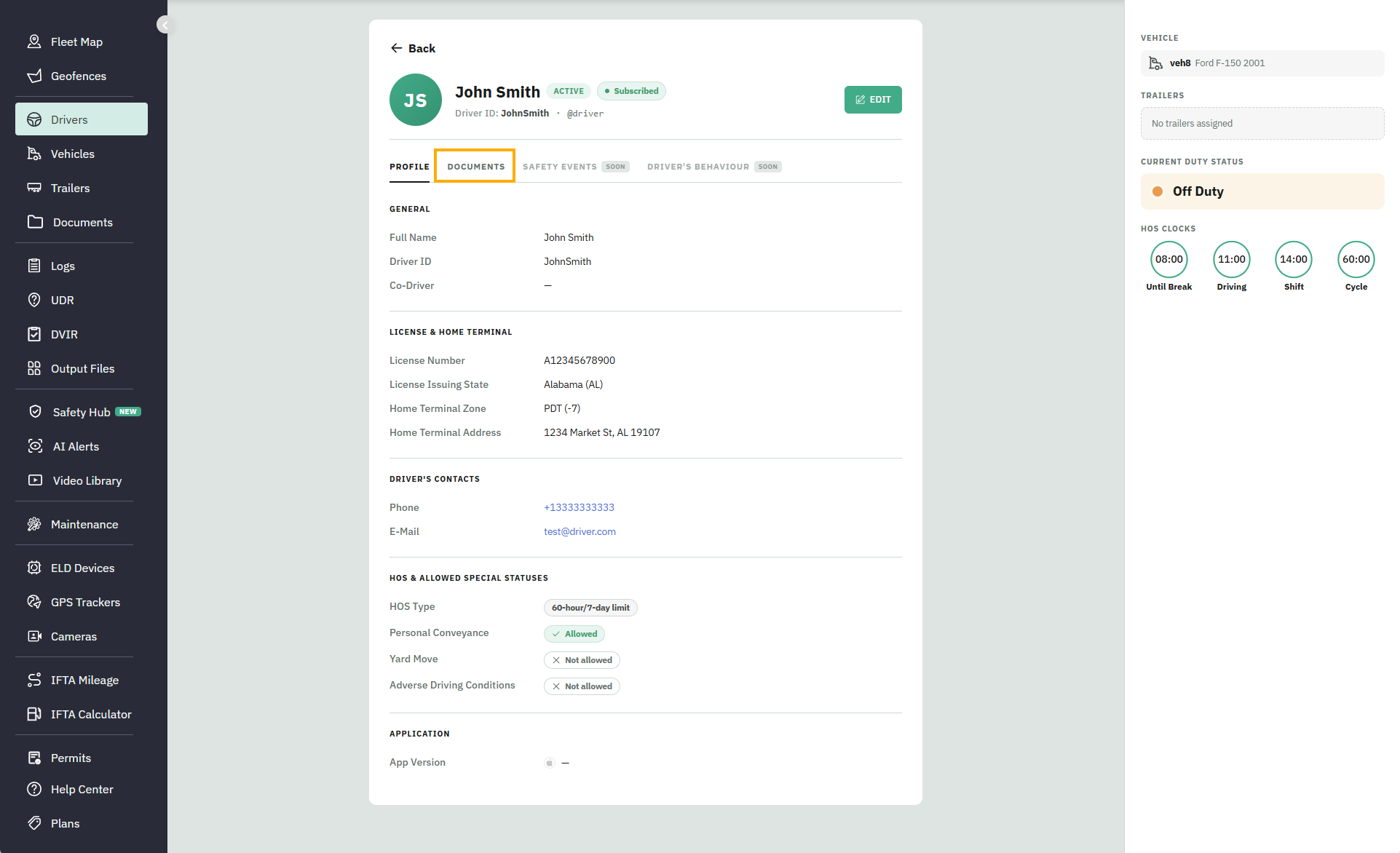
[Screenshot: Documents tab on a driver]
How documents are organized
There are two building blocks:
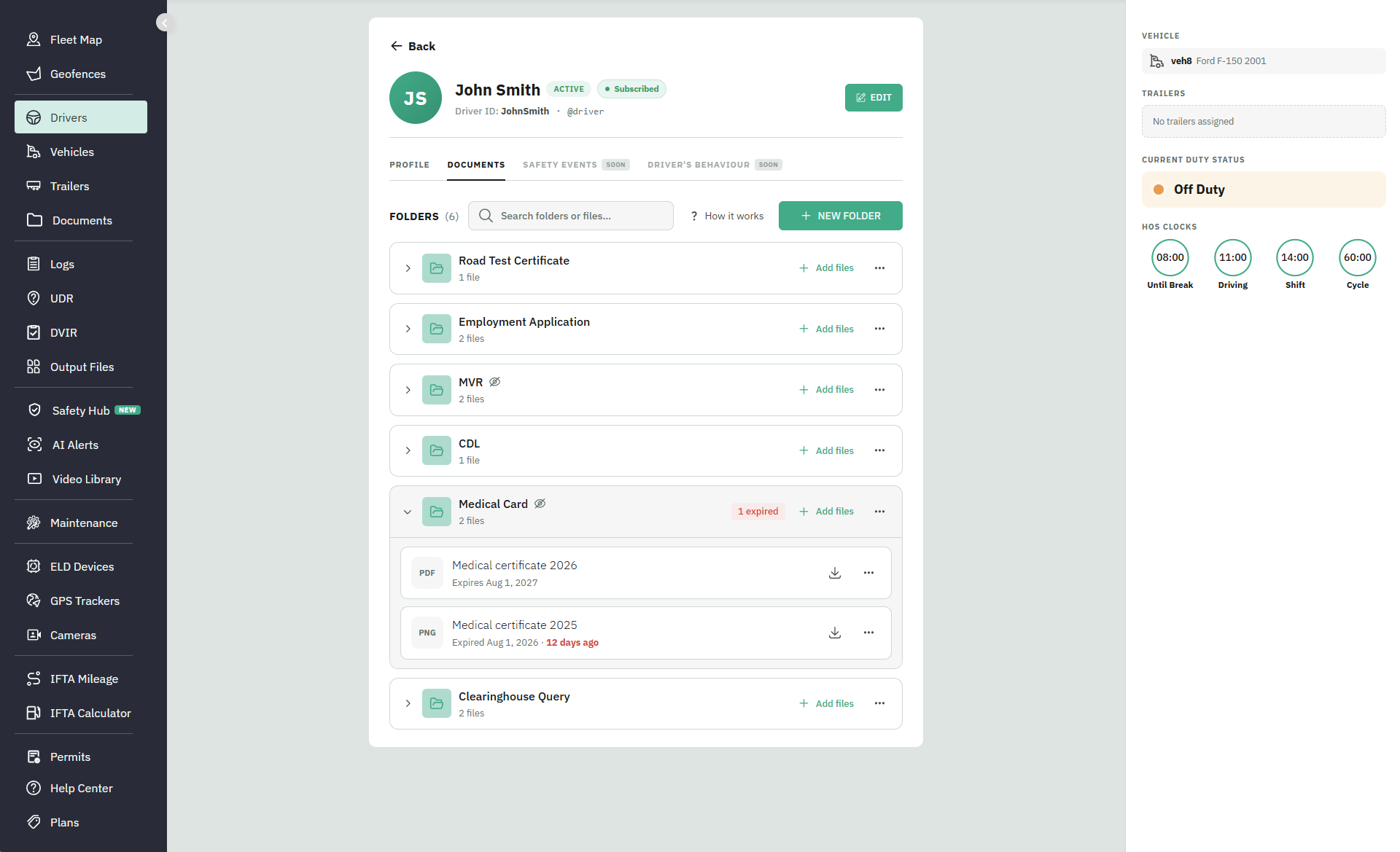
Folders group related files. You can use them to organize documents by type — for example, a driver's Medical Card or a vehicle's Registration — or create your own folder structure.
Files are the actual documents you upload to a folder. A folder can hold one file or several. Each file can have an expiration date and a note.
You can choose a folder name from the suggested document types or enter your own.
Keeping track of expirations
When a document has an expiration date, it's flagged as expiring soon or expired as the date approaches and passes. Each folder shows how many documents need attention, and the fleet-wide Documents page brings together everything that needs attention across your drivers, vehicles, trailers, and company.
You'll also get expiration alerts by email and in the portal, so renewals don't slip by.
What Documents does and doesn't do
It stores and organizes your documents and tracks expiration dates.
It doesn't tell you whether you're compliant — it tracks the documents and dates you enter.
It doesn't detect missing documents — it tracks the documents you've added, not ones you haven't.
Drivers can't view documents yet. You can set folder visibility now; driver access will come in a future release.
FAQ
What happens when a document expires?
It's flagged as expired and appears on the fleet-wide Documents page until you add a new document. By default, you'll also get an alert 30 days before and again on the expiration date.
How do I renew an expired document?
Add the new document to the same folder, then archive the old one. The old document stays available as history without cluttering your active documents.
Can drivers see these documents? Not yet. You can set a folder's visibility now, but driver access to documents will be available in a future release.