05/ Start logging your hours
Last updated 4 months ago
Overview
The Route One ELD Driver App keeps your Hours of Service log accurate throughout the day by recording duty status changes in real time. Keeping your status up to date is what ensures you stay compliant with FMCSA regulations and avoid violations.
There are four duty statuses:
Off Duty — You have finished your shift or are taking a rest away from the vehicle.
Sleeper Berth — You are taking a rest period in the truck's built-in sleeping area.
Driving — You are operating the vehicle.
On Duty (not driving) — You are working but not behind the wheel — fueling, pre-trip inspection, loading, waiting at a shipper.
Change your duty status
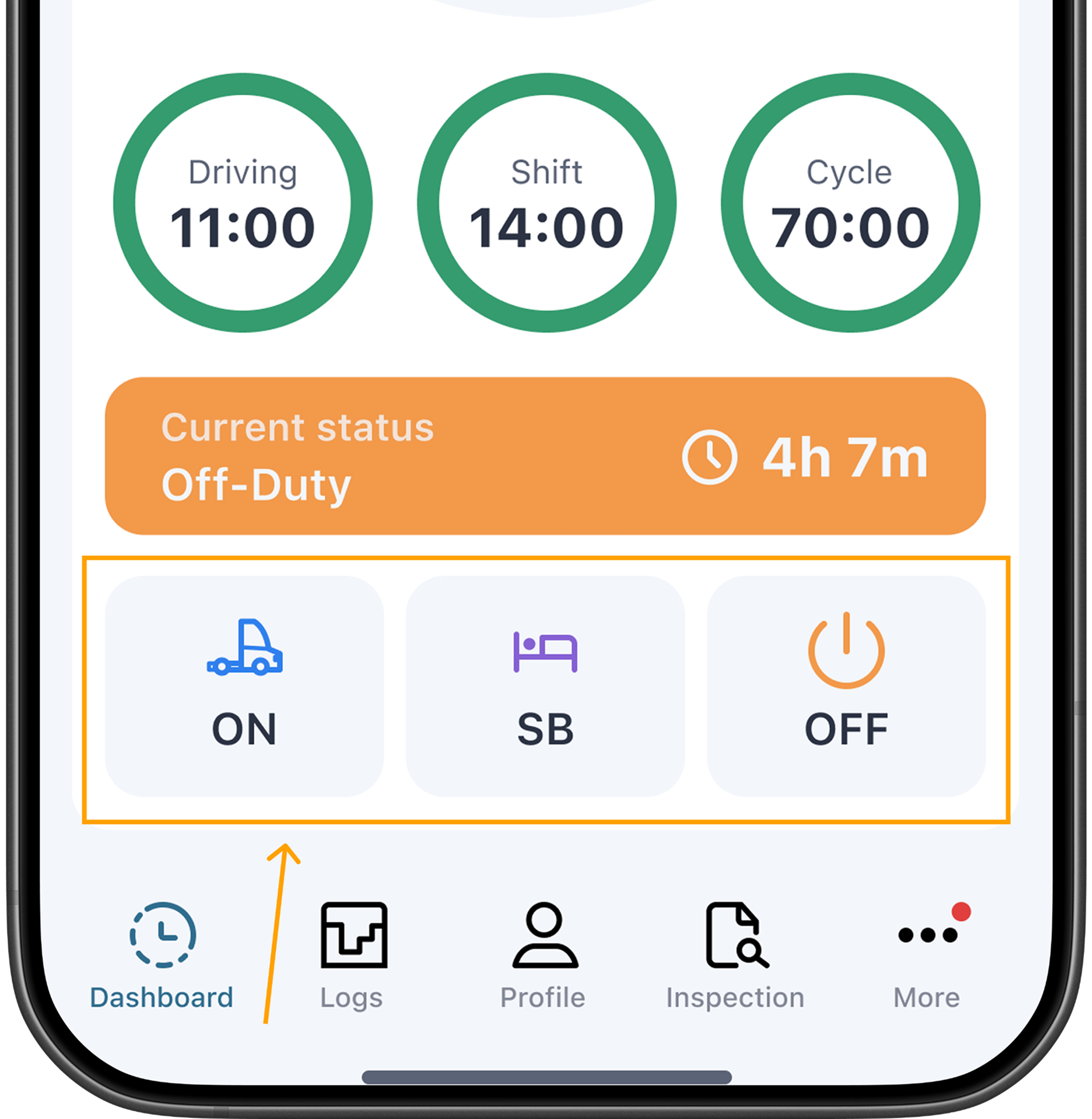
From the main screen, choose one of the available statuses.
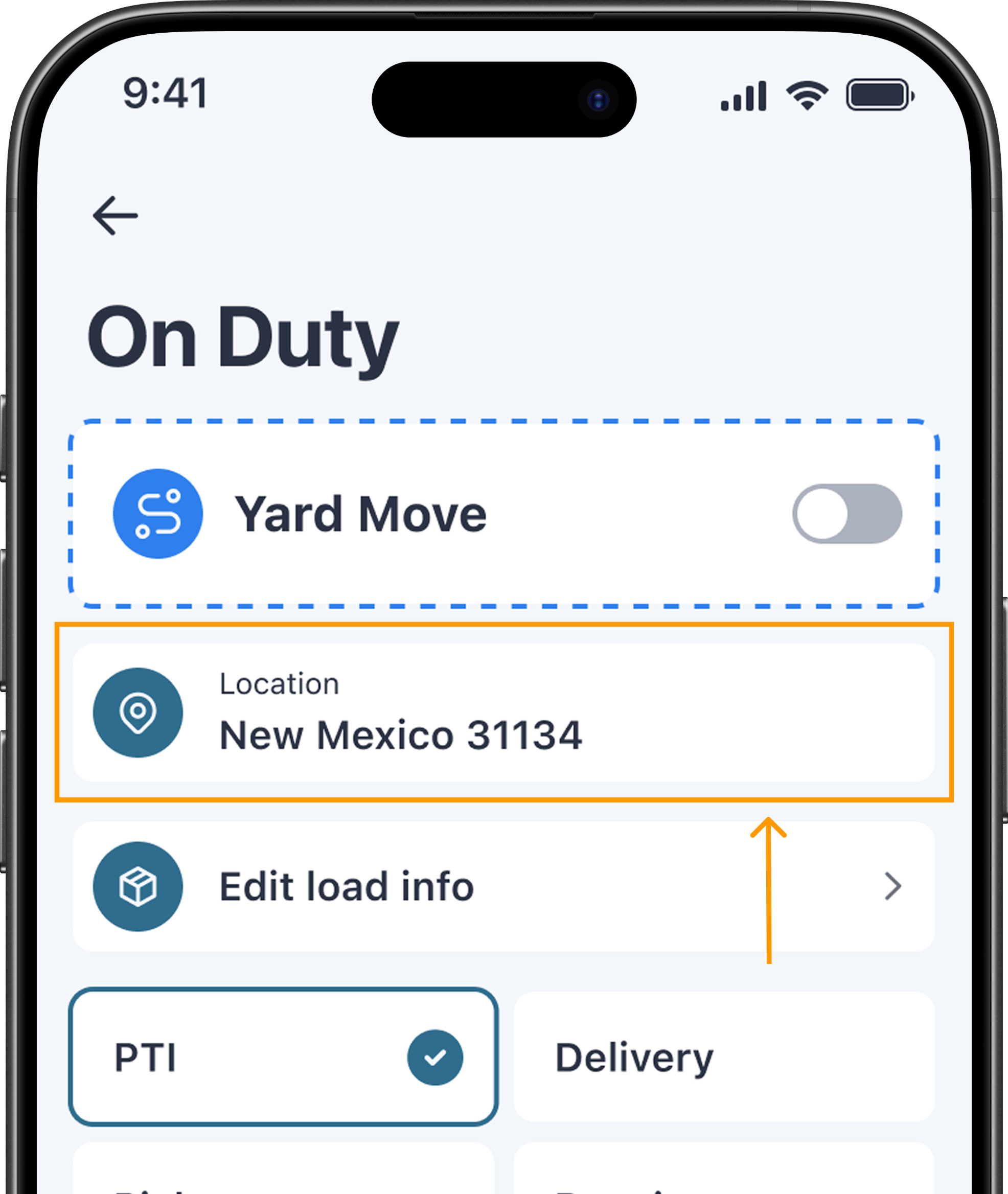
Verify that the location shown is correct before confirming.
Add a note for additional context. You can select from the preset options or type a custom note.
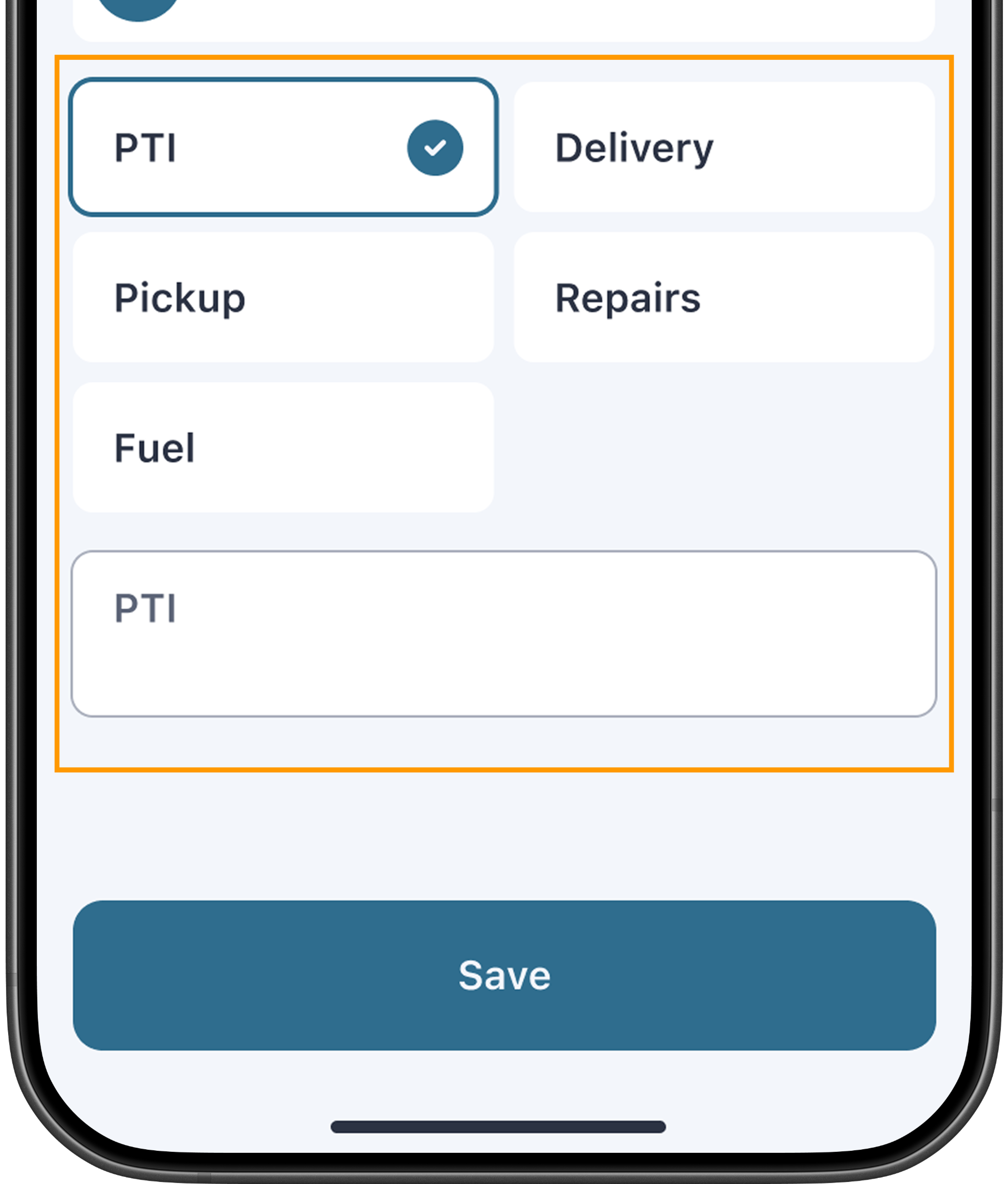
Tap Save.
Your duty status will update immediately and the new status will be reflected on the main screen.
Start driving
Before driving, complete a Pre-Trip Inspection (PTI) to confirm your vehicle is safe and roadworthy.
Once you're on the road, the app handles the rest:
The ELD considers the vehicle to be in motion when the speed exceeds 5 mph
When the speed threshold is crossed, your duty status automatically switches to Driving
The vehicle must be fully stopped to change your duty status manually
Special duty statuses
The app includes two extra statuses designed for specific situations:
Yard Move — Moving the vehicle on private property (e.g. a yard or terminal).
Personal Conveyance — Authorized off-duty travel in the vehicle (e.g. driving home)
Your motor carrier must authorize these statuses before they can be used. For a full walkthrough on activating these statuses, see Special duty statuses.