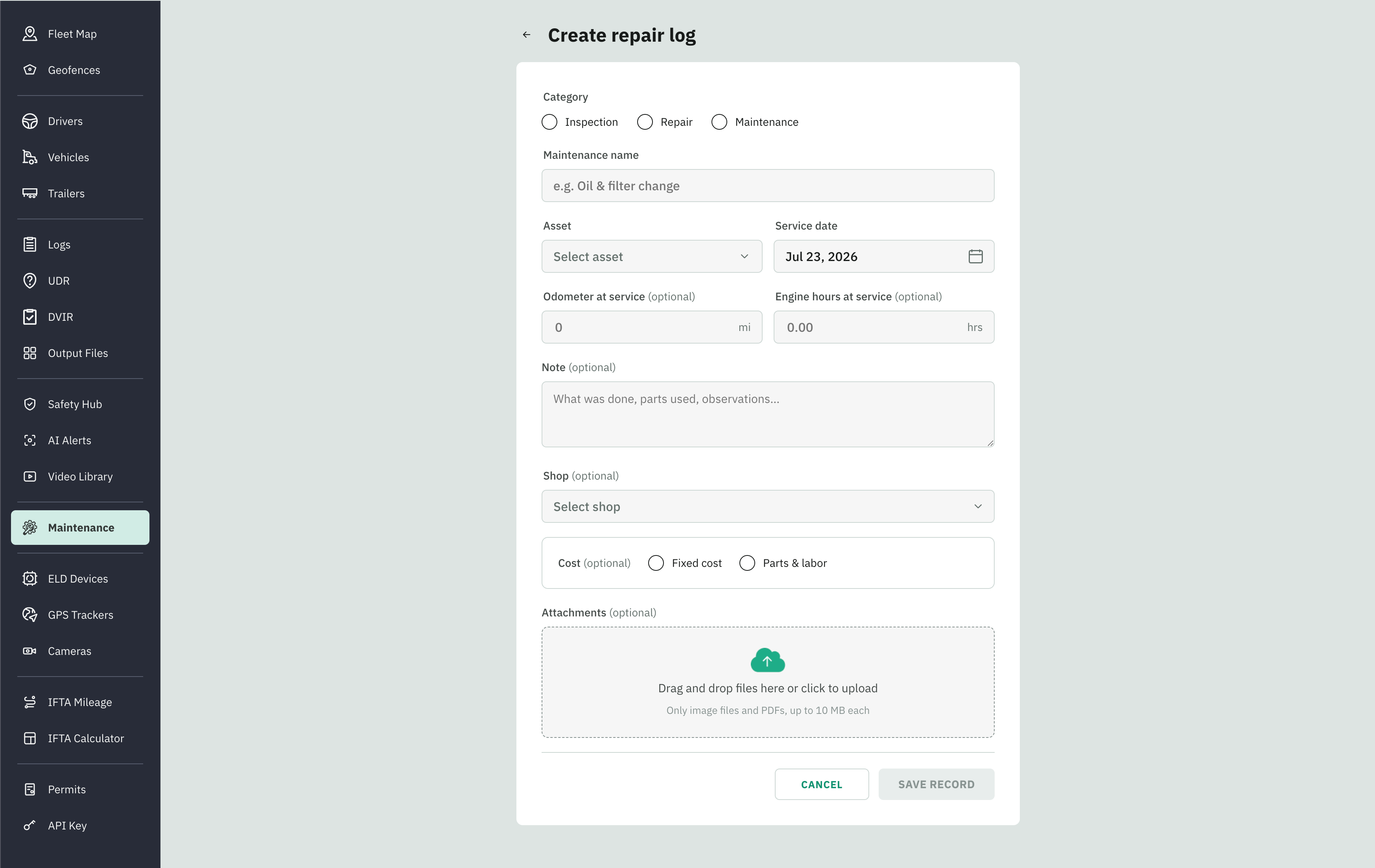
Log a Repair or Service
Last updated 24 days ago
The Log repair page is how a completed service becomes a record. Every entry you make here lands in Repair history, and if the log came from a schedule, it also rolls that schedule forward on Upcoming.
Two ways to open it
Log repair (the button on Repair history) — for a one-off repair with no schedule behind it, like an unplanned brake fix. This is filed as corrective maintenance.
Resolve (on an Upcoming row) — for closing out a scheduled service. This is covered in the Upcoming and Overdue Maintenance.
Log a Repair
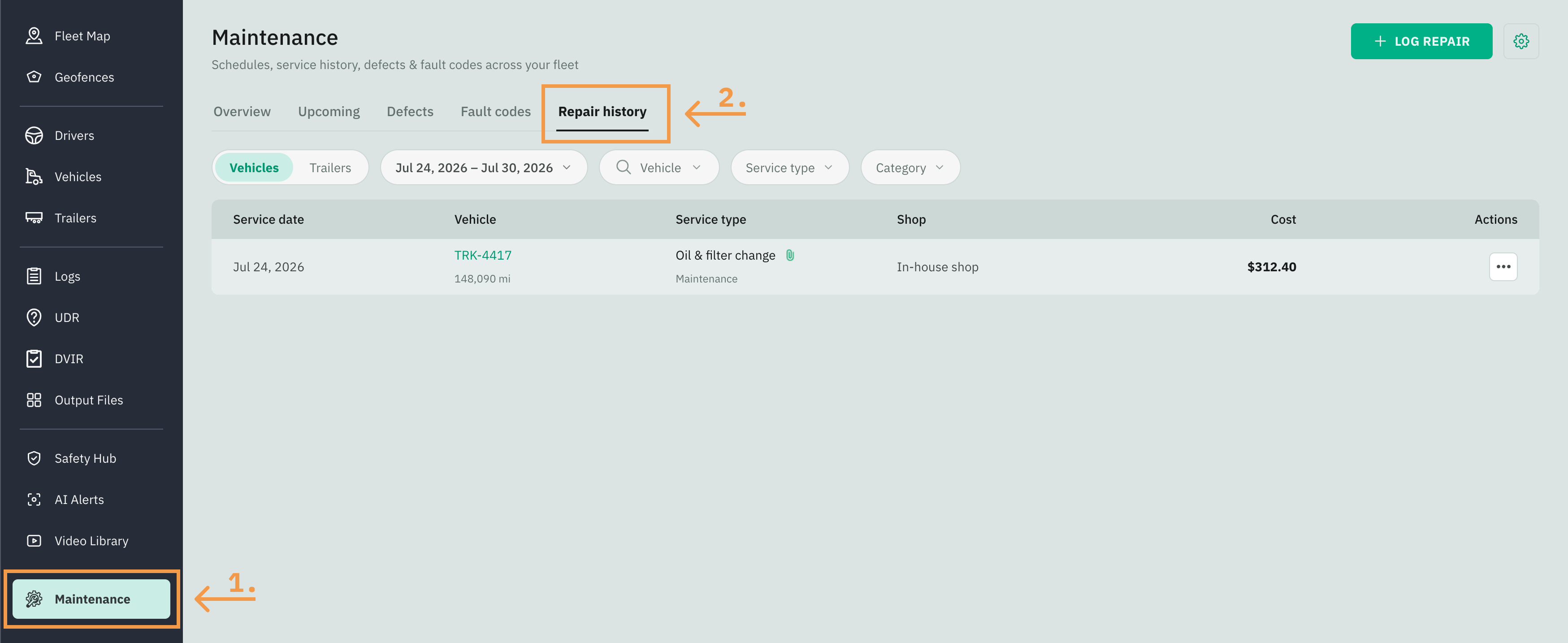
Go to Fleet Portal and click the Maintenance tab from the sidebar menu
Select the Repair history tab
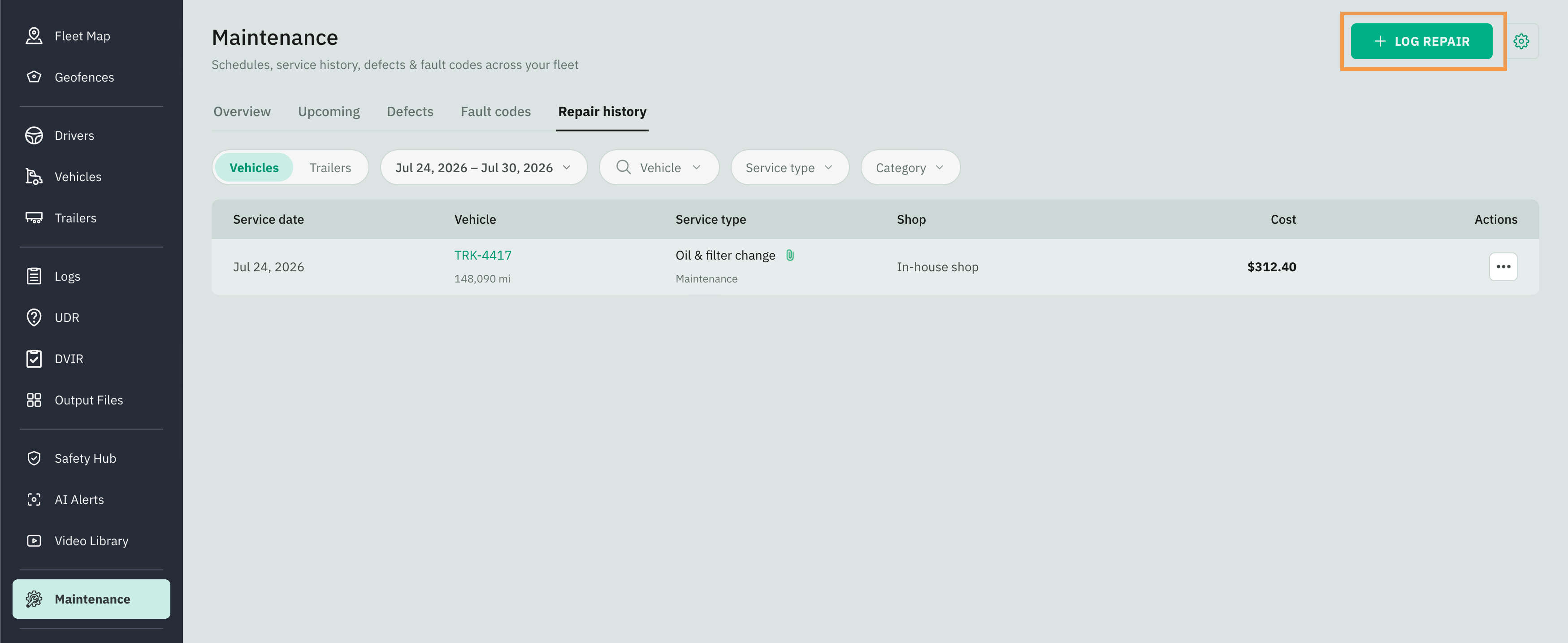
Click on the Log Repair button in the top right corner
Fill in with all the required information:
Choose the Category
Enter a Maintenance name
Select the Asset
Enter the Service date
Enter the Odometer and Engine Hours
Select the Shop where the maintenance was performed
Add the Cost, whether it is a Fixed cost or you can add the cost of the Parts used for this maintenance and the cost of Labor
Attach an invoice or inspection sheet and click Save & Resolve.