Add and manage fuel records
Last updated 25 days ago
Fuel records are the second part of your IFTA report (along with mileage). They determine how many gallons you bought and paid tax on in each state.
Fuel purchases aren't collected automatically. Add them manually or import them using the CSV template.
Each fuel record requires the purchase date, vendor, purchase location, gallons, total cost, and whether fuel tax was paid.
Only include diesel purchased for your truck's main fuel tank. Don't include reefer fuel, DEF, dyed diesel, or fuel for vehicles that aren't part of your IFTA fleet.
Note
Mark Tax-Paid based on your receipt. The IFTA Calculator doesn't verify whether fuel tax was actually paid.
Retail truck stops are usually tax-paid, while untaxed bulk fuel or purchases from tribal stations often aren't.
Only tax-paid gallons count toward IFTA credits. Keep your receipt—the IFTA Calculator doesn't store it.
Warning
If you operate non-diesel vehicles, you'll need to track and report their fuel separately. The IFTA Calculator supports diesel only.
Import fuel records using the CSV template
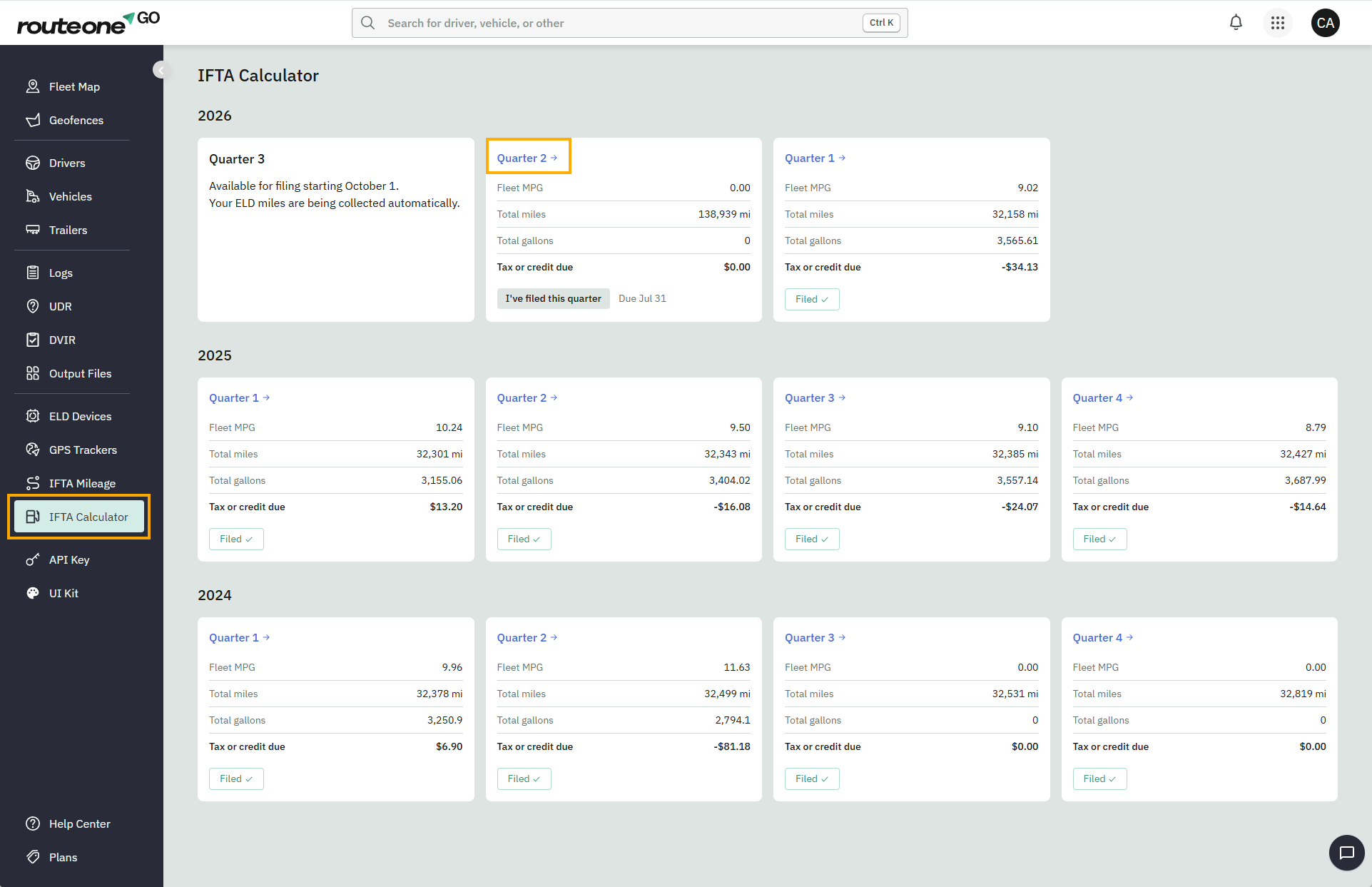
Navigate to the IFTA Calculator dashboard from the sidebar menu, and select a quarter
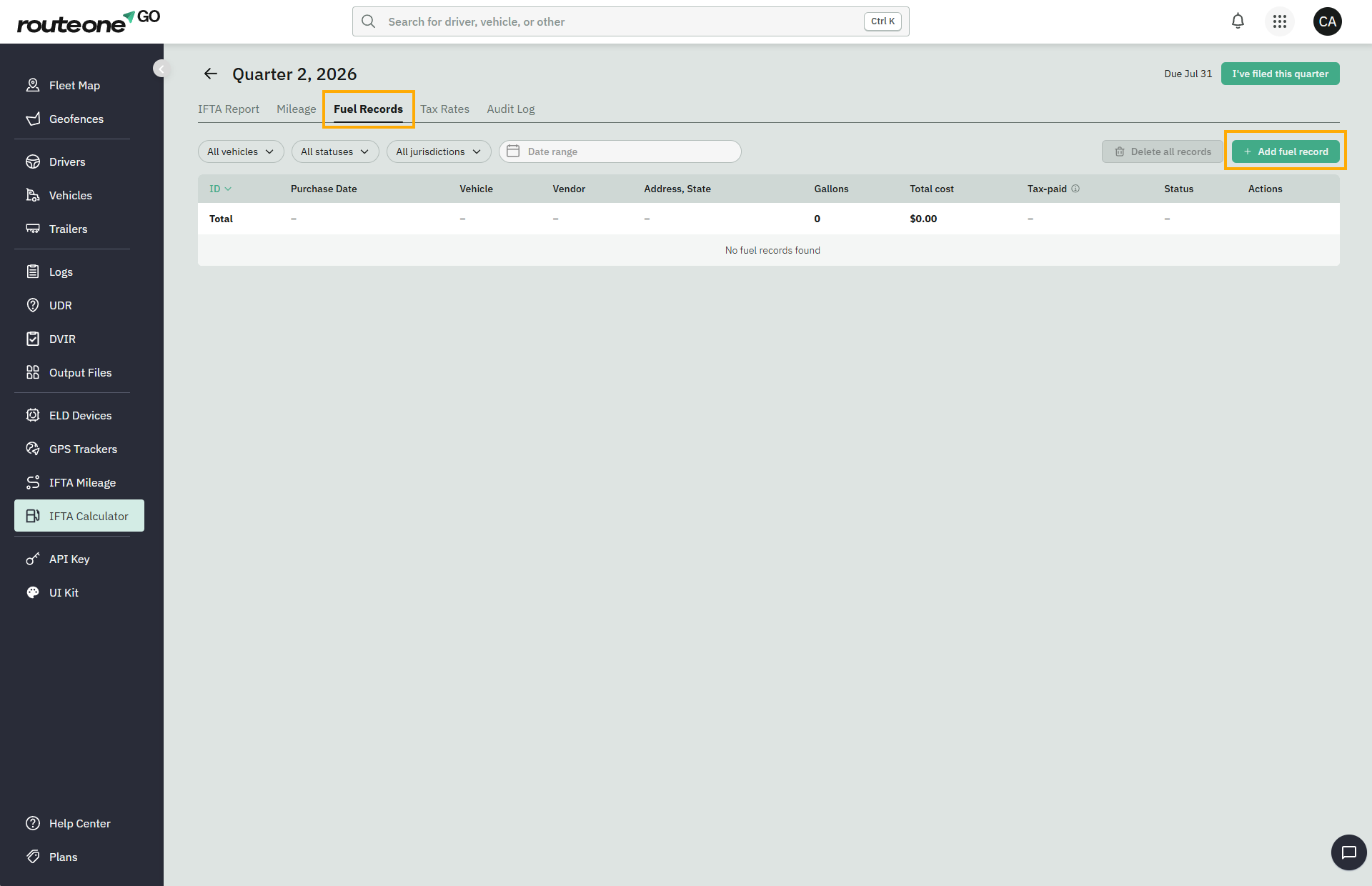
In the top bar, select the Fuel records tab, and click Add fuel record
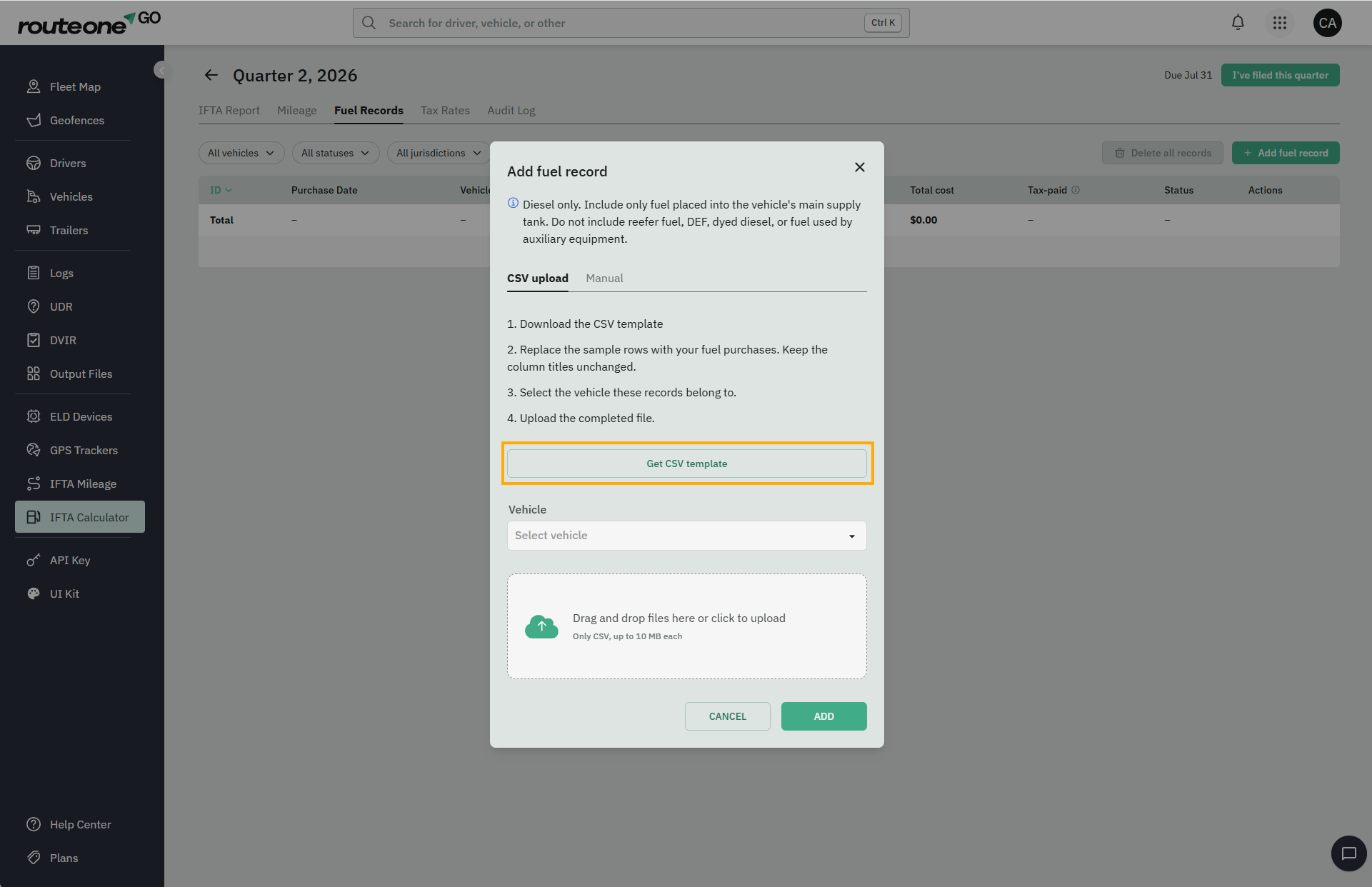
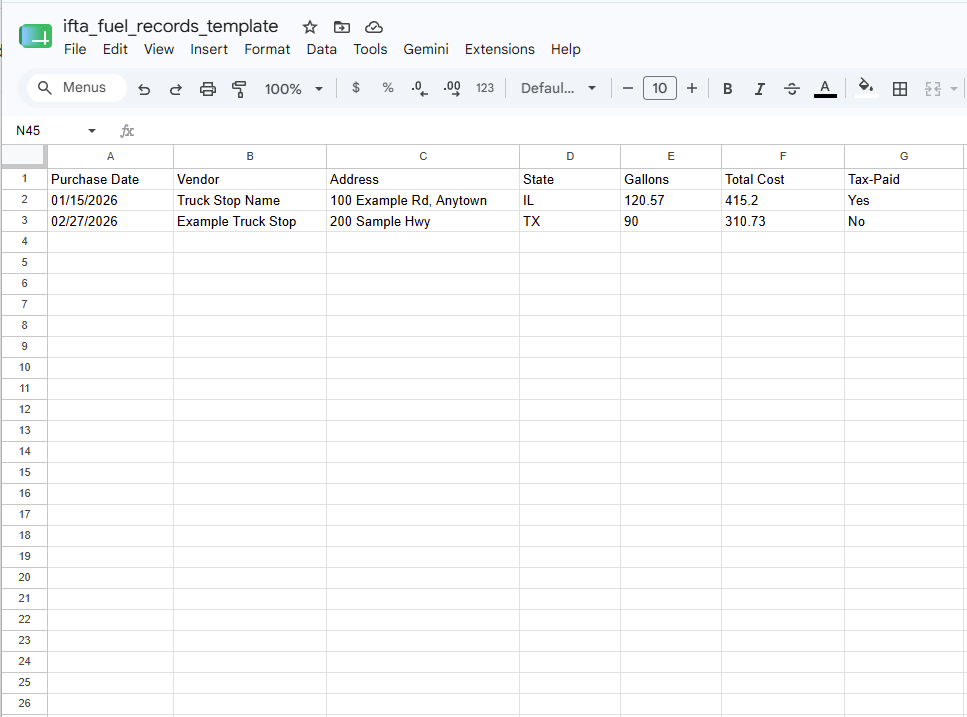
Download the CSV template and enter fuel purchases for this quarter. Include purchases for one vehicle only — you'll upload a separate file for each vehicle.
Before you upload:
Delete the two example rows in the template. They're sample data and shouldn't be imported.
Keep the column headers exactly as they are.
Enter the purchase date as MM/DD/YYYY.
Enter the state as its two-letter abbreviation (for example, TX or IL).
Enter Tax-Paid as Yes or No.
Every imported record is treated as diesel — there's no Fuel Type column.
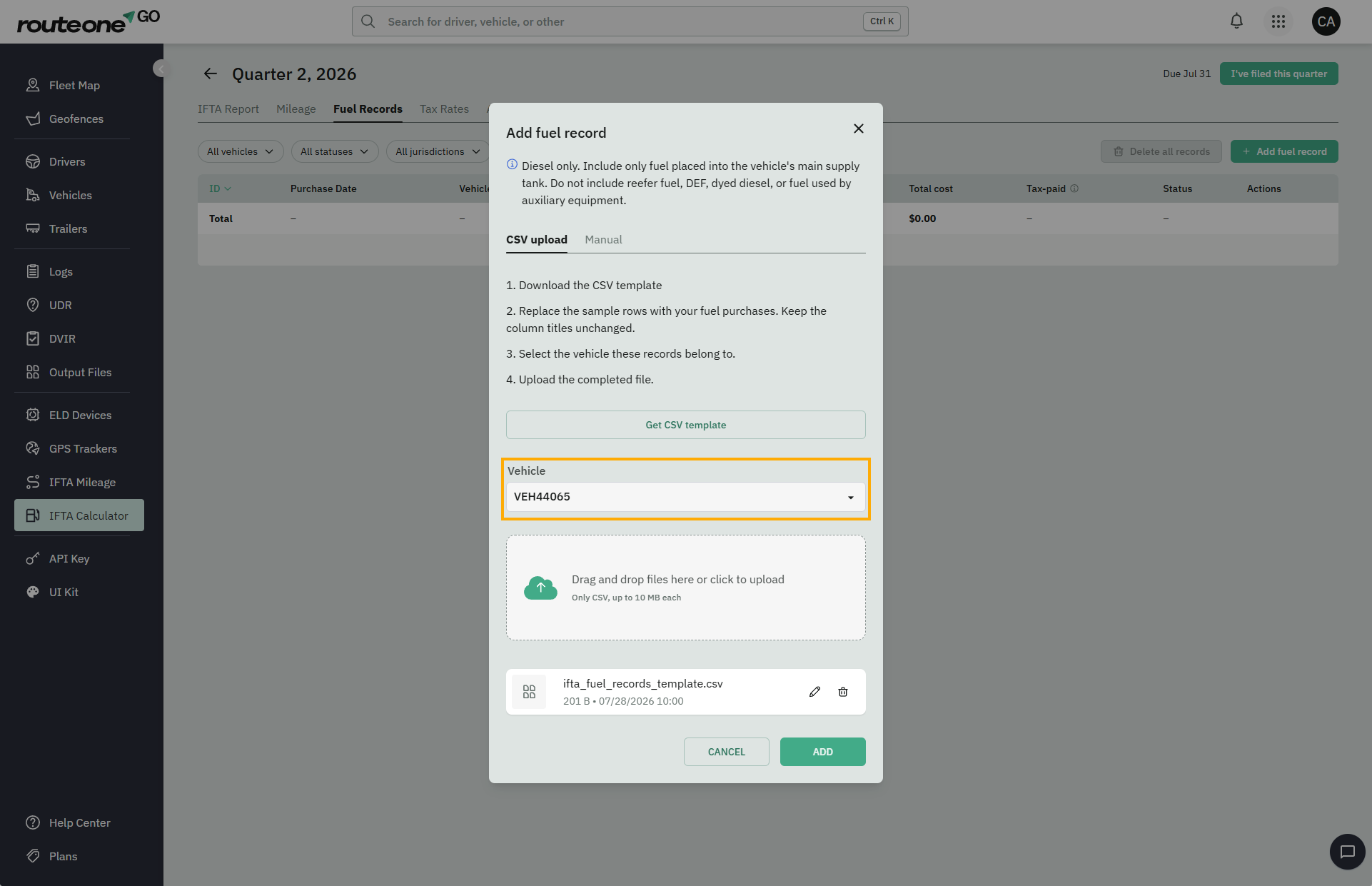
Select the vehicle the records belong to, then upload the completed file.
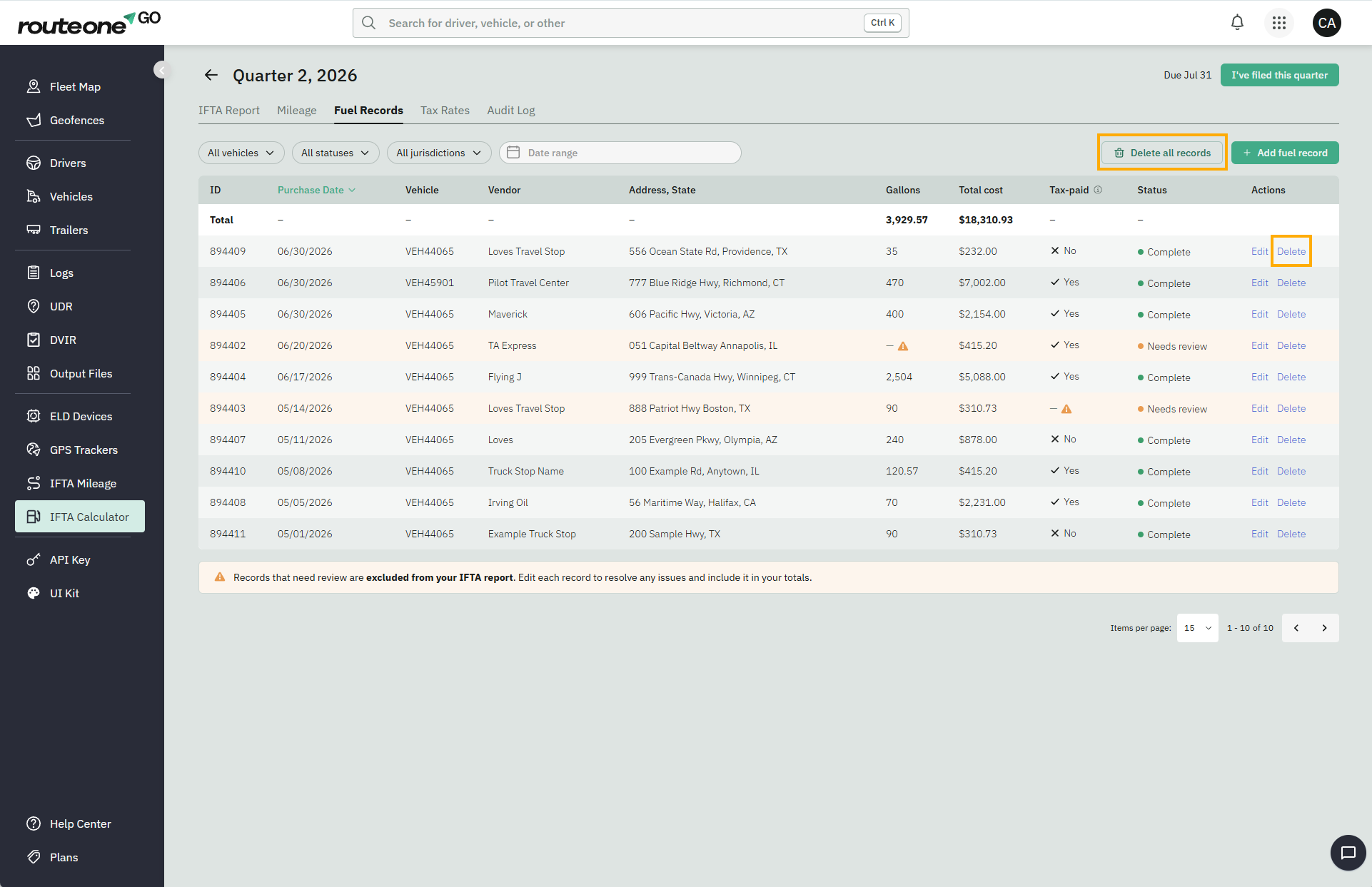
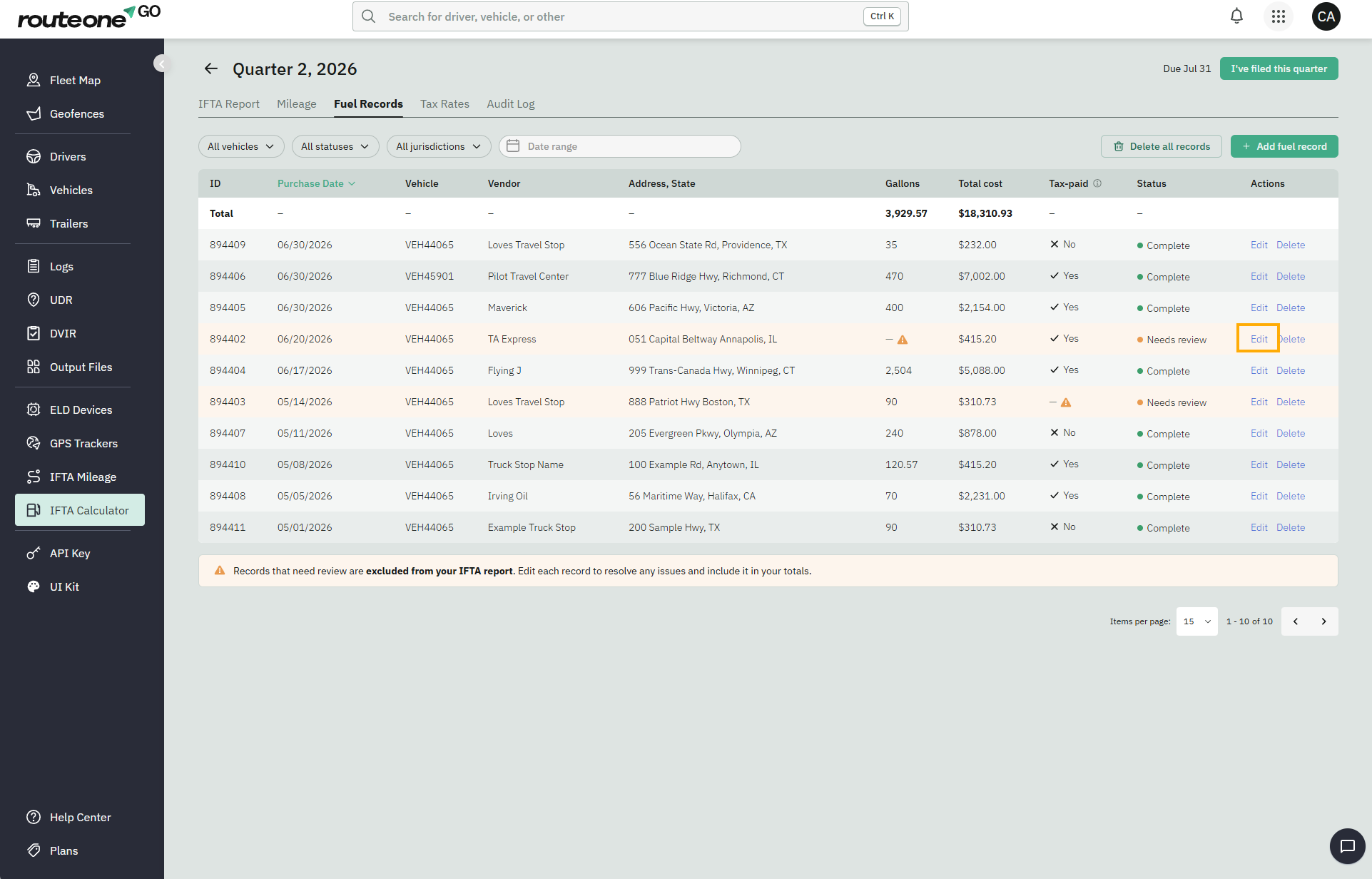
Once the import completes, the records appear in the table. Each record is marked Complete or Needs review depending on whether all required information is valid.
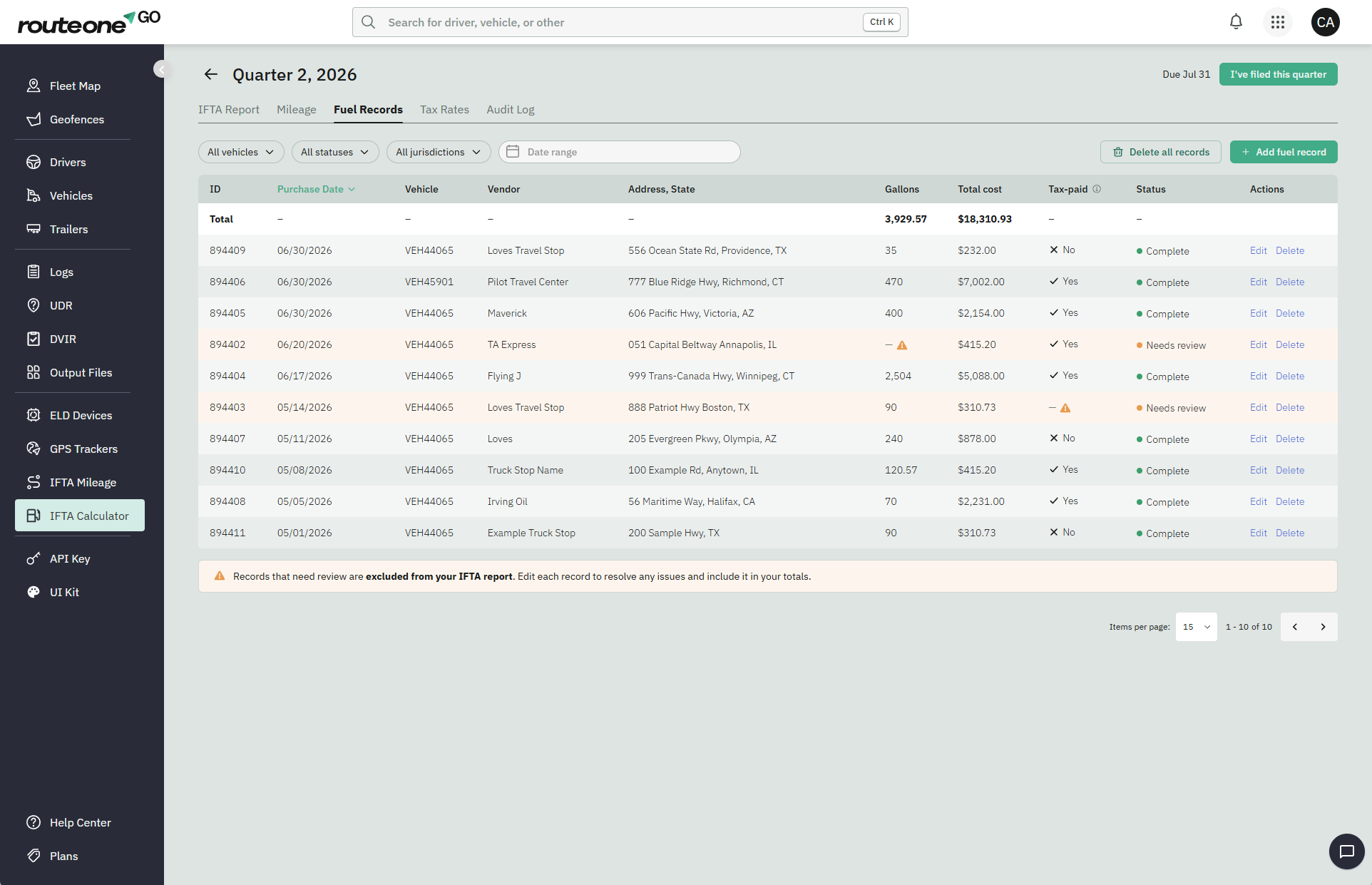
Records marked as Needs review are excluded from your IFTA report until they're corrected See section Fix records marked as Needs review below.
Add a fuel record manually
Click Add fuel record > Manual
Enter the required information and click Add.
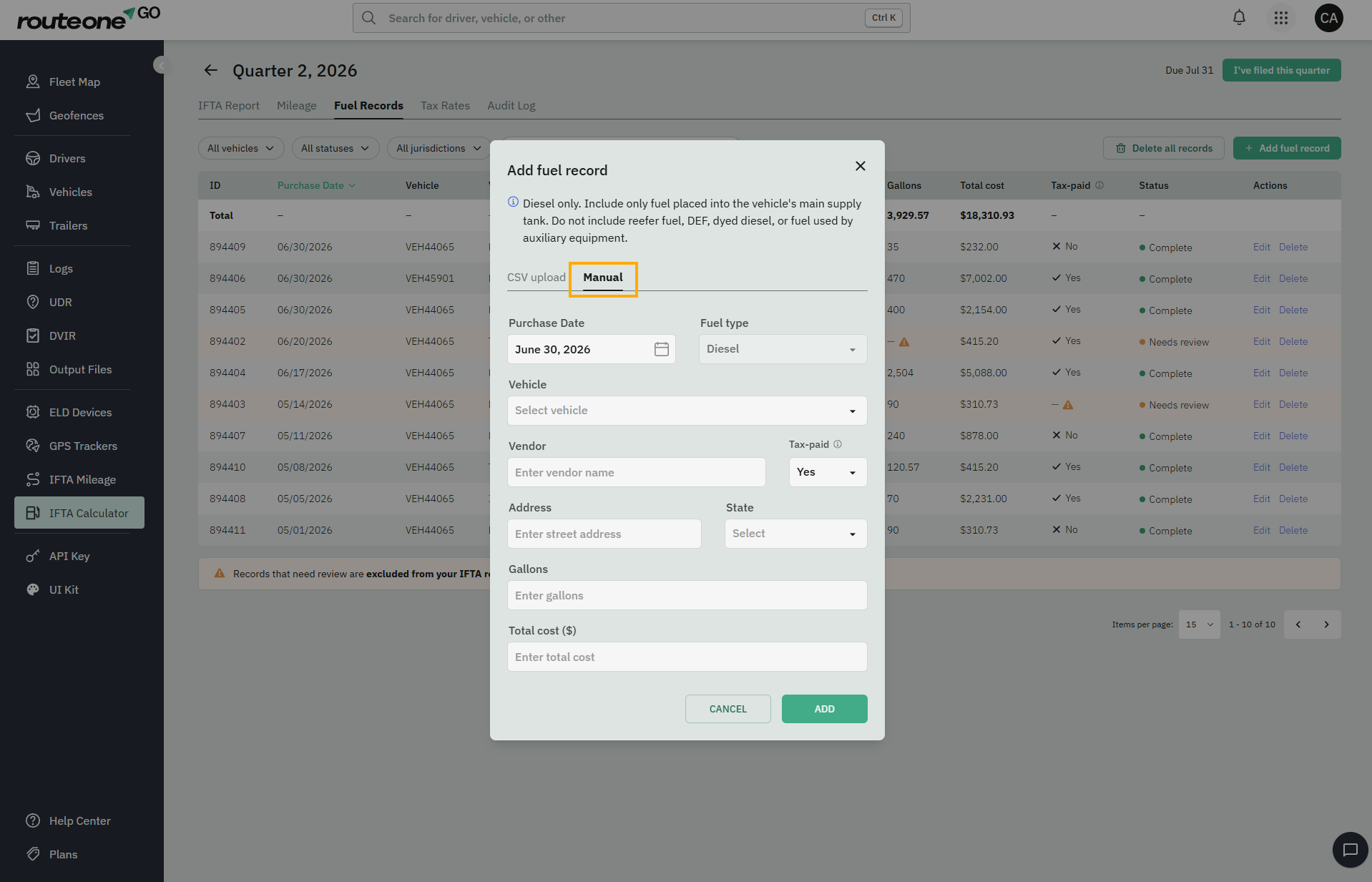
The new fuel record appears in the table immediately.
Fix records marked as Needs review
A fuel record is marked Needs review when required information is missing or invalid.
This usually happens with CSV imports. Manually entered records are validated as you enter them and can't be saved with missing or invalid information.
Common reasons include:
Missing address, state, gallons, cost, purchase date, or Tax-Paid value.
An invalid state or province.
Gallons or cost entered as zero.
A purchase date outside the selected quarter.
Records marked Needs review are excluded from your IFTA report until they're corrected.
Click Edit to review and fix the missing or invalid information.
Delete fuel records
To delete a single record, click Delete on that row.
To delete multiple records, use Delete all records. This permanently deletes every record matching the current filter, including records on other pages. This action can't be undone.