Repairs History
Last updated 24 days ago
Repair history is the record of every service your fleet has completed — scheduled work you resolved and one-off repairs you logged manually, newest first. Each entry opens to a full record, and you can edit or delete it from here.
Reading the history
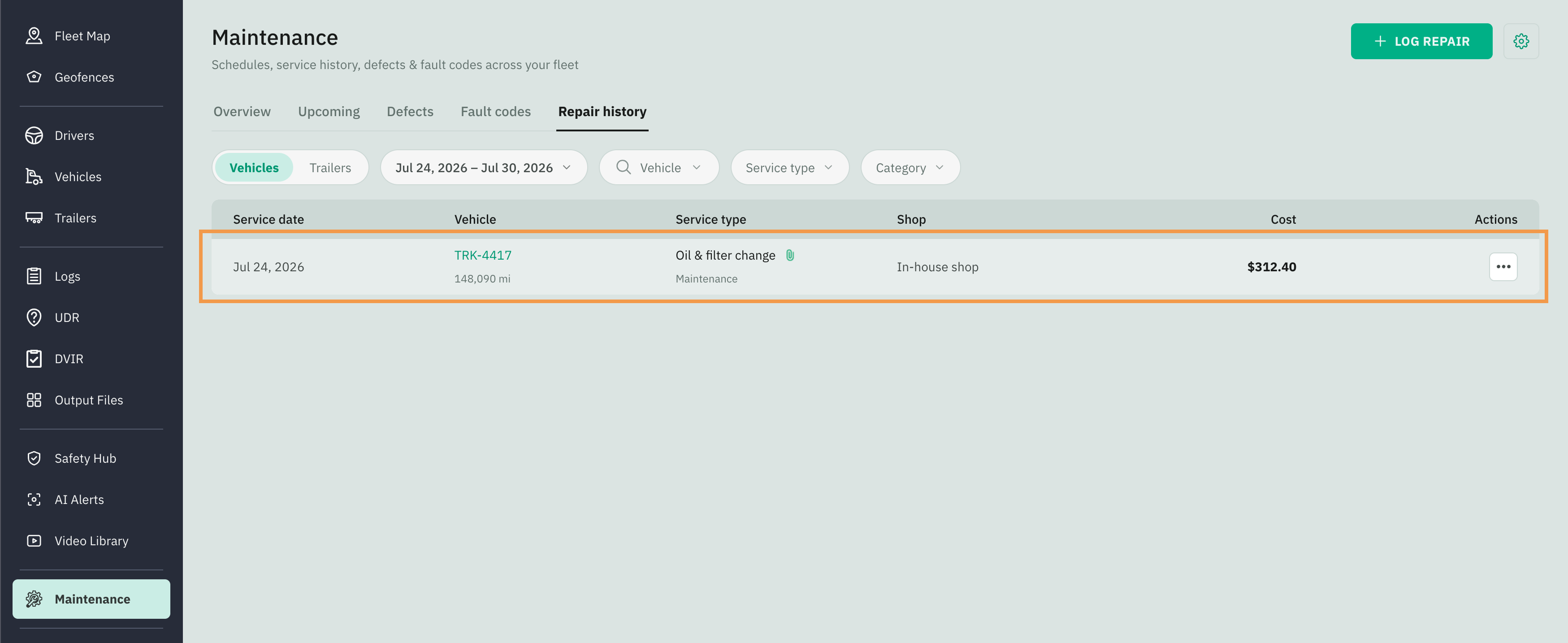
Each row shows:
Opening a record
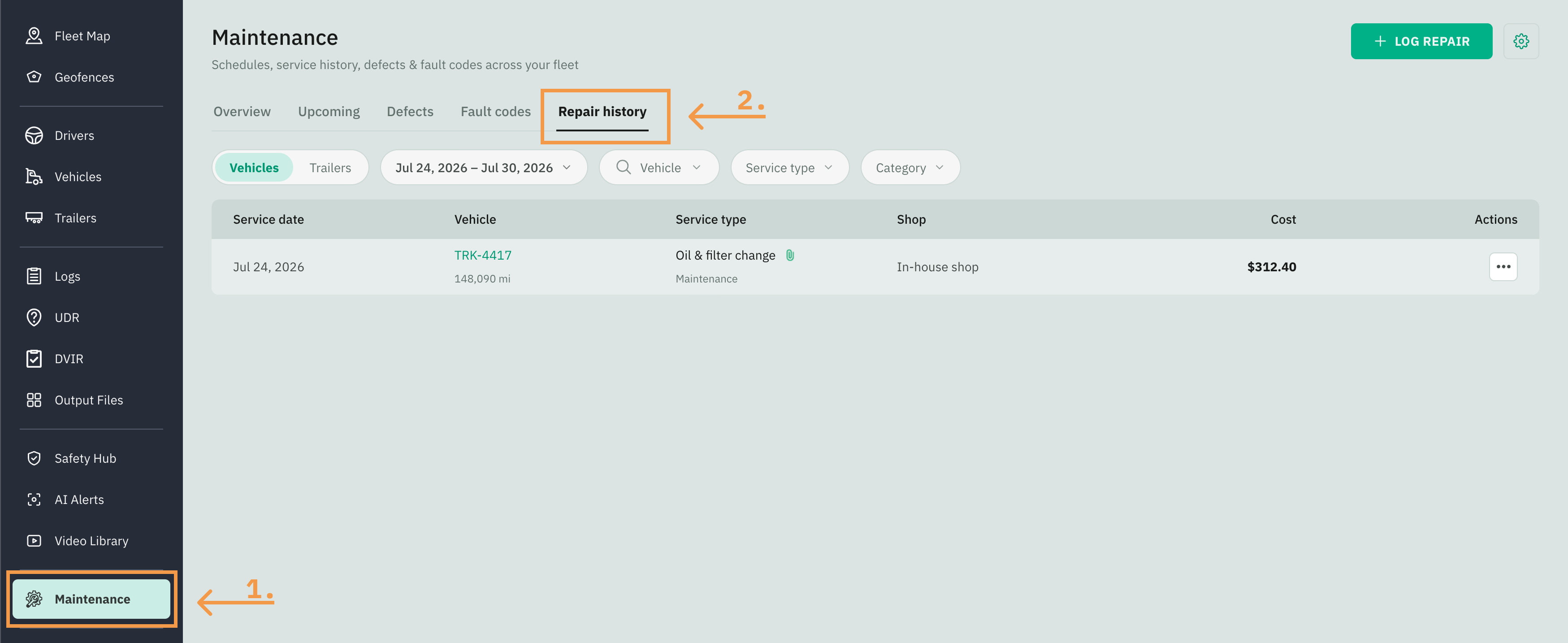
Go to Fleet Portal and click on the Maintenance tab from the sidebar menu
Select the Repair history tab
Click any row to open its full record page
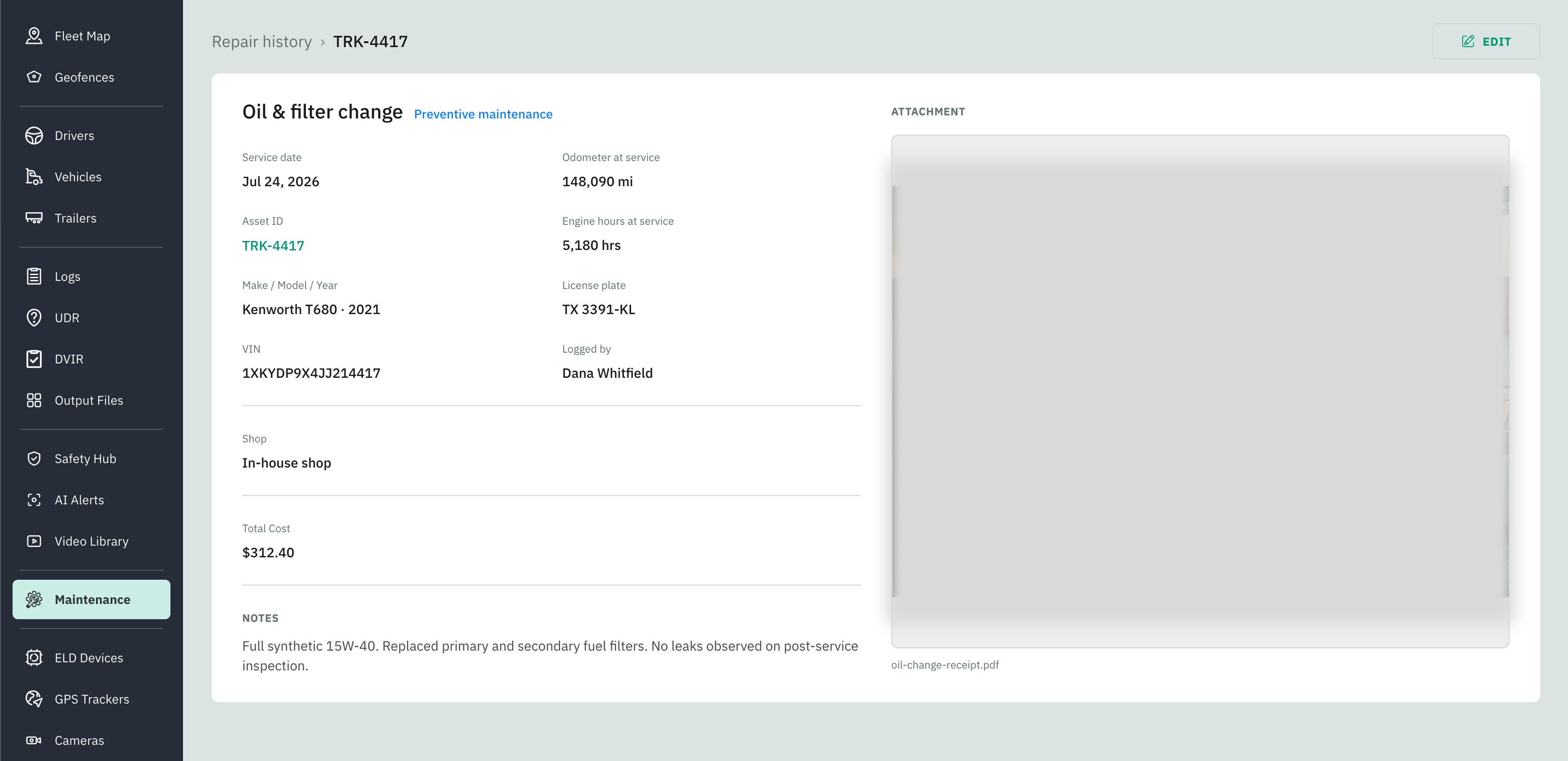
It lays out everything captured when the service was logged.
Editing a record
Open the record and click Edit, or use Edit from the row's three-dots menu on the Repair history tab. Either opens the Log repair page in edit mode.
Delete a record
Choose Delete from the row's three-dots menu on the Repair history tab. A confirmation asks you to confirm. Deleting removes the service record permanently.